- 133 -
Matching Colors Using UtilitiesPS Gamma Adjuster
4
3
5
1
2
Convenient print
functions
Appendix Index
Checking and
Changing Printer
Settings Using
the Control Panel
Network
Setup
Matching
Colors
Using Utility
Software
- 132 -
Matching Colors Using UtilitiesPS Gamma Adjuster
4
3
5
1
2
Convenient print
functions
Appendix Index
Checking and
Changing Printer
Settings Using
the Control Panel
Network
Setup
Matching
Colors
Using Utility
Software
Registering ICC proles
You can match the colors using the printer ICC
proles. ICC proles are used for overall color
management. To use this function, it is necessary
to register the ICC proles for the input devices
(monitors, scanners, digital cameras, etc.) in the
printer beforehand.
Note
z
If there are no proles in the input or output devices,
consult the device manufacturer or your dealer.
Windows
Use the Conguration Tool. For the
procedure details, see "Storage Manager
plug-in" (P.144).
Mac OS X
Note
z
The prole assistant is not enclosed on the "Software
DVD-ROM", so download it from the Intec Printing
Solutions homepage.
1
Start the prole assistant.
2
Select the [Networks] or [USB] tab.
If the device is connected using USB, select
[USB]. If the device is connected using a
network, select [Networks].
3
Select the device to be registered, and
click [Select].
Note
z
Not compatible with USB2.0. If using this utility
with USB, set the device USB baud rate to 12Mbps
to connect using USB1.1.
4
Click [Add] in the main window.
5
Select the prole to be registered, and
click [Select].
Memo
z
ICC proles are normally stored in the [Library]>
[ColorSync]>[Proles] folder.
If you cannot nd the ICC proles, consult your
device manufacturer.
6
Select the prole type.
7
Select the number of the prole to be
registered.
The registered numbers are underlined in
bold. If a registered number is selected, the
prole will be overwritten.
8
If necessary, enter a comment in the
[Comments] eld.
The comments are displayed in the prole
tables and the color prole list reports.
9
Click [Add].
10
Check that the registered proles are
displayed in the main window list, and
select [File] and then [Close].
Memo
z
Registered proles can be used in color matching for the
[Graphic Pro] functions.
z
Steps 2 and 3 are omitted when the prole assistant
utility is started subsequently, and the utility is connected
to the device that was last used. To change the connected
printer, select [Printer selection] in Step 4.
Reference
z
For how to print the color prole list, see "Color prole
list" (P.223).
(5)
Select the color to be printed from
the printed color samples, and note
down the printed RGB value.
Memo
z
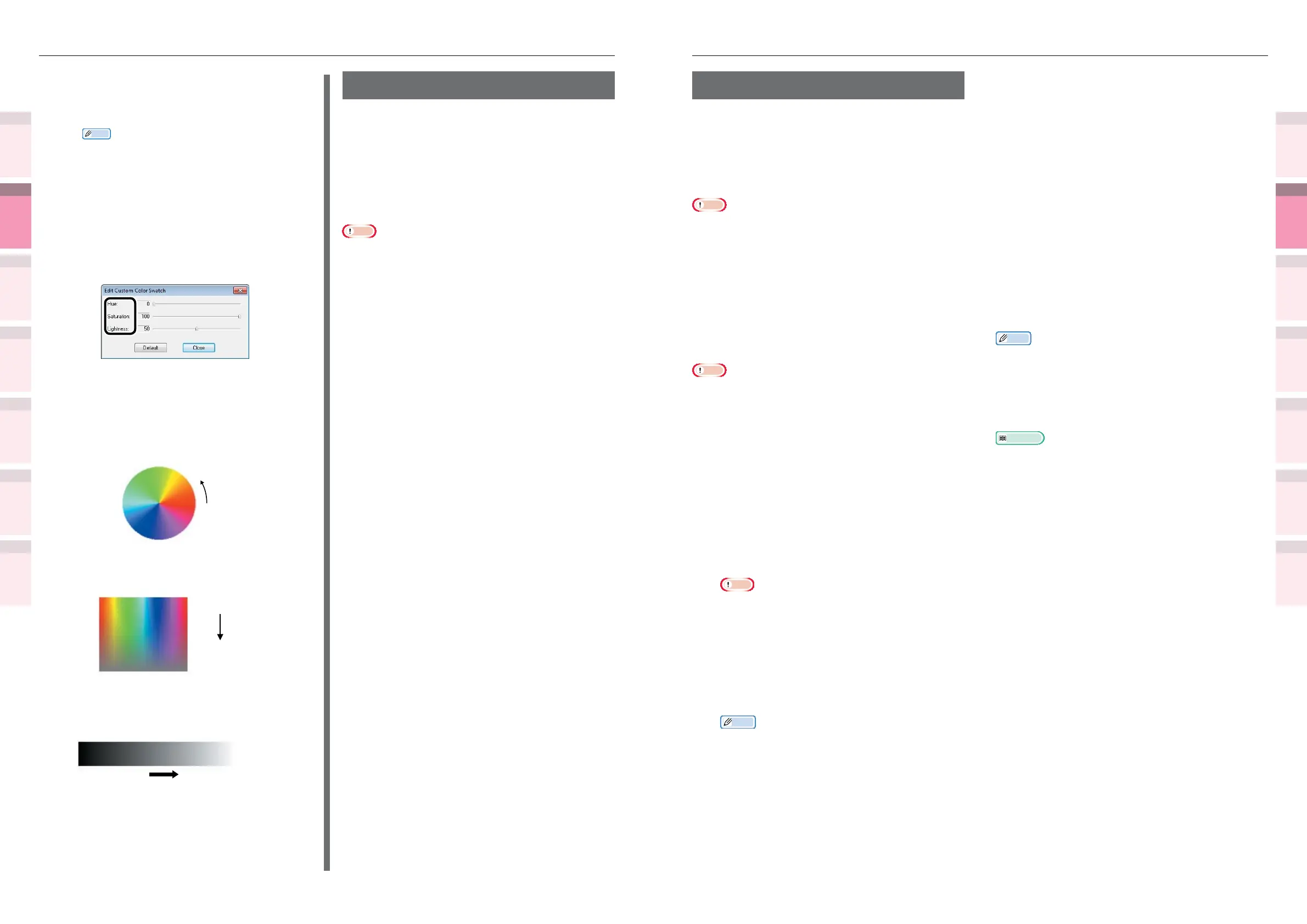
If there are no colors in the color samples that
you want to print, customize the color samples
using the following procedure.
(6)
Click the [Switch] button to switch
to custom color samples.
(7)
Click the [Advanced] button to
display the [Edit Custom Color
Swatch] dialog box.
(8)
Adjust the three bars until the
desired colors are displayed in the
monitor window, and click [Close].
z
Hue: Changes the hue. 0 denotes red, and to
increase the value, rotate once towards the
green direction.
Increase
0
z
Saturation: Changes the vividness. The greater
the saturation the more vivid, and the lower the
saturation, the darker (grayer) the result.
Saturation 100
Saturation 0
z
Brightness: Changes the darkness. If the
brightness is at maximum (100%), the image
turns white, and at its darkest (0%), the image
turns black.
Brightness 0 Brightness 100
(9)
Click the [Print] button.
(10)
Select the device.
Prole assistant
This section explains the prole assistant utility.
You can match the colors using the printer ICC
proles. ICC proles are used for overall color
management. To use this function, it is necessary
to register the ICC proles for the input devices
(monitors, scanners, digital cameras, etc.) in the
printer beforehand. To register an ICC prole,
use the prole assistant.
Note
z
The prole assistant is not enclosed on the "Software
DVD-ROM", so download it from the Intec Printing
Solutions homepage.
z
If there are no proles in the input or output devices,
consult the device manufacturer or your dealer.
z
To register an ICC prole, it is necessary to mount the
(optional) HDD to the device.



 To Next Page