- 72 - - 73 -
Advanced print functions Advanced print functions
4
1
2
3
5
4
1
2
3
5
Convenient print
functions
Appendix Index
Checking and
Changing Printer
Settings Using
the Control Panel
Network
Setup
Matching
Colors
Using Utility
Software
Convenient print
functions
Appendix Index
Checking and
Changing Printer
Settings Using
the Control Panel
Network
Setup
Matching
Colors
Using Utility
Software
3
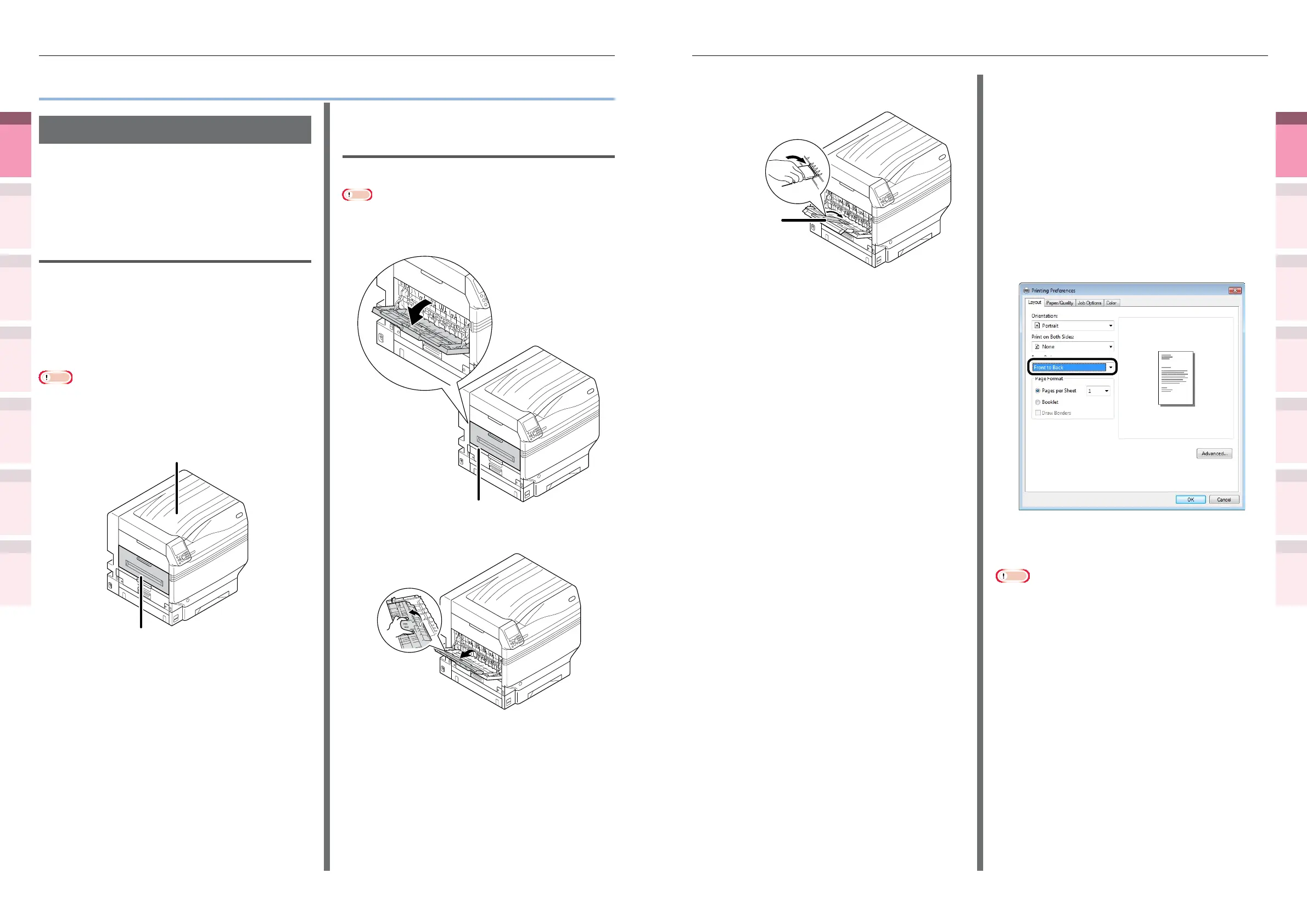
Rotate the auxiliary supporter in the
direction of the arrow into the lock position.
Supplementary
supporter
Using Windows PS printer drivers
1
Open the le to be printed.
2
Select [Print] in the [File] menu.
3
Click [Advanced] (or [Preferences]).
4
Select [Stacker (Face-up)] in [Output
Bin] in the [Job Options] tab.
5
Select [Front to Back] in [Page Order]
in the [Layout] tab.
6
Printing will be implemented.
Note
z
If the [Page Order] item is not displayed, right-click the
[Intec (printer name) (PS)] in the [Devices and Printers]
folder, and enable [Enable advanced printing features] in
[Printer Properties]>[Advanced] tab.
z
Advanced print functions
Setting the page order
Extracts in page order when printing documents
with multiple pages.
There are two methods.
Printing documents in page
order
The printed documents are output face-down.
1
Open the document to be printed.
2
Specify the face-down stacker as the
Output Bin to print.
Note
z
For paper weights with GSM 320 to 400g/m
2
(ream weight
275 to 310kg), custom size paper with a length less than
147mm, envelopes, labels, and transparencies, make sure
to open the face-up stacker and output the documents
face-up.
Face-up stacker
Face-down stacker
Printing documents in reverse
page order
The printed documents are output face-up.
Note
z
Cannot be used with Windows PCL printer drivers.
1
Open the face-up stacker at the back of the device.
Face-up stacker
2
Open the paper supporter.



 To Next Page