- 228 - - 229 -
Printing printer information Printing printer information
1
2
3
5
4
1
2
3
5
4
Convenient print
functions
Appendix Index
Checking and
Changing Printer
Settings Using
the Control Panel
Network
Setup
Matching
Colors
Using Utility
Software
Convenient print
functions
Appendix Index
Checking and
Changing Printer
Settings Using
the Control Panel
Network
Setup
Matching
Colors
Using Utility
Software
Restricting menu displays
(menu lockout)
Set to restrict menu operations so that the
device settings are not changed unintentionally.
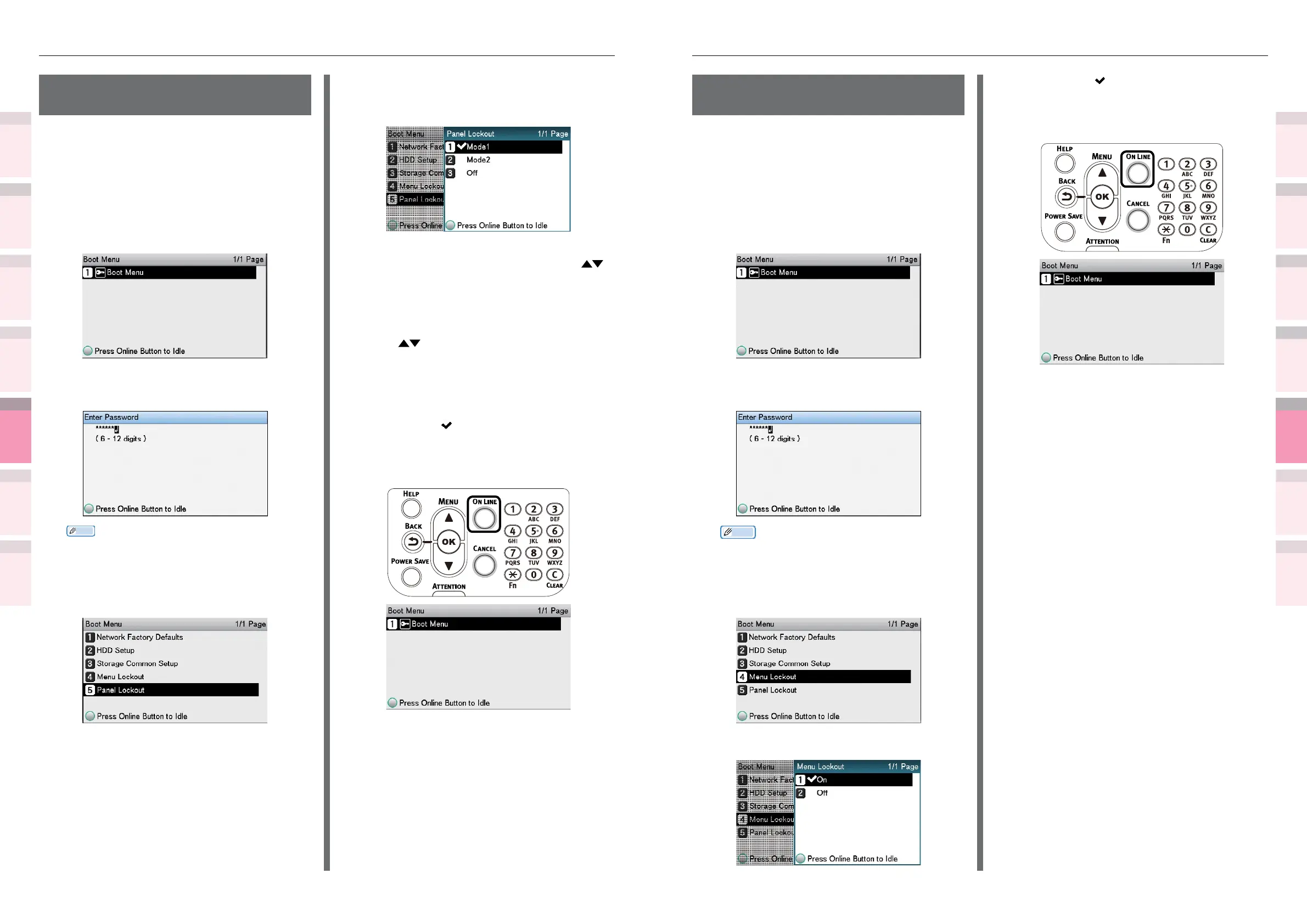
1
Press and hold the [OK] button, and
press the power switch.
2
Check that [Boot Menu] has been
selected, and press the [OK] button.
3
Enter the password, and press the [OK]
button.
Memo
z
This is the same as the administrator password. The
default factory setting is [aaaaaa].
4
Select [Menu Lockout], and press the
[OK] button.
5
Select [On], and press the [OK] button.
6
Check that is displayed to the left of
[On], and press the [ON LINE] button.
The display will return to the Boot
Menu.
7
Restart the printer.
Restricting button
operations (panel lockout)
Set to restrict button operations so that the
device settings are not changed unintentionally.
1
Press and hold the [OK] button, and
press the power switch.
2
Check that [Boot Menu] has been
selected, and press the [OK] button.
3
Enter the password, and press the [OK]
button.
Memo
z
This is the same as the administrator password. The
default factory setting is [aaaaaa].
4
Select [Panel Lockout], and press the
[OK] button.
5
Specify the operations buttons mode
to be restricted, and press the [OK]
button.
z
Mode1:
The [BACK] button, scroll buttons
,
and 10-key pad are disabled.
z
Mode2:
The [HELP] button, [BACK] button,
[POWER SAVE] button, scroll buttons
, [CANCEL] button, and 10-key
pad are disabled.
z
Off:
All operations buttons are enabled.
6
Check that is displayed to the left of
the designated mode, and press the [ON
LINE] button. The display will return to
the Boot Menu.
7
Restart the printer.



 To Next Page