- 62 - - 63 -
Clean printing Clean printing
4
1
2
3
5
4
1
2
3
5
Convenient print
functions
Appendix Index
Checking and
Changing Printer
Settings Using
the Control Panel
Network
Setup
Matching
Colors
Using Utility
Software
Convenient print
functions
Appendix Index
Checking and
Changing Printer
Settings Using
the Control Panel
Network
Setup
Matching
Colors
Using Utility
Software
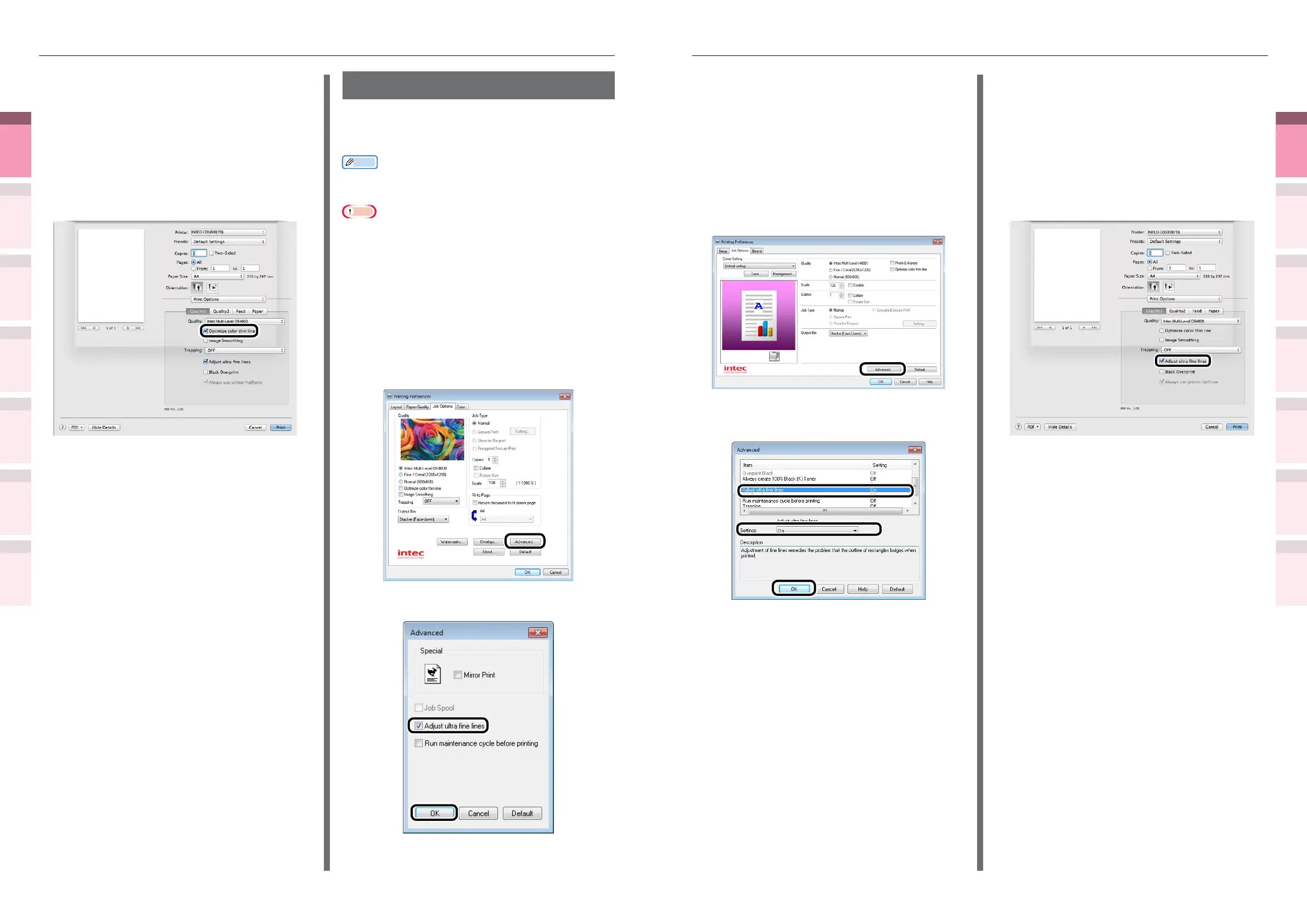
Using Windows PCL printer drivers
1
Open the le to be printed.
2
Select [Print] in the [File] menu.
3
Click [Advanced] (or [Preferences]).
4
Click [Advanced] in the [Job Options]
tab.
5
Select [Adjust ultra ne lines], and then
select [On] in [Settings], and click [OK].
6
Printing will be implemented.
Using Mac OS X printer drivers
1
Open the le to be printed.
2
Select [Print] in the [File] menu.
3
Click [Quality 1] in the [Print Options]
panel, and enable the [Adjust ultra ne
lines] check box.
4
Printing will be implemented.
Using Mac OS printer drivers
1
Open the le to be printed.
2
Select [Print] in the [File] menu.
3
Click [Quality 1] in the [Print Options]
panel, and enable the [Optimize color
thin line] check box.
4
Printing will be implemented.
Compensating ne lines
You can prevent misaligned lines being printed
when ultra-ne lines are specied from the
application. This function is normally ON.
Memo
z
Depending on the application, bar code and other intervals
will narrow. In this case, turn OFF the function.
Note
Using Windows PS printer drivers
1
Open the le to be printed.
2
Select [Print] in the [File] menu.
3
Click [Advanced] (or [Preferences]).
4
Click [Advanced] in the [Job Options]
tab.
5
Enable the [Adjust ultra ne lines]
check box, and click [OK].
6
Printing will be implemented.



 To Next Page