- 84 - - 85 -
Advanced print functions Advanced print functions
4
1
2
3
5
4
1
2
3
5
Convenient print
functions
Appendix Index
Checking and
Changing Printer
Settings Using
the Control Panel
Network
Setup
Matching
Colors
Using Utility
Software
Convenient print
functions
Appendix Index
Checking and
Changing Printer
Settings Using
the Control Panel
Network
Setup
Matching
Colors
Using Utility
Software
(5)
Select [Print], and press the [OK]
button.
Print Secure Job
Encrypted Job
Stored Job
Stored Job 1/1 Page
Print
Memo
z
Select [Delete], and press the [OK] button to
delete a job.
(6)
Use 10-key pad or the scroll
buttons
or to enter the print
quantity, and press the [OK]
button.
Reference
z
You can use the Conguration Tool to delete the secure
print job. For details, see “Deleting unnecessary jobs from
the HDD” (P.146).
Printing using registered
forms (overlay printing)
You can register forms, logos, etc., as forms to
the device, and overlay for printing.
Note
z
Cannot be used with Mac OS X printer drivers.
z
For how to set up the Conguration Tool, see “Conguration
Tool” (P.140).
z
If using Windows PS printer drivers, PC administrator
privileges are required.
Memo
z
Overlay is the form group. You can register 3 forms to 1
overlay. Forms and overlays are overlaid in the order of
registration.
Using Windows PS printer drivers
1
Create and register the form to the
device.
For details, see “Registering forms (form
overlay)” (P.145).
2
Register the form to the printer drivers
to print.
(1)
Click [Start], and then select
[Devices and Printers].
(2)
Right-click the [Intec (product
name) (PS)] icon, and select
[Printing Preferences]>[Intec
(product name) (PS)].
(3)
Select the [Job Options] tab.
(4)
Click [Overlays].
(5)
Select [Use Overlays] from the
drop-down list, and click [New].
(4)
If using PS printer drivers, select
[Store for Re-print] in [Job Type]
in the [Job Options] tab. If using
PCL printer drivers, select [Store for
Re-print] in [Job Type] in the [Job
Options] tab.
(Windows 7 PS printer driver screen)
(Windows 7 PCL printer driver screen)
(5)
Input the "Job Name" and
"Personal ID Number" in the
"
JOB
PIN
"
screen, and click [OK].
z
Request Job Name for each job
When printing is implemented, a screen to enter
the job name will be displayed.
z
Personal ID Number
Set using 4 digits.
z
Job Name
Set using up to 16 single-byte alphanumeric characters.
(6)
Printing will be implemented.
If [Request Job Name for each print
job] is enabled, enter the "Job Name"
in the "Job PIN" screen, and click [OK].
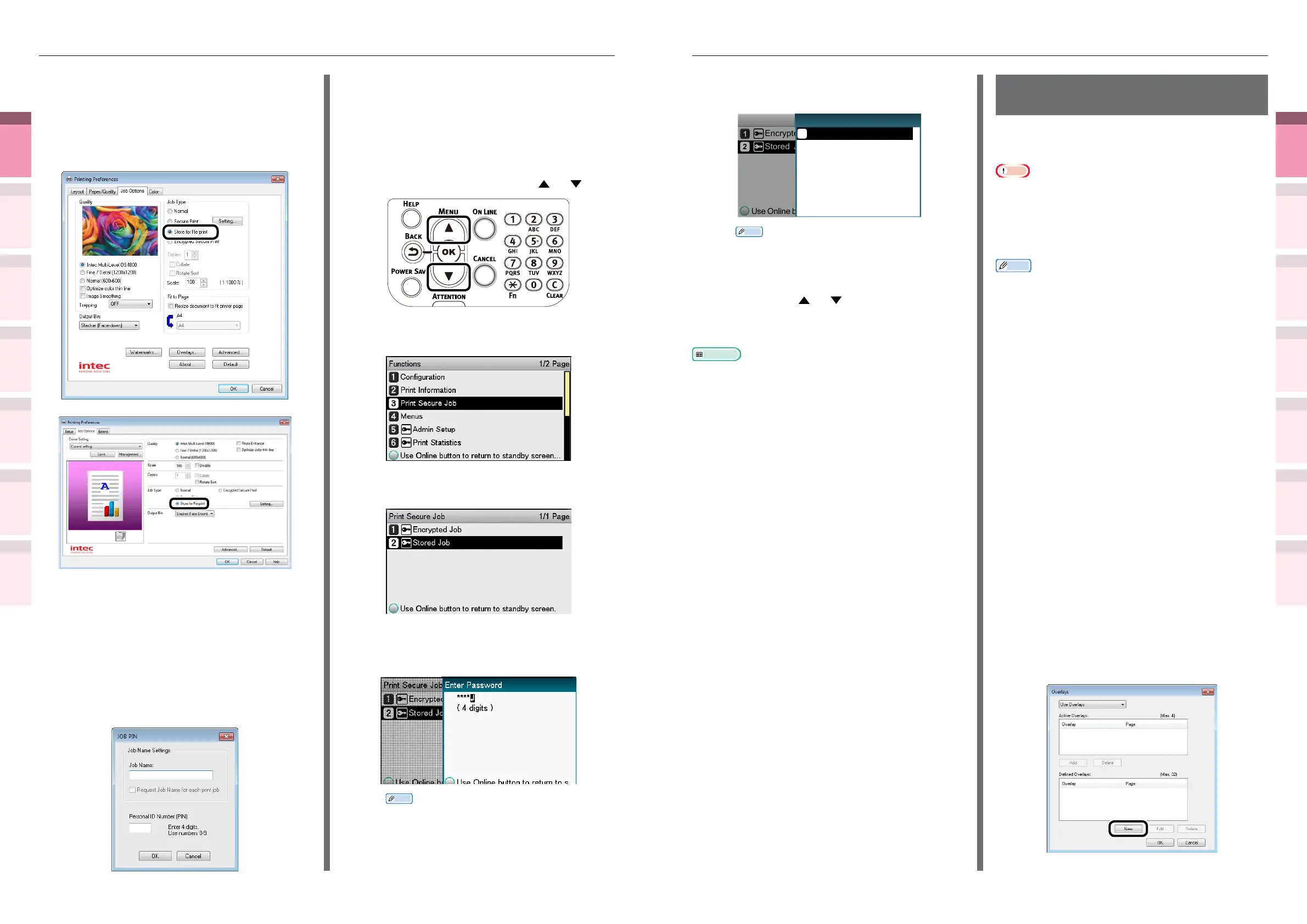
2
Enter the password to print.
(1)
Press the scroll button or .
(2)
Select [Print Secure Job], and
press the [OK] button.
(3)
Select [Stored Job], and press the
[OK] button.
(4)
Use the 10-key pad to enter the
4-digit password for the job to be
printed to start the search.
Memo
z
If the password is entered incorrectly, press the
[BACK] button, and reset.



 To Next Page