- 144 - - 145 -
Windows utilities Windows utilities
4
5
1
3
2
4
5
1
2
3
Convenient print
functions
Appendix Index
Checking and
Changing Printer
Settings Using
the Control Panel
Network
Setup
Matching
Colors
Using Utility
Software
Convenient print
functions
Appendix Index
Checking and
Changing Printer
Settings Using
the Control Panel
Network
Setup
Matching
Colors
Using Utility
Software
Registering ICC proles
You can register and edit printer proles. Some
of the functions are explained below.
To register an ICC prole, it is necessary to
mount the (optional) HDD to the device.
Note
z
If using the prole registration and edit functions, install
the Storage Manager plug-in.
Reference
z
For how to install plug-ins, see “Installing” (P.140).
1
Select [Storage Manager] from the
[Plug-ins] menu.
2
Click [ ] to create a new project.
3
Click [ ], and change [File type] in the
[Open le] dialog box to "ICC prole
(*.ICC, *.ICM)".
4
Select the prole to be registered, and
click [Open].
5
Click [Component] in the ICC prole
added to the project to display the [Edit
le] dialog box.
6
Select the number of the prole to be
registered.
The numbers already used in the project
cannot be selected, and are displayed
against a yellow background.
7
If necessary, enter a comment in the
[Comments] eld.
8
Click the [OK] button to apply the changes.
9
Select the printer from the device list at
the bottom of the window.
10
Click [ ] to send the project associated to
the ICC prole that has been added to the
printer.
11
Check that the message "Finished." is
displayed, and click [OK].
Registering forms (form overlay)
You can register the logos, etc., as forms to the
device, and overlay for printing. This section
explains how to register forms.
Reference
z
For how to print overlays, see “Printing using registered
forms (overlay printing)” (P.85).
Memo
z
If using Windows PS printer drivers, administrator
privileges are required.
Creating forms
1
Click [Start], and then select [Devices
and printers].
2
Right-click the [Intec (product name)
(**)] icon (** describes the printer
driver type: PS or PCL6), and select
[Printer properties].
3
Select the [Port] tab, and enable the
[FILE:] check box in [Printer port], and
click [OK].
4
Create the form to be registered to the
printer.
If using Windows PCL printer drivers, go to
Step 9.
5
Select [Print] from the [File] menu.
6
Click [Advanced] (or [Preferences]).
7
Select the [Job Options] tab, and click
[Overlay].
8
Select [Create form].
9
Printing will be implemented.
10
Enter the name of the le to be saved.
11
Restore the [Printer port] in the [Port]
tab.
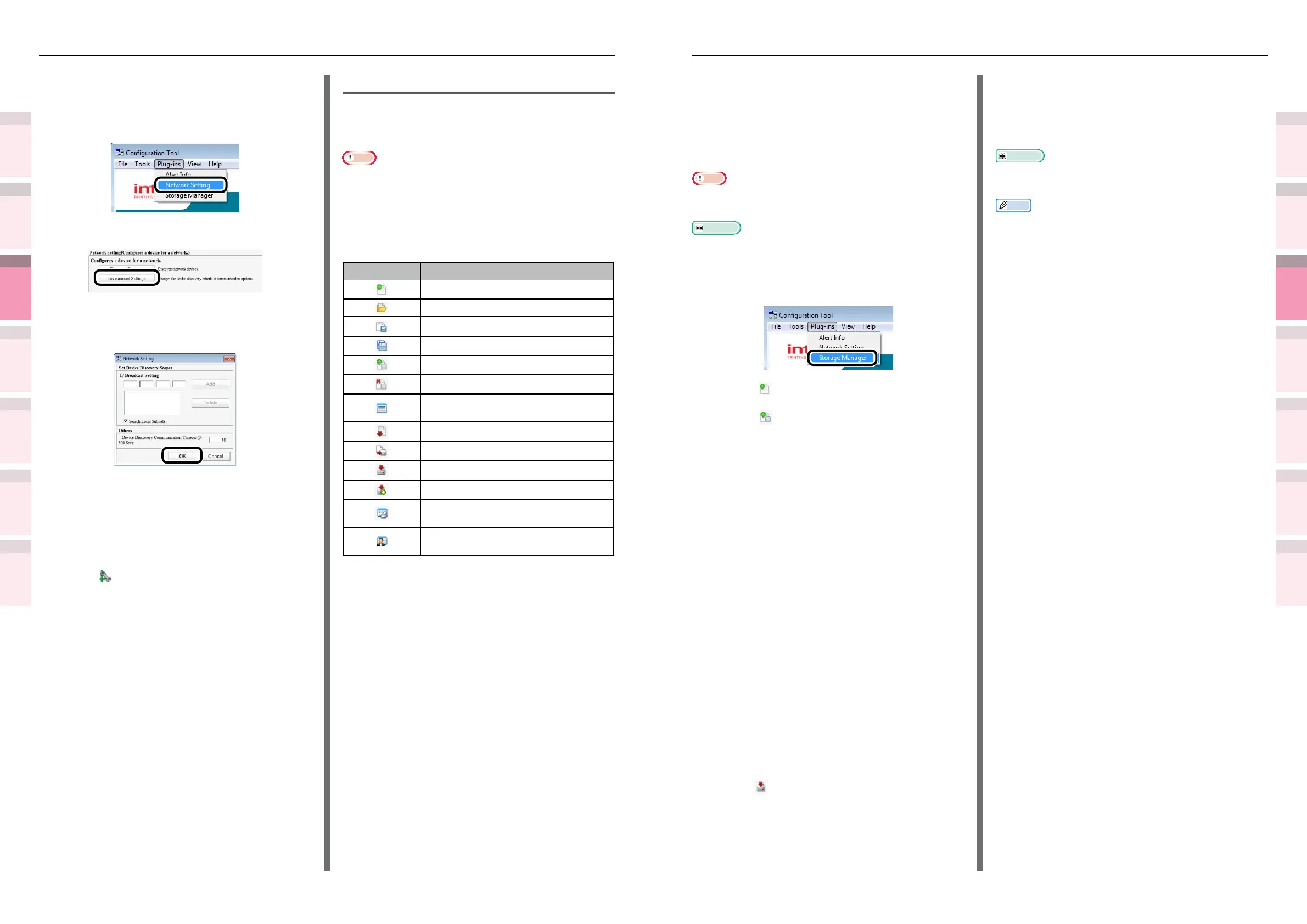
Specifying the search conditions
1
Select [Network Setting] from the
[Plug-ins] menu.
2
Select [Environment Settings].
3
Specify the search conditions as
necessary, and click [OK].
Changing IP addresses
You can change the device IP address.
1
Select the device from the printer table.
2
Click .
3
Change the settings as necessary.
4
Click [Setup].
5
Input the network password, and click
[OK].
The factory-set password is the last six
alphanumeric characters of the MAC
address.
6
Click [OK] to restart the device.
Storage Manager plug-in
Storage Manager plug-in can manage jobs saved
on the device, and store the forms, fonts, and
ICC proles to be used in printing.
Note
z
The job management function does not support encrypted
card authentication jobs.
Icon types
The icon meanings are described below.
Icon Explanation
Creates new project
Opens projects
Saves projects
Saves projects as...
Adds les to a project
Deletes les from a project
Displays the ltering window for PCL
form les
Creates download les
Sends download les
Sends projects
Sends les
Displays the job management
window
Displays the administrator functions
window



 To Next Page