- 116 - - 117 -
Matching Colors Using the Printer Drivers Matching Colors Using the Printer Drivers
4
3
5
1
2
4
3
5
1
2
Convenient print
functions
Appendix Index
Checking and
Changing Printer
Settings Using
the Control Panel
Network
Setup
Matching
Colors
Using Utility
Software
Convenient print
functions
Appendix Index
Checking and
Changing Printer
Settings Using
the Control Panel
Network
Setup
Matching
Colors
Using Utility
Software
Using Windows PS printer drivers
1
Open the le to be printed.
2
Select [Print] from the [File] menu.
3
Click [Advanced] (or [Preferences]).
4
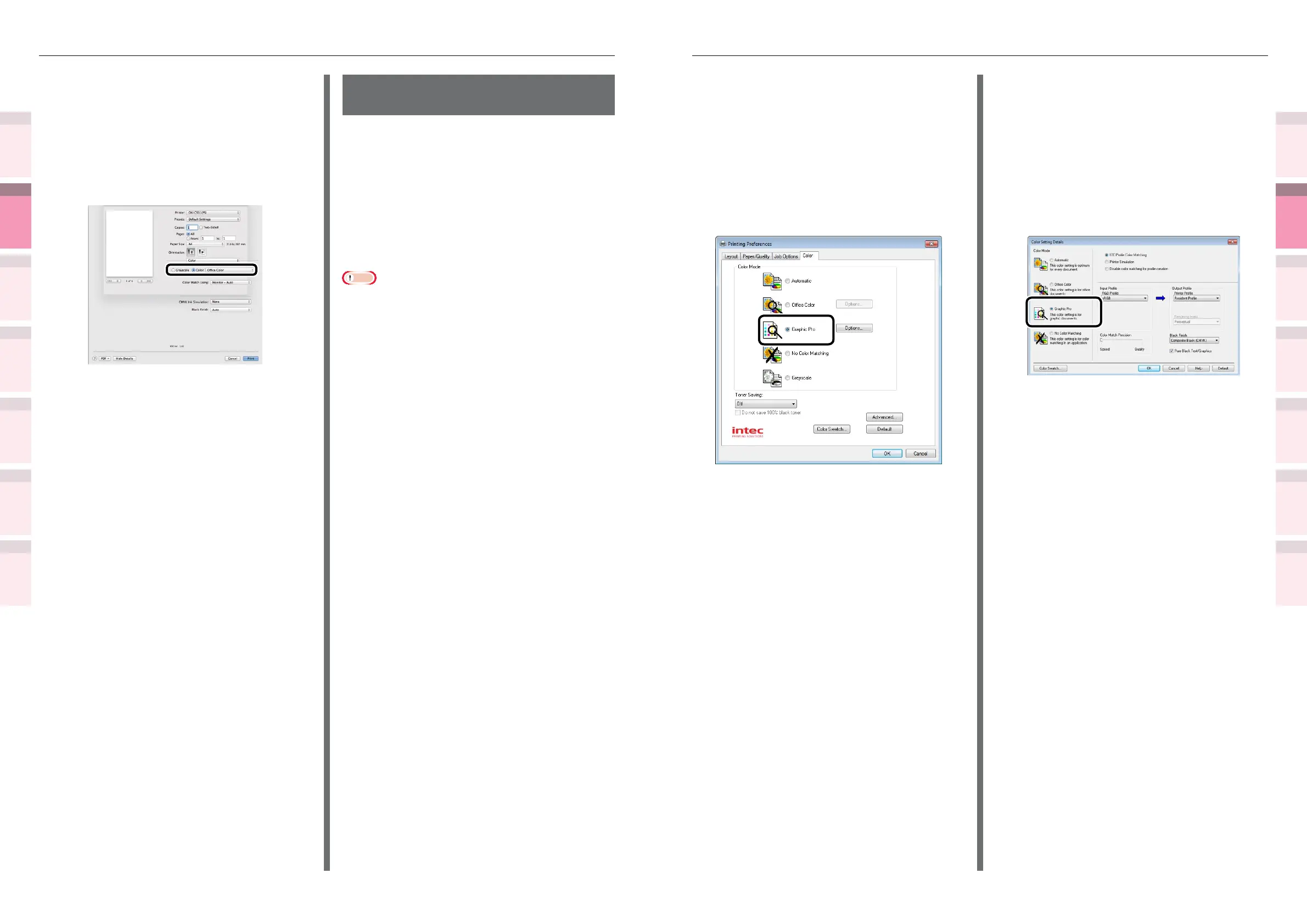
Select [Graphic Pro] in [Color Mode] in
the [Color] tab, and then click [OK].
5
Printing will be implemented.
Using Windows PCL printer drivers
1
Open the le to be printed.
2
Select [Print] from the [File] menu.
3
Click [Advanced] (or [Preferences]).
4
Click [Detail] in the [Setup] tab, and
select [Graphic Pro] and click [OK].
5
Printing will be implemented.
Using Mac OS X printer drivers
1
Open the le to be printed.
2
Select [Print] in the [File] menu.
3
Select either [Automatic] or [Ofce
Color] in the [Color] panel.
If [Ofce Color] is selected, change [Color
Match Using], [CMYK Ink Simulation], and
[Black Finish] as necessary.
4
Printing will be implemented.
Color matching
(GraphicPro)
If using DTP software, Graphic Pro is optimum.
You can specify simulation printing for a user-
selected CMYK output device.
If using an ICC prole for a user-selected
I/O device for color matching, it is necessary to
register the ICC prole to the device beforehand.
For how to register the ICC prole, see
"Registering ICC proles" (P.133).
Note
z
CMYK Link Prole cannot be specied using
PCL printer drivers.
z
If installing ICC prole using Windows PS
printer drivers, click [Advanced Setup] in the
[Layout] tab, and then select [Disable ICM] in
[ICM Methods].
z
To register an ICC prole, it is necessary to
mount the (optional) HDD to the device.



 To Next Page