- 159 -
Macintosh utilities
4
5
1
2
3
Convenient print
functions
Appendix Index
Checking and
Changing Printer
Settings Using
the Control Panel
Network
Setup
Matching
Colors
Using Utility
Software
- 158 -
Windows utilities
4
5
1
3
2
Convenient print
functions
Appendix Index
Checking and
Changing Printer
Settings Using
the Control Panel
Network
Setup
Matching
Colors
Using Utility
Software
z
Macintosh utilities
Panel language setup
Operations environment
Macintosh operating the Japanese language
versions of Mac OS X 10.5 to 10.8
Setting the printer
You can change the display language of the
control panel.
1
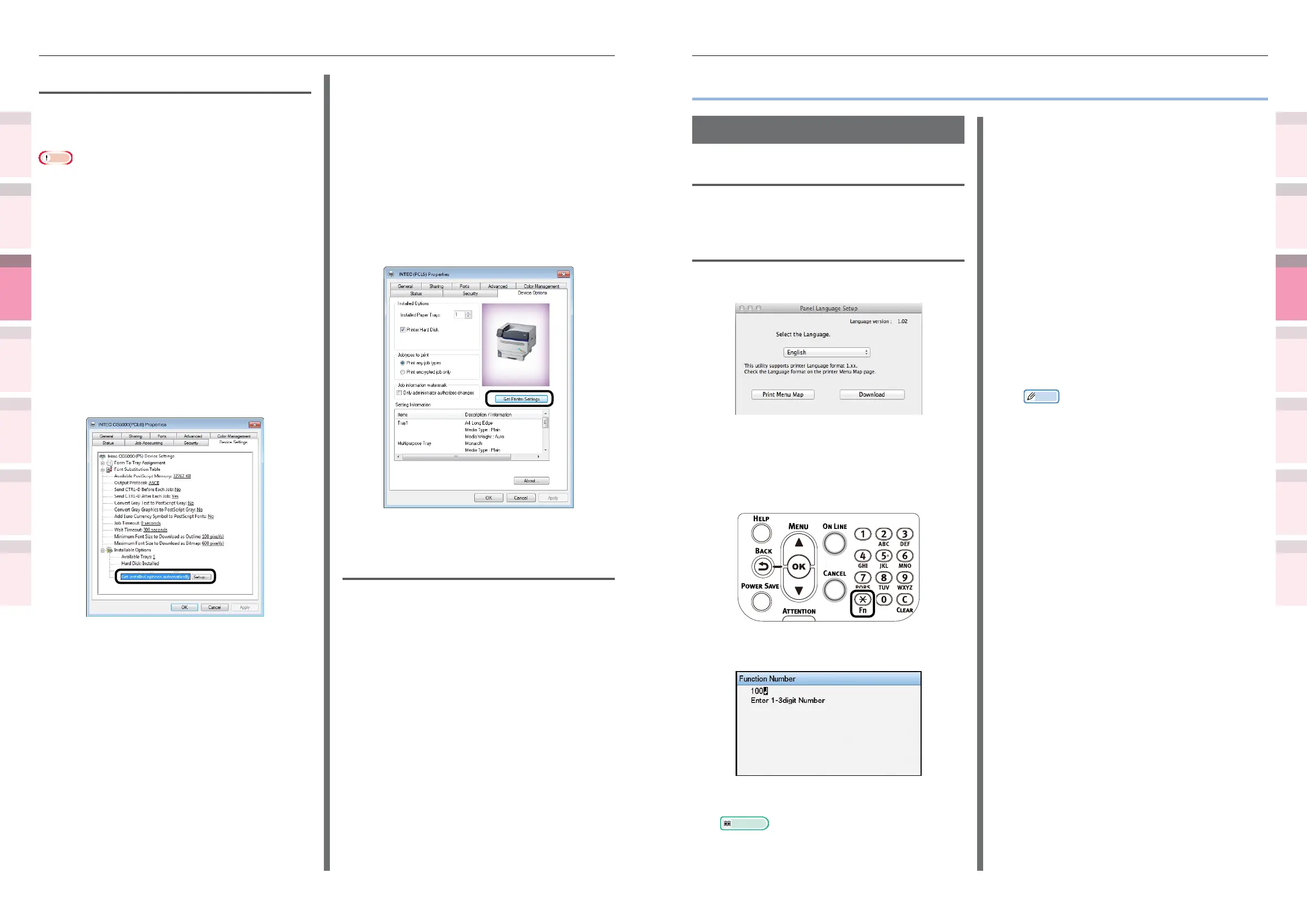
Output the device menu map.
(1)
Press the [Fn] key.
The numerical values input screen
will be displayed.
(2)
Press [1], [0], [0], and press the
[OK] button.
2
Start the panel language setup utility.
Reference
z
See “Installing utilities” (P.138).
3
Select a connection method.
If [TCP/IP] has been selected, enter the
IP address. You can check the IP address
using the menu map output in Step 1.
4
Click [OK].
5
Check that the value of the "Language
Format" in the menu map and the value
of the language version displayed in the
window match the following conditions.
Condition 1: the least numbers of the
version match
Condition 2: the value of the language
version shown in the window is either the
same or newer (greater) than the value of
the "Language Format"
Memo
z
If condition 1 is not satised, the language
settings cannot be downloaded. If the settings are
downloaded without condition 1 being satised,
an error will be displayed on the control panel. To
recover, restart the device. Even if condition 1 is
satised, if condition 2 is not satised, some of the
settings names may be displayed in English.
6
Select the language.
7
Click [Download].
The le to set the language will be sent
to the device, and a message stating that
transmission has nished will be displayed.
8
Restarts the device.
Setting options automatically
You can acquire the optional congurations for
the connected and implement the printer driver
setup automatically.
Note
z
Even if Network Extension is installed, setup is disabled if
there is a mismatch with the operations environment.
Windows PS drivers
1
Click [Start], and then select [Devices
and printers].
2
Right-click the [Intec (product
name)(PS)] icon, and select [Printer
properties].
3
Select the [Device Settings] tab.
4
Click [Get installed options
automatically], and click [Setup].
5
Click [OK].
Windows PCL drivers
1
Click [Start], and then select [Devices
and printers].
2
Right-click the [Intec (product name)
(PCL6)] icon, and select [Printer
properties].
3
Click the [Device Options] tab.
4
Click [Get Printer Settings].
5
Click [OK].
Uninstalling
1
Select [Start]>[Control panel], and
click [Uninstall program].
2
Select [Intec Network Extension], and
click [Uninstall].
3
Follow the directions to delete.



 To Next Page