- 46 - - 47 -
Printing on various papers Printing on various papers
4
1
2
3
5
4
1
2
3
5
Convenient print
functions
Appendix Index
Checking and
Changing Printer
Settings Using
the Control Panel
Network
Setup
Matching
Colors
Using Utility
Software
Convenient print
functions
Appendix Index
Checking and
Changing Printer
Settings Using
the Control Panel
Network
Setup
Matching
Colors
Using Utility
Software
* In the default factory settings, paper types are set for [USERTYPE1] - [USERTYPE5] as shown in the following table.
USERTYPE Mode Name Media Type Media Weight
USERTYPE1 HQ_FOR_UH1 Plain Ultra Heavy1
USERTYPE2 HQ_FOR_UH2 Plain Ultra Heavy2
USERTYPE3 HQ_FOR_UH3 Plain Ultra Heavy3
USERTYPE4 HQ_FOR_UH4 Plain Ultra Heavy4
USERTYPE5 HQ_FOR_UH5 Plain Ultra Heavy5
Using custom media
This setting is used when you want to print on
heavy media.
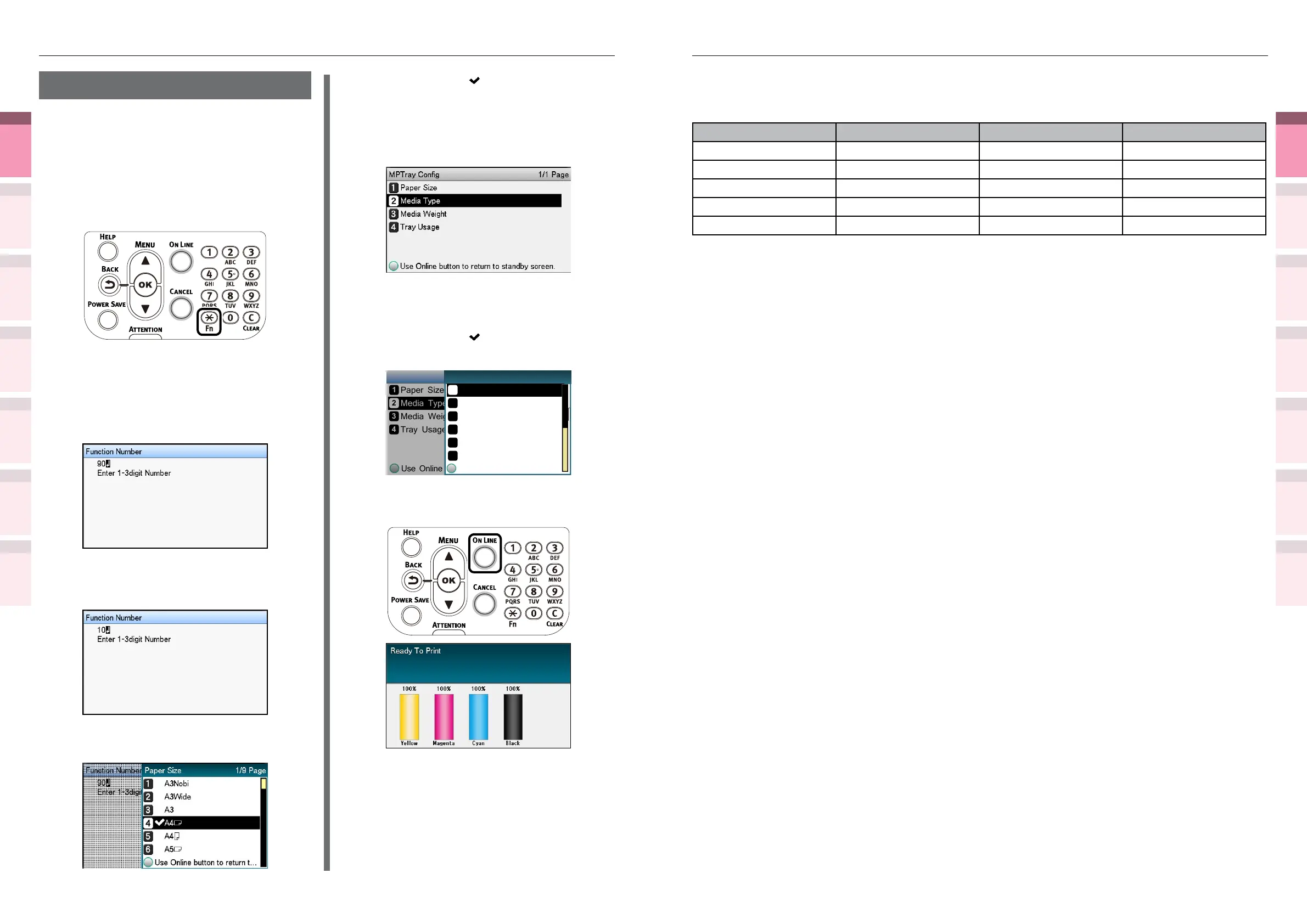
1
Set the paper size and paper type using
the control panel.
(1)
Press the [Fn] key.
The number input screen appears.
(2)
Input the number depending on
the paper tray being used.
z
For the multi-purpose tray
Press [9] and [0], and press the
[OK] button.
z
For Tray1
Press [1] and [0], and press the
[OK] button.
(3)
Select the paper size, and press
the [OK] button.
(4)
Check that is displayed to the
left of the selected paper size, and
press the [BACK] button.
(5)
Select [Media Type], and press the
[OK] button.
(6)
Select [USERTYPE1] -
[USERTYPE20], and press the [OK]
button.
Check that
is displayed to the
left of the selected [USERTYPE].
Use Online button to return...
Paper Size
Media Type
Media Weight
Tray Usage
MPTray Config
Use Online button to return...
Rough
Postcard
Envelope
USERTYPE1
Media Type 2/2 Page
Glossy
Card Stock
(7)
Press the [ON LINE] button to
return to the standby screen.



 To Next Page