- 122 - - 123 -
Matching Colors Using the Printer Drivers Matching Colors Using the Printer Drivers
4
3
5
1
2
4
3
5
1
2
Convenient print
functions
Appendix Index
Checking and
Changing Printer
Settings Using
the Control Panel
Network
Setup
Matching
Colors
Using Utility
Software
Convenient print
functions
Appendix Index
Checking and
Changing Printer
Settings Using
the Control Panel
Network
Setup
Matching
Colors
Using Utility
Software
Using Mac OS X printer drivers
1
Open the le to be printed.
2
Select [Print] in the [File] menu.
3
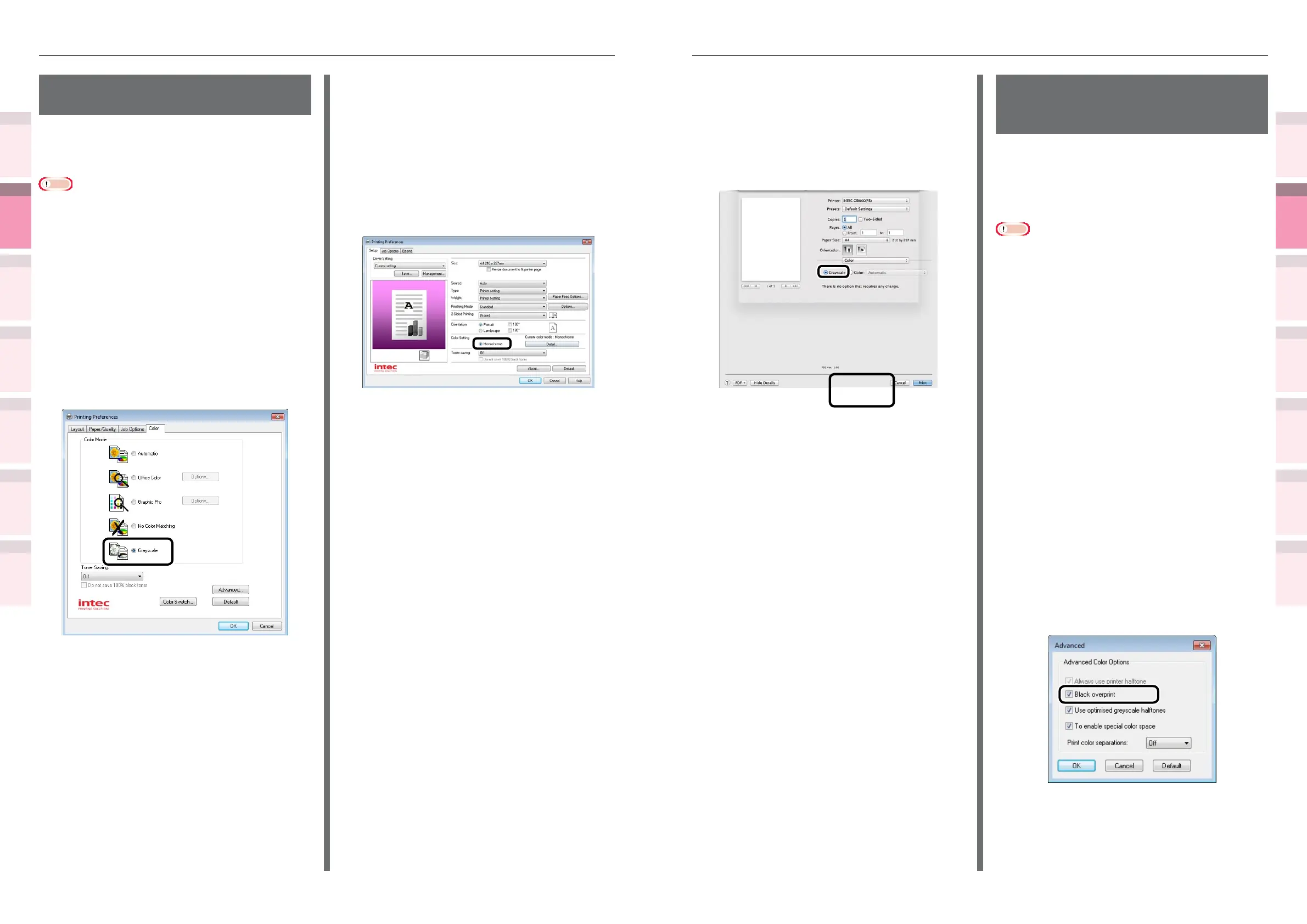
Select [Grayscale] in the [Color] panel.
4
Printing will be implemented.
Rendering white lines
between text and background
inconspicuous (black overprint)
If imaging 100% black text on a colored
background, you can print (overprint) by
overlaying the text and background parts. Set if
there are gaps such as white lines, etc., in the
borders between the text and background.
Note
z
Not usable with some applications.
z
Cannot be used if the text is not 100% black, the text has
been rendered as graphics by selecting the outlines, or if
the text is an image.
For example, if using Microsoft Ofce applications with
Windows XP/Windows Server 2003, and printing large text
using TrueType fonts, black overprint is disabled as the
text is replaced with graphics images by the application.
z
If the background color is dark (the toner layer thickness
exceeds 240%), the toner may not be xed securely. For
example, if printing 100% black text on backgrounds
of 50% cyan, 50% magenta, or 50% yellow, the toner
layer thickness is 50+50+50+100=250%, which exceeds
240%.
Using Windows PS printer drivers
1
Open the le to be printed.
2
Select [Print] in the [File] menu.
3
Click [Advanced] (or [Preferences]).
4
Click [Advanced] in the [Color] tab.
5
Enable the [Black overprint] check box,
and click [OK].
6
Printing will be implemented.
Printing using monochrome
(black and white)
The color data is printed using grayscale (shades
of black and white) without touching the print
data.
Note
z
If implementing color printing after printing by specifying
"Monochrome", a delay may occur depending on the
temperature adjustment of the fuser unit.
Using Windows PS printer drivers
1
Open the le to be printed.
2
Select [Print] in the [File] menu.
3
Click [Advanced] (or [Preferences]).
4
Select [Grayscale] in [Color Mode] in
the [Color] tab, and then click [OK].
5
Printing will be implemented.
Using Windows PCL printer drivers
1
Open the le to be printed.
2
Select [Print] in the [File] menu.
3
Click [Advanced] (or [Preferences]).
4
Select [Monochrome] in [Color Setting]
in the [Setup] tab, and click [OK].
5
Printing will be implemented.



 To Next Page