- 93 -
Advanced print functions
4
1
2
3
5
Convenient print
functions
Appendix Index
Checking and
Changing Printer
Settings Using
the Control Panel
Network
Setup
Matching
Colors
Using Utility
Software
- 92 -
Advanced print functions
4
1
2
3
5
Convenient print
functions
Appendix Index
Checking and
Changing Printer
Settings Using
the Control Panel
Network
Setup
Matching
Colors
Using Utility
Software
Printing PostScript errors
You can print the error details if a PostScript
error occurs.
Using Windows PS printer drivers
1
Open the le to be printed.
2
Select [Print] in the [File] menu.
3
Click [Advanced] (or [Preferences]).
4
Click [Advanced] in the [Layout] tab.
5
Select [Yes] in [PostScript
Options]>[Send PostScript Error
Handler].
6
Printing will be implemented.
Changing emulation
modes
You can select the emulation mode to be used.
1
Press the scroll button or .
2
Select [Admin Setup], and press the
[OK] button.
3
Enter the administrator password, and
press the [OK] button.
Memo
z
In the default factory settings, the administrator
password is [aaaaaa].
4
Select [Print Setup], and press the [OK]
button.
Using Mac OS X printer drivers
1
Open the le to be printed.
2
Select [Print] in the [File] menu.
3
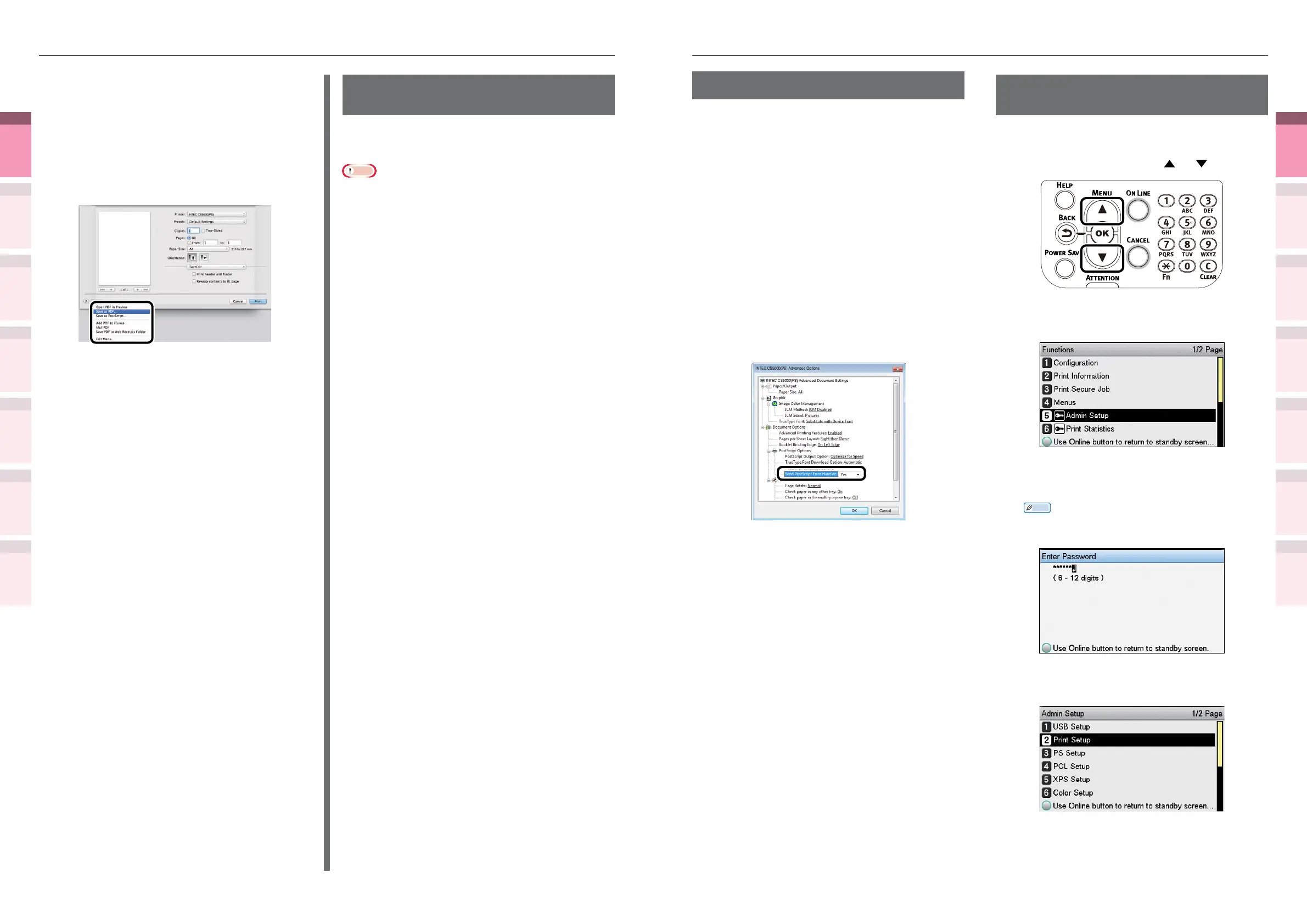
Click [PDF], and select the save
method.
4
Enter the le name to be saved
in [Name], and select the save
destination, and click [Save].
5
Printing will be implemented.
Downloading PostScript
les
PostScript les can be downloaded to the device
and printed.
Note
z
This function cannot be used when using TCP/IP networks
only.
1
Start the Intec LPR utility.
2
Select [Download] from the [Remote
print] menu.
3
Select the le to be downloaded, and
click [Open].
When the download has nished, the
PostScript le will be printed.



 To Next Page