- 56 - - 57 -
Changing sizes to print Changing sizes to print
4
1
2
3
5
4
1
2
3
5
Convenient print
functions
Appendix Index
Checking and
Changing Printer
Settings Using
the Control Panel
Network
Setup
Matching
Colors
Using Utility
Software
Convenient print
functions
Appendix Index
Checking and
Changing Printer
Settings Using
the Control Panel
Network
Setup
Matching
Colors
Using Utility
Software
Sorting pages to print
pamphlets (booklets)
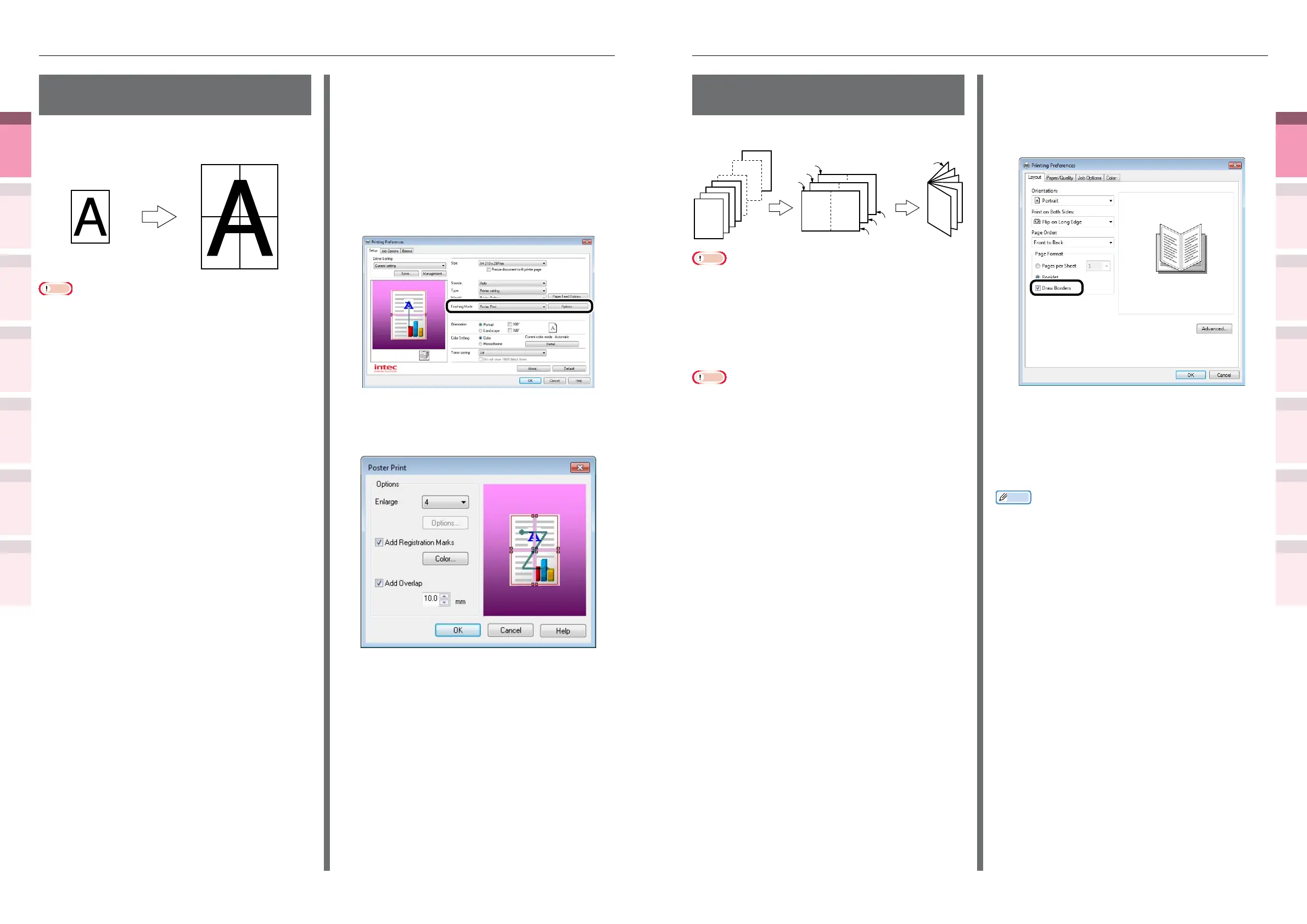
You can create pamphlet-like booklets.
12
4
1
2
3
8
10
5
3
12
7
9
11
1
6
4
2
12
1
3
5
7
9
11
Back
Fold in
two as is
Back
Back
Note
z
Not normally operable with some applications.
z
Cannot be used with Mac OS X printer drivers.
z
Watermarks cannot be printed correctly when using
[Pamphlet] printing.
Using Windows PS printer drivers
Note
z
If creating PostScript data using the application itself,
pamphlets may not be specied correctly. Whether or not
this method can be avoided depends on the publication.
Check the manual for the application used. For example,
with Adobe Acrobat Professional or Adobe Reader, enable
the "Print as image" check box in the advanced setup
for the print dialog box to implement pamphlet printing
normally.
z
If [Pamphlets] is not printing, right-click the [Intec
(printer name) (PS)] in the [Devices and Printers] folder,
and enable [Enable advanced print functions] in [Printer
Properties]>[Job Options] tab.
1
Open the le to be printed.
2
Select [Print] in the [File] menu.
3
Click [Advanced] (or [Preferences]).
4
Select [Booklet] in the [Layout] tab.
(In Windows XP/Windows Server 2003,
select [Booklet] in [Pages per Sheet] in
the [Layout] tab.)
5
If using Windows 8/Windows 7/Windows
Vista/Windows Server 2012/Windows
Server 2008 R2/Windows Server 2008,
make sure to set "Draw Borders" as
necessary.
6
Click [Advanced], and select the paper
size to be actually used in [Paper Size].
7
Printing will be implemented.
Memo
z
E.g.: Creating A5 size pamphlets using A4 size paper
– Select [A4] in [Paper Size] in [Job Options].
z
If using Windows 8/Windows 7/Windows Vista/Windows
Server 2012/Windows Server 2008 R2/Windows Server
2008, and if creating pamphlets folded on the right (i.e.,
pamphlets with the binding on the right when the pages
are face-up), select [Right] in [Pamphlet Binding] in [Job
Options].
Enlarging and printing multiple
sheets (poster printing)
You can enlarge the source data and print parts
to multiple sheets of paper.
1 2
3 4
Note
z
Cannot be used with Windows PS and Mac OS X printer
drivers.
z
Posters cannot be printed if printing using encrypted
secure print functions from the client after creating the
printer drivers using a shared network.
z
If [Poster Print] is not operating, right-click the [Intec
(printer name) (PCL6)] in the [Devices and Printers]
folder, and select [Preferences]>[Advanced]>[Print
Processor]>[OKX04ZPP].
Using Windows PCL printer drivers
1
Open the le to be printed.
2
Select [Print] in the [File] menu.
3
Click [Advanced] (or [Preferences]).
4
Select [Poster Print] in [Finishing Mode]
in the [Setup] tab.
5
Click [Options], and set [Enlarge],
[Add Registrationg Marks], and [Add
Overlap] as necessary.
6
Printing will be implemented.



 To Next Page