- 96 - - 97 -
Advanced print functions Advanced print functions
4
1
2
3
5
4
1
2
3
5
Convenient print
functions
Appendix Index
Checking and
Changing Printer
Settings Using
the Control Panel
Network
Setup
Matching
Colors
Using Utility
Software
Convenient print
functions
Appendix Index
Checking and
Changing Printer
Settings Using
the Control Panel
Network
Setup
Matching
Colors
Using Utility
Software
Changing the default printer
driver settings
It is convenient to set frequently used settings
as the default settings.
Using Windows printer drivers
1
Click [Start], and then select [Devices
and Printers].
2
Right-click the [Intec (product name)
(**)] icon (** describes the printer
driver type: PS or PCL6), and select
[Printing Preferences]>[Intec (product
name)(**)].
3
Check the settings, and click [OK].
Using Mac OS X printer drivers
1
Open the le to be printed.
2
Select [Print] in the [File] menu.
3
Change the settings.
4
Select [Save Current Settings as Preset]
in [Presets], and enter a suitable
settings name in the "Save Preset"
window, and click [OK].
5
Click [Cancel].
Note
z
Select the settings name saved in [Preset] to print.
4
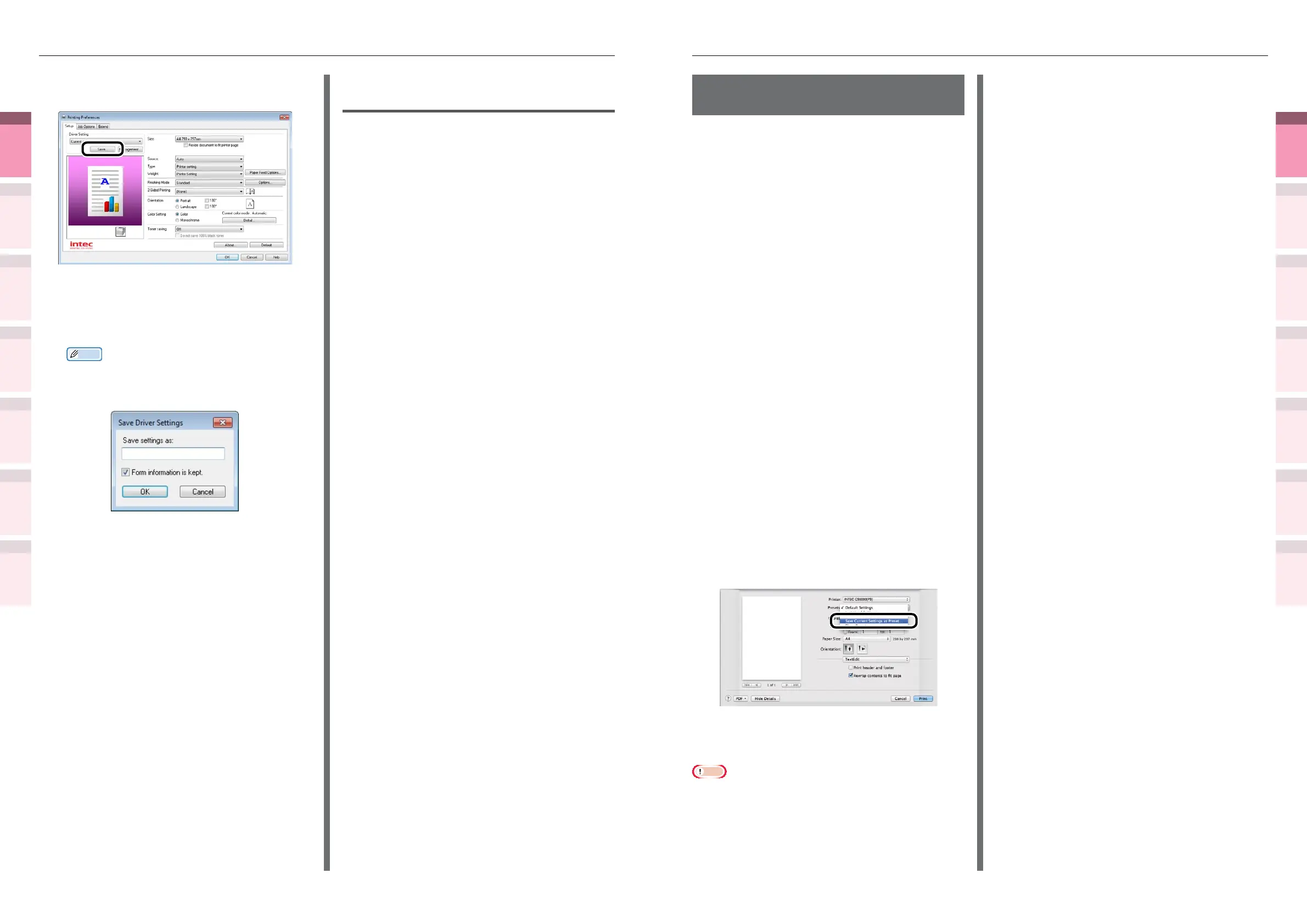
With PCL printer drivers, click [Save] in
[Driver Setting] in the [Setup] tab.
5
Enter a name for the settings in [Save
settings as], and click [OK].
Memo
z
Enable the "Form information is kept" check box to
also save the paper settings in the [Setup] tab.
z
You can save up to 14 settings max.
6
Click [OK] to close the print setup
dialog box.
Calling and using saved
settings
1
Open the le to be printed.
2
Select [Print] from the [File] menu.
3
Click [Advanced] (or [Preferences]).
4
With PCL printer drivers, select the
settings to be used from [Driver
Settings] in the [Setup] tab.
5
Printing will be implemented.



 To Next Page