- 100 - - 101 -
Deleting or updating printer drivers Deleting or updating printer drivers
4
1
2
3
5
4
1
2
3
5
Convenient print
functions
Appendix Index
Checking and
Changing Printer
Settings Using
the Control Panel
Network
Setup
Matching
Colors
Using Utility
Software
Convenient print
functions
Appendix Index
Checking and
Changing Printer
Settings Using
the Control Panel
Network
Setup
Matching
Colors
Using Utility
Software
12
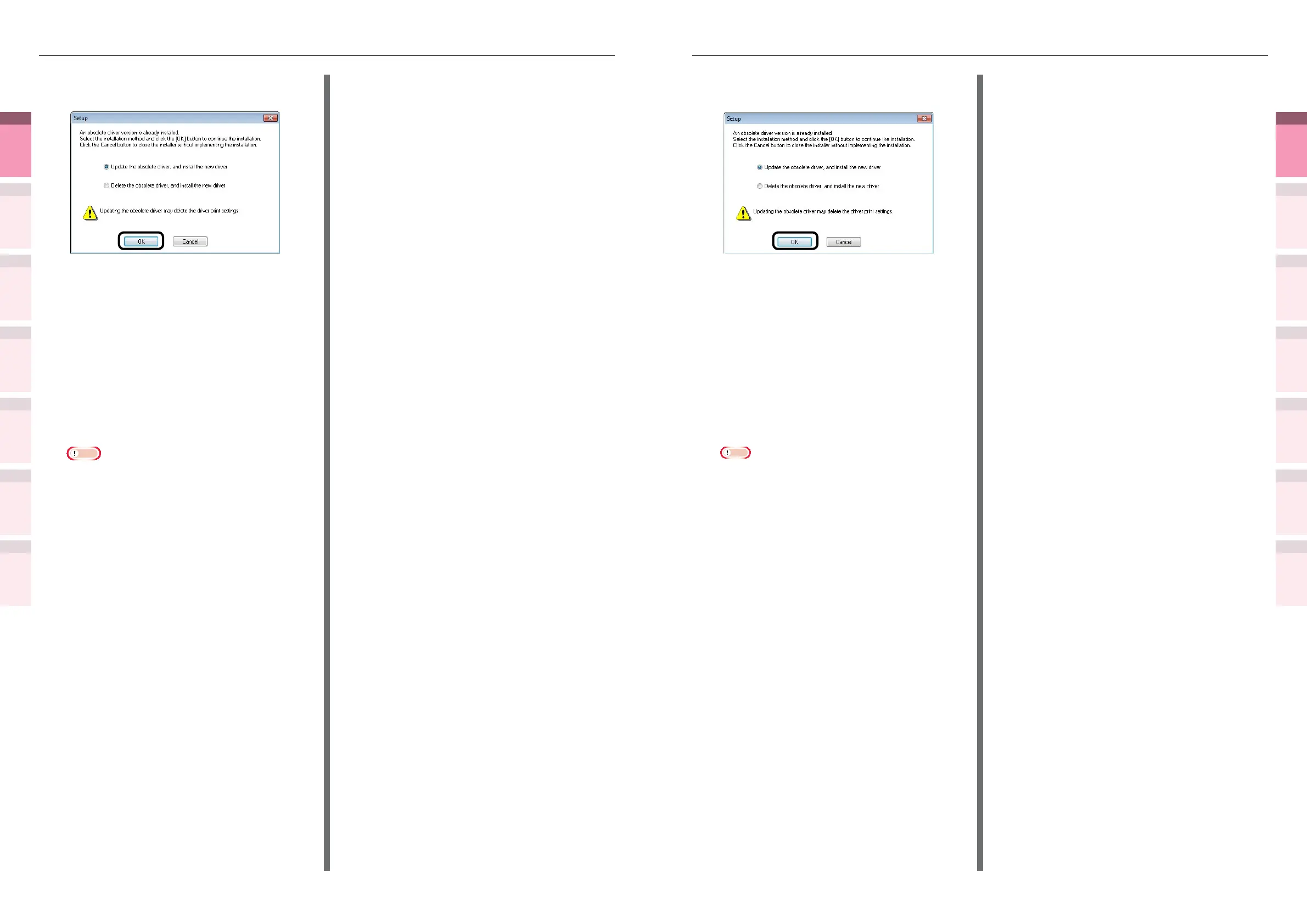
Select the installation method, and click
the [OK] button.
z
Updating obsolete drivers, and installing
new drivers
Update the obsolete printer drivers, and
then install the new printer drivers. A
new printer icon will be created as "Copy
1" in addition to the icon for the obsolete
printer drivers.
z
Deleting obsolete drivers, and installing
new drivers
Delete the obsolete printer drivers and
printer icons, and then install the new
printer drivers.
Note
z
If multiple printer drivers have been installed,
delete all the printer drivers. If installing multiple
printer drivers, reinstall.
13
Connect the printer to the PC. If a
screen prompting you to turn ON the
printer power supply is displayed,
connect the device and PC using a USB
cable, and turn ON the device.
14
Click [Finish] in the "Install completed"
screen.
Using Mac OS X
1
Delete the device from the [Printer
List], and uninstall the printer software
using the installer. For details, see
“Deleting the printer drivers” (P.98).
2
Reinstall the printer software. See the
"Basic
"
for details.
13
Select the installation method, and click
the [OK] button.
z
Updating obsolete drivers, and installing
new drivers
Update the obsolete printer drivers, and
then install the new printer drivers. A
new printer icon will be created as "Copy
1" in addition to the icon for the obsolete
printer drivers.
z
Deleting obsolete drivers, and installing
new drivers
Delete the obsolete printer drivers and
printer icons, and then install the new
printer drivers.
Note
z
If multiple printer drivers have been installed,
delete all the printer drivers. If installing multiple
printer drivers, reinstall.
14
Click [Next] in the "Finish installation"
screen.
USB connections
1
Set the "AutoPlay".
2
When the "play automatically" window
is displayed, click [Run setup.exe].
3
When the "User Account Control"
window is displayed, click the [Yes]
button.
4
Read the "Software License Agreement",
and click the [Agree] button.
5
Read the "Environmental advice for
Users", and click the [Next] button.
6
Select the printer to be used, and then
click the [Next] button.
7
Select [USB connection], and click the
[Next] button.
8
Click [Custom Install].
9
Click [Switch to separate screen.].
10
Click the driver to be installed.
11
Click [Next] in the "Check before install"
screen.



 To Next Page