- 24 - - 25 -
Printing on various papers Printing on various papers
4
1
2
3
5
4
1
2
3
5
Convenient print
functions
Appendix Index
Checking and
Changing Printer
Settings Using
the Control Panel
Network
Setup
Matching
Colors
Using Utility
Software
Convenient print
functions
Appendix Index
Checking and
Changing Printer
Settings Using
the Control Panel
Network
Setup
Matching
Colors
Using Utility
Software
7
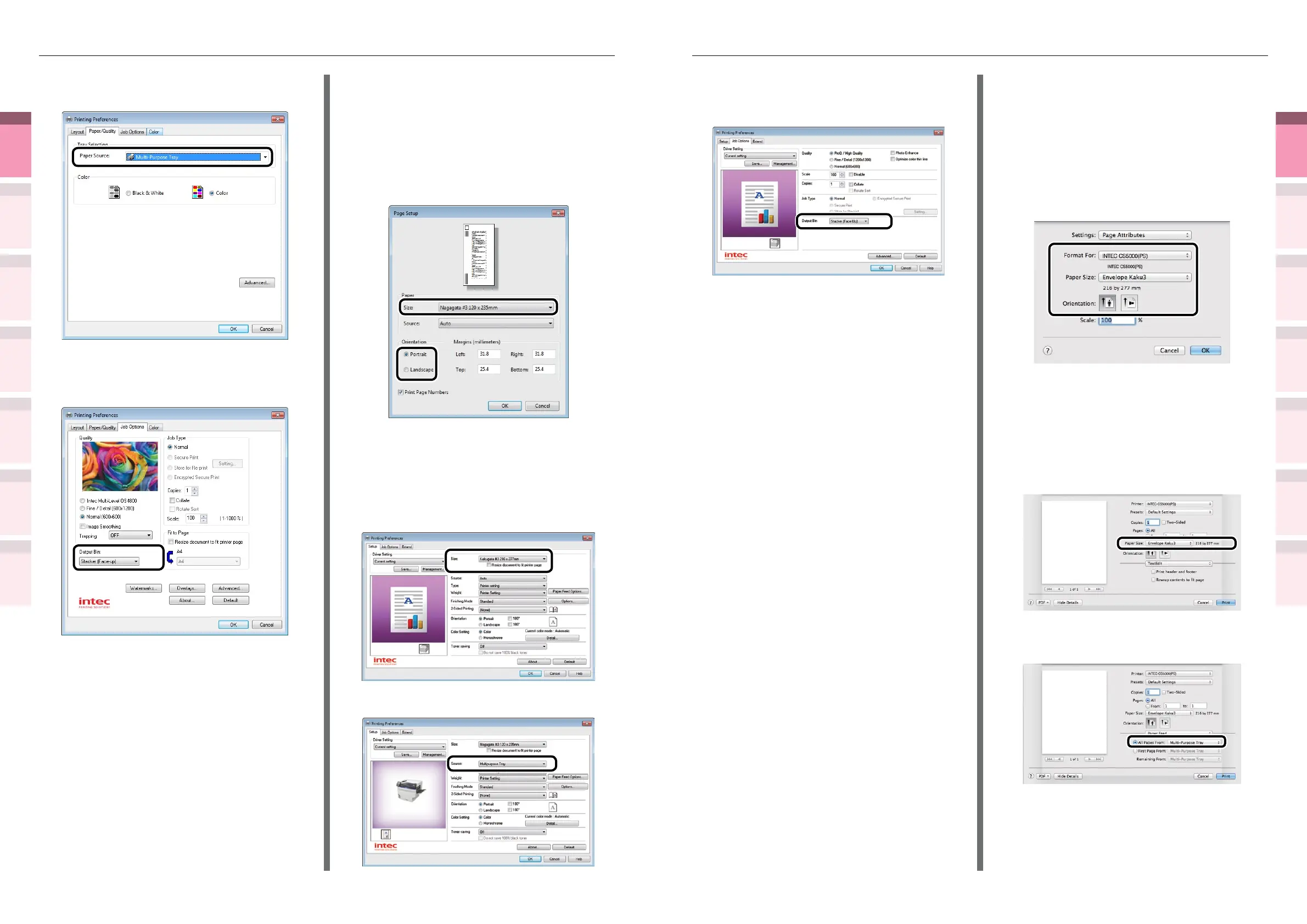
Select [Stacker (Face UP)] in [Output
Bin] in the [Job Options] tab, and click
[OK].
8
Click either [OK] or [Print] in the "Print"
screen to print.
Using Mac OS X printer drivers
1
Select [Page Setup] in the [File] menu.
2
Select the printer model name in
[Format For], and select [Envelope
*
(where
*
is the envelope type)] in
[Paper Size], and a suitable orientation
in [Orientation], and click [OK].
3
Select [Print] in the [File] menu.
4
Check that the printer model name is
selected in [Printer].
5
Select the envelope type in [Paper
Size].
6
Select [Multi-Purpose Tray] in [Paper
Feed].
7
Select [Multi-Purpose Tray] in [Paper
Source].
8
Select [Stacker (Face-up)] in [Output
Bin] in the [Job Options] tab, and click
[OK].
9
Click [Print] in the "Print" screen to
print.
Using Windows PCL printer drivers
1
Select [Page Setup] in the [File] menu.
2
Select [Nagagata
*
(where
*
is the
envelope type)] in [Size], and [Portrait]
or [Landscape] in [Orientation], and
click [OK].
3
Select [Print] in the [File] menu.
4
Click [Advanced] (or [Preferences]).
5
Select the envelope type in [Size] in the
[Setup] tab.
6
Select [Multipurpose Tray] in [Source].



 To Next Page