- 28 - - 29 -
Printing on various papers Printing on various papers
4
1
2
3
5
4
1
2
3
5
Convenient print
functions
Appendix Index
Checking and
Changing Printer
Settings Using
the Control Panel
Network
Setup
Matching
Colors
Using Utility
Software
Convenient print
functions
Appendix Index
Checking and
Changing Printer
Settings Using
the Control Panel
Network
Setup
Matching
Colors
Using Utility
Software
7
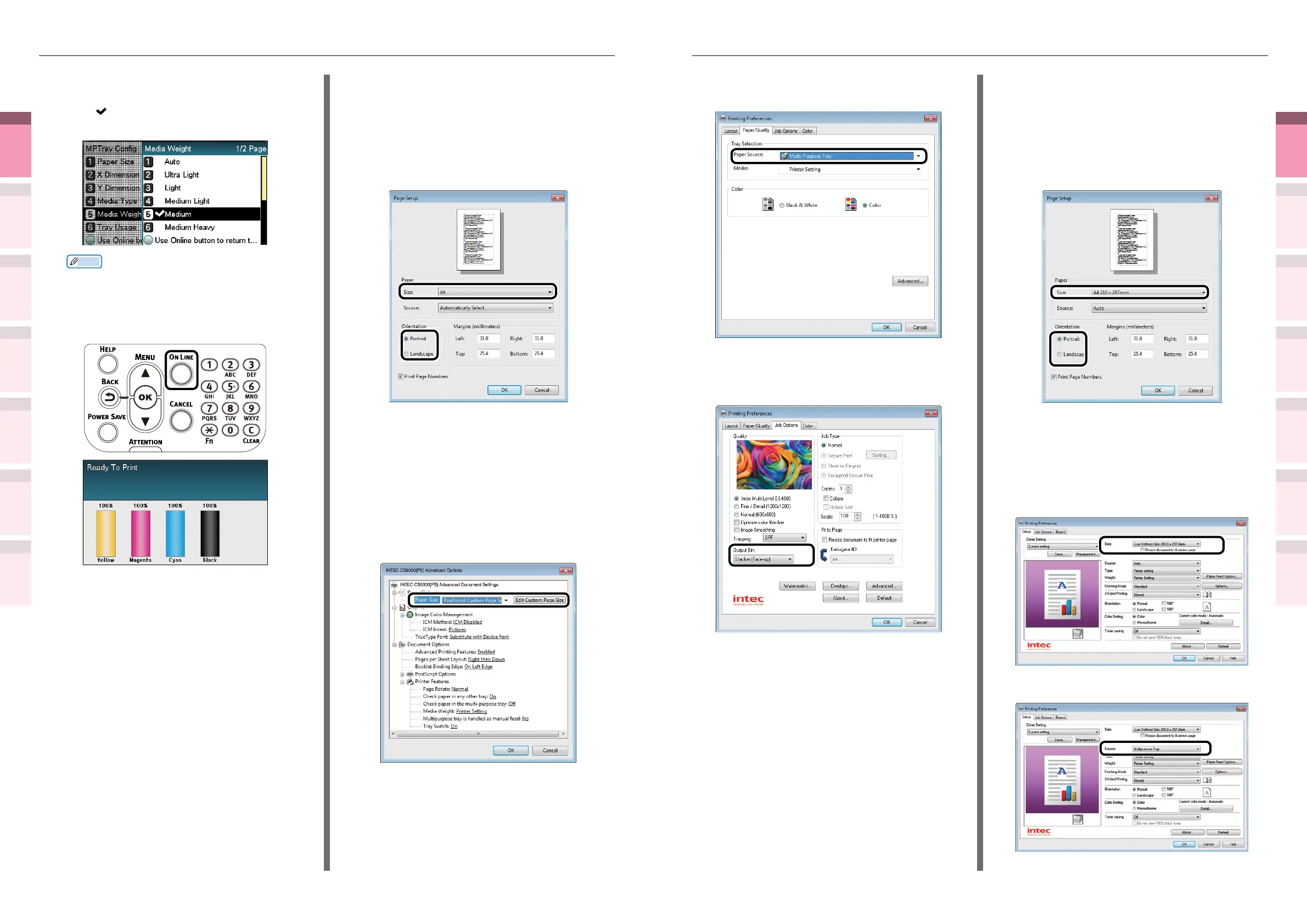
Select [Multi-Purpose Tray] in [Paper
Source].
8
Select [Stacker (Face-up)] in [Output
Bin] in the [Job Options] tab, and click
[OK].
9
Click [Print] in the "Print" screen to
print.
Using Windows PCL printer drivers
1
Select [Page Setup] in the [File] menu.
2
Select the paper size in [Size] and a
suitable orientation in [Orientation],
and click [OK].
3
Select [Print] in the [File] menu.
4
Click [Advanced] (or [Preferences]).
5
Select the paper size in [Size] in the
[Setup] tab.
6
Select [Multipurpose Tray] in [Source].
(15)
Select a suitable paper weight, and
press the [OK] button. Check that
is displayed to the left of the
selected paper weight.
Memo
z
If you want to print on a thin envelope of 24 lb, the
[Light] setting may improve the printing result.
(16)
Press the [ON LINE] button to
return to the standby screen.
4
Open the le to be printed.
5
Select [Paper Size], [Paper Source],
and [Output Bin] in the printer drivers
to print.
Using Windows PS printer drivers
1
Select [Page Setup] in the [File] menu.
2
Select the paper size in [Size] and a
suitable orientation in [Orientation],
and click [OK].
3
Select [Print] in the [File] menu.
4
Click [Advanced] (or [Preferences]).
5
Click [Advanced] in the [Paper/Quality]
tab.
6
Select the paper size in [Paper Size] in
the "Advanced Options" screen.



 To Next Page