- 32 - - 33 -
Printing on various papers Printing on various papers
4
1
2
3
5
4
1
2
3
5
Convenient print
functions
Appendix Index
Checking and
Changing Printer
Settings Using
the Control Panel
Network
Setup
Matching
Colors
Using Utility
Software
Convenient print
functions
Appendix Index
Checking and
Changing Printer
Settings Using
the Control Panel
Network
Setup
Matching
Colors
Using Utility
Software
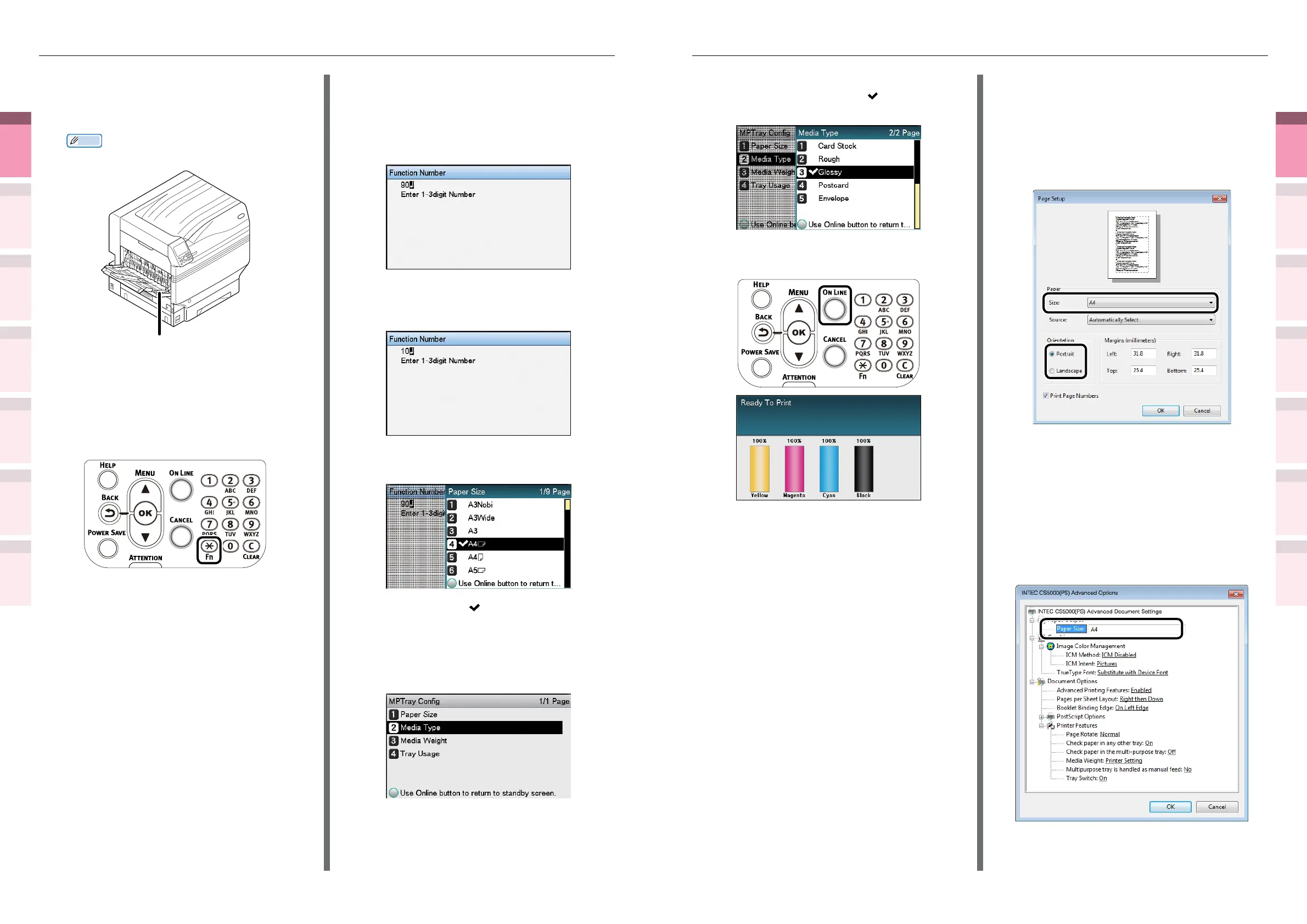
(6)
Select [Glossy], and press the [OK]
button. Check that
is displayed
to the left of [Glossy].
(7)
Press the [ON LINE] button to
return to the standby screen.
4
Open the le to be printed.
5
Select [Size], [Source], and [Output
Bin] in the printer drivers to print.
Using Windows PS printer drivers
1
Select [Page Setup] in the [File] menu.
2
Select the paper size in [Size] and a
suitable orientation in [Orientation],
and click [OK].
3
Select [Print] in the [File] menu.
4
Click [Advanced] (or [Preferences]).
5
Click [Advanced] in the [Paper/Quality]
tab.
6
Select the paper size in [Paper Size] in
the "Advanced Options" screen.
2
If outputting to the face-up stacker,
open the face-up stacker.
Set the print surface face-up to output.
Memo
z
You can output to the face-down stacker.
Face-up stacker
3
Set the paper size and paper type using
the control panel.
(1)
Press the [Fn] key.
The numerical values input screen
will be displayed.
(2)
Enter a number according to the
paper to be used.
z
Using the Multi-Purpose Tray
Press [9], [0], and press the [OK]
button.
z
Using tray 1
Press [1], [0], and press the [OK]
button.
(3)
Select the paper size, and press
the [OK] button.
(4)
Check that is displayed to the
left of the selected paper size, and
press the [BACK] button.
(5)
Select [Media Type], and press the
[OK] button.



 To Next Page