Chapter 5. Defining Assets
Kaye Validator AVS User’s Manual 59
The asset tiles display each asset with type and model number. If the number of assets exceeds
the screen size, scrolling and zooming enables viewing the other assets.
To search for a particular asset, press on the Search (magnifying glass) icon, and a text box
enables entering search data.
For further details about a particular asset, press the tile for that asset to open its corresponding
Asset Details window.
To add one or more assets to the list, press the Plus icon (+) to open the New Asset creation
window. Press the Back icon (the left arrow) to return to the main screen.
5.1 The Asset Details Screen
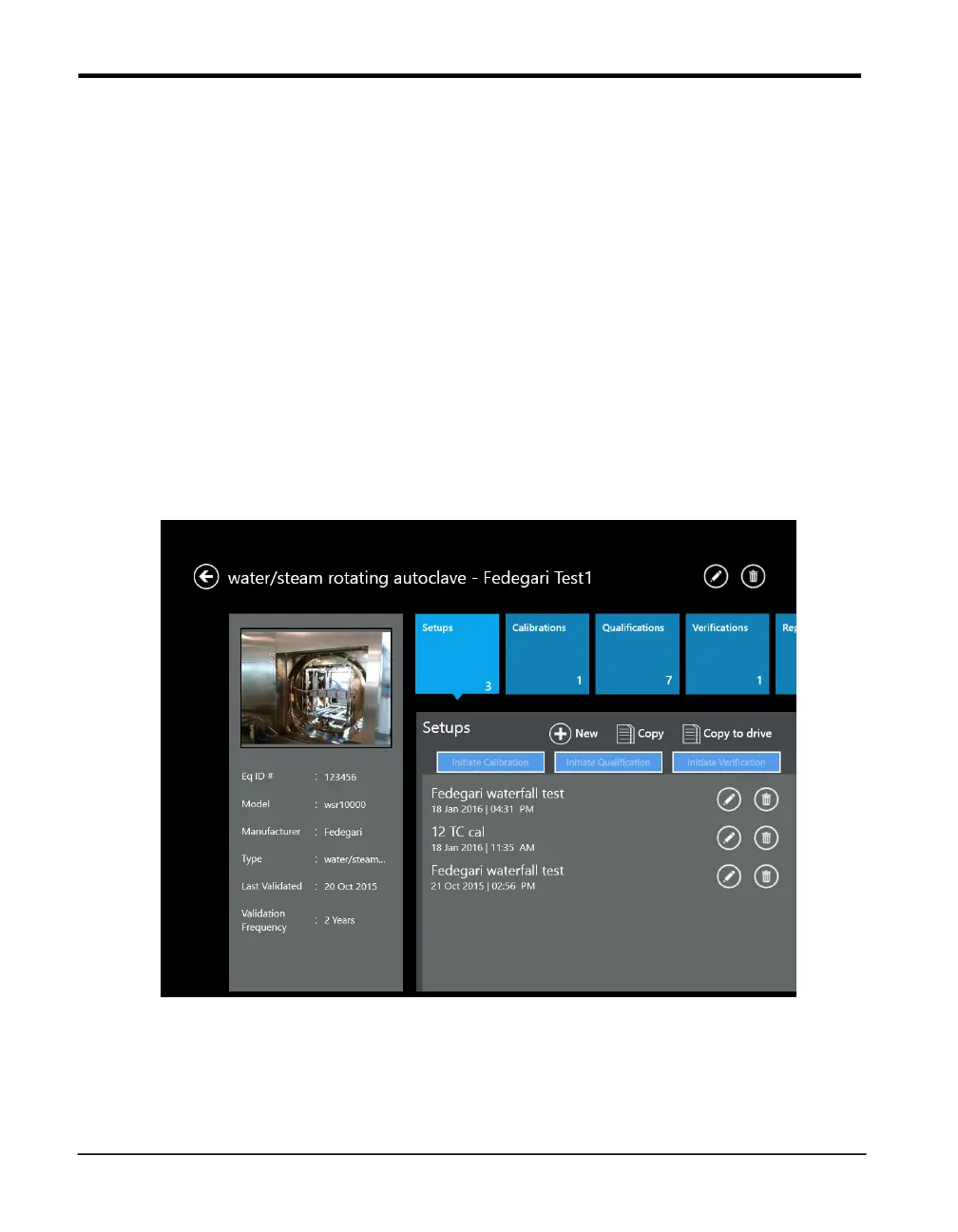
To learn more about a particular asset, press on the tile for that asset on the Assets screen. The
Asset Details screen (shown below) opens.
Figure 35: Asset Details
In the upper left, the title will be the type and name of the asset. The pane on the left displays up
to three user-loaded photos (swipe to change to the next picture) of the asset, and lists the asset
information as entered by the user with following data:


 To Next Page