Chapter 3. Creating User Accounts
Kaye Validator AVS User’s Manual 46
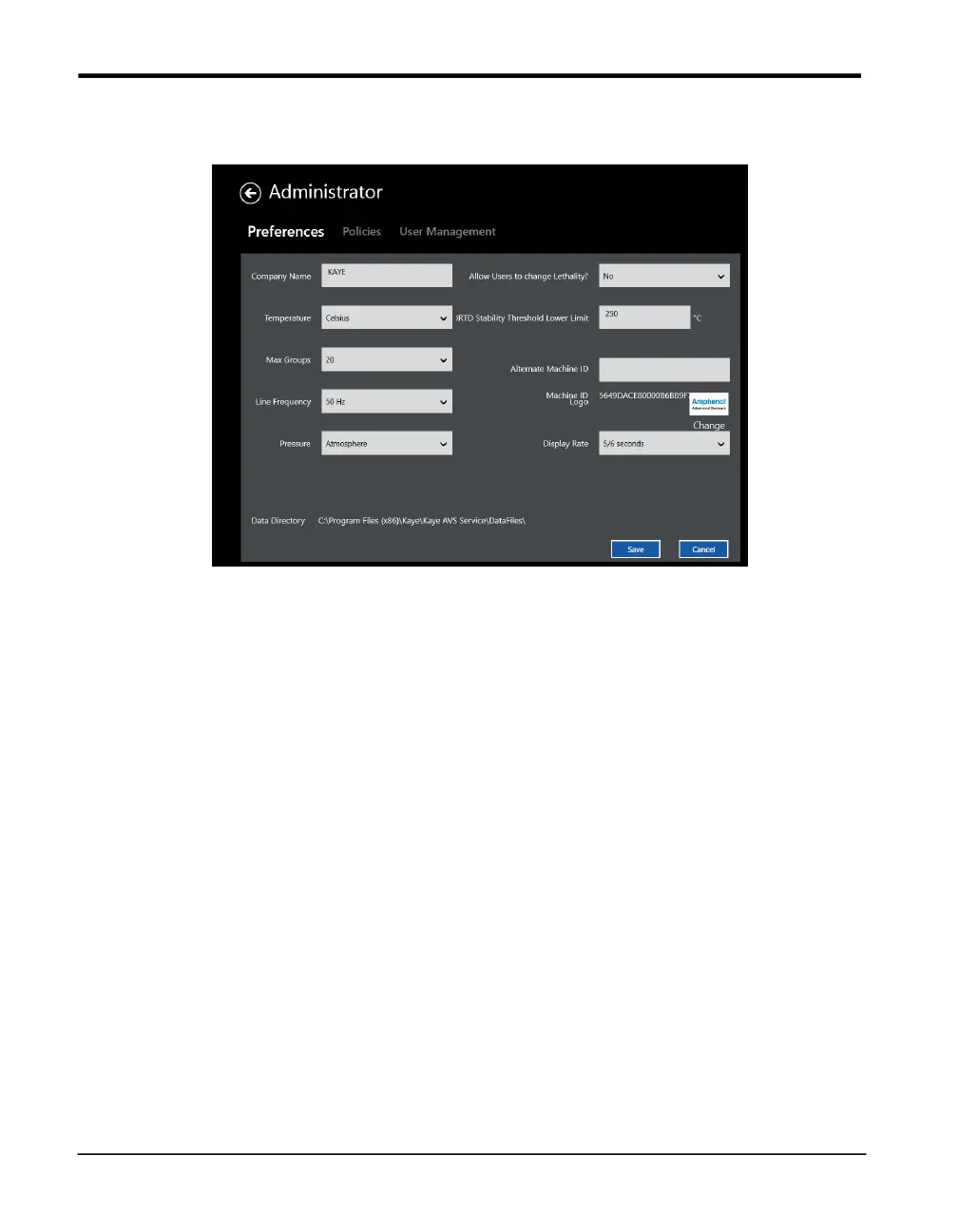
3.4 Setting Preferences
Figure 24: Preferences Tab in the Admin Menu
The Kaye Validator AVS software installs with default system settings. You can change
any or all of the settings on the Preferences screen. The new settings become effective
independently.
1. Use the keyboard to enter your company name.
2. Use the drop-down list to set the temperature units to Celsius or Fahrenheit. All
calculations are performed in the temperature units specified here. The IRTD and the
temperature reference (LTR –90, LTR –25/140, LTR –40/140, HTR 400, CTR –40, or
CTR –80) are also programmed to operate in these units.
IMPORTANT: If you create a setup using one temperature unit and then change
units on the Preferences screen, you’ll be prompted to change to the new settings the
next time you save that setup. However, only the label will be changed, not the
temperature value. You need to make sure that all temperature values you entered are
still appropriate for the new temperature units. For example, if you created a setup
using °C, you may have entered 100.0°C as a calibration setpoint. If you change the
temperature units to °F, the software will change the calibration setpoint to 100.0°F,
not 212.0°F, changing the label from C to F but not the numeric value. If you want the
setpoint to be 212.0°F, go to the Calibration screen and change the temperature
value.


 To Next Page