Chapter 8. Viewing Live Data
Kaye Validator AVS User’s Manual 86
Chapter 8. Viewing Live Data
Once you have entered a setup into your Validator AVS, you can monitor live data or
calibration or qualification study progress on the Console.
8.1 Select Validator AVS
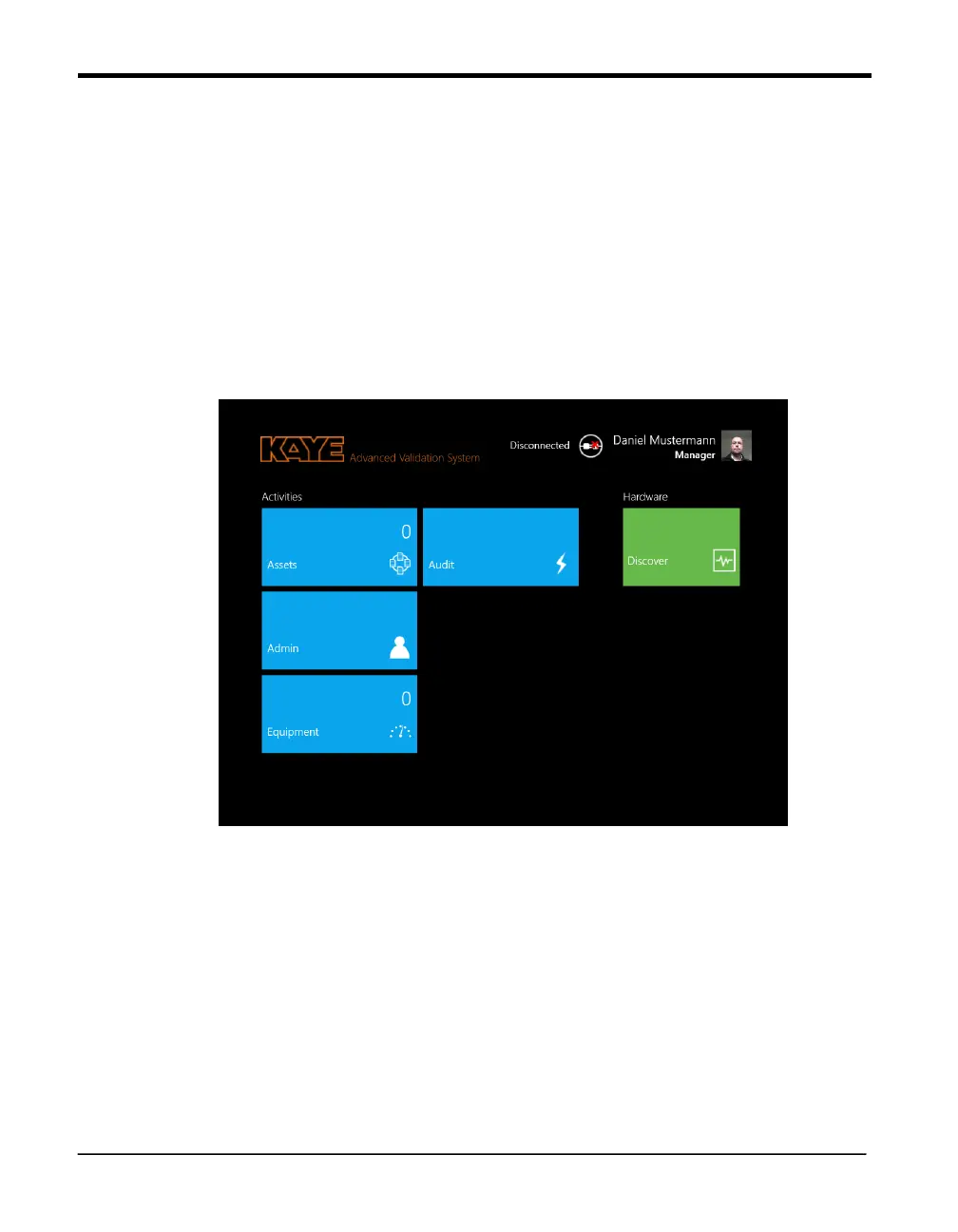
From the Main Menu the hardware area in the center displays a tile, Discover. Press this tile
to open select Validator AVS window.
Figure 50: Main Menu with Hardware Discover Tile
The easiest way to connect to a Validator AVS is to dock the Validation console into the
docking port of the Validator AVS. The Docking Connection is represented by the
preselected orange “USB/Docking” Tile. Simply press “Connect” to connect to the Validator
AVS.
Pressing “Discover” will search the connected Networks (LAN or Wi-Fi) for available
Validators. They are listed with blue tiles showing serial number and IP address. The tile for
the currently selected Validator AVS has an orange triangle in the upper right corner. When
connecting to a Validator in the network, on pressing “Connect” it is necessary to select a
connection via Ethernet or Wi-Fi.


 To Next Page