Chapter 6. Defining Study Setups
Kaye Validator AVS User’s Manual 65
6.3 The Define Setup Screen
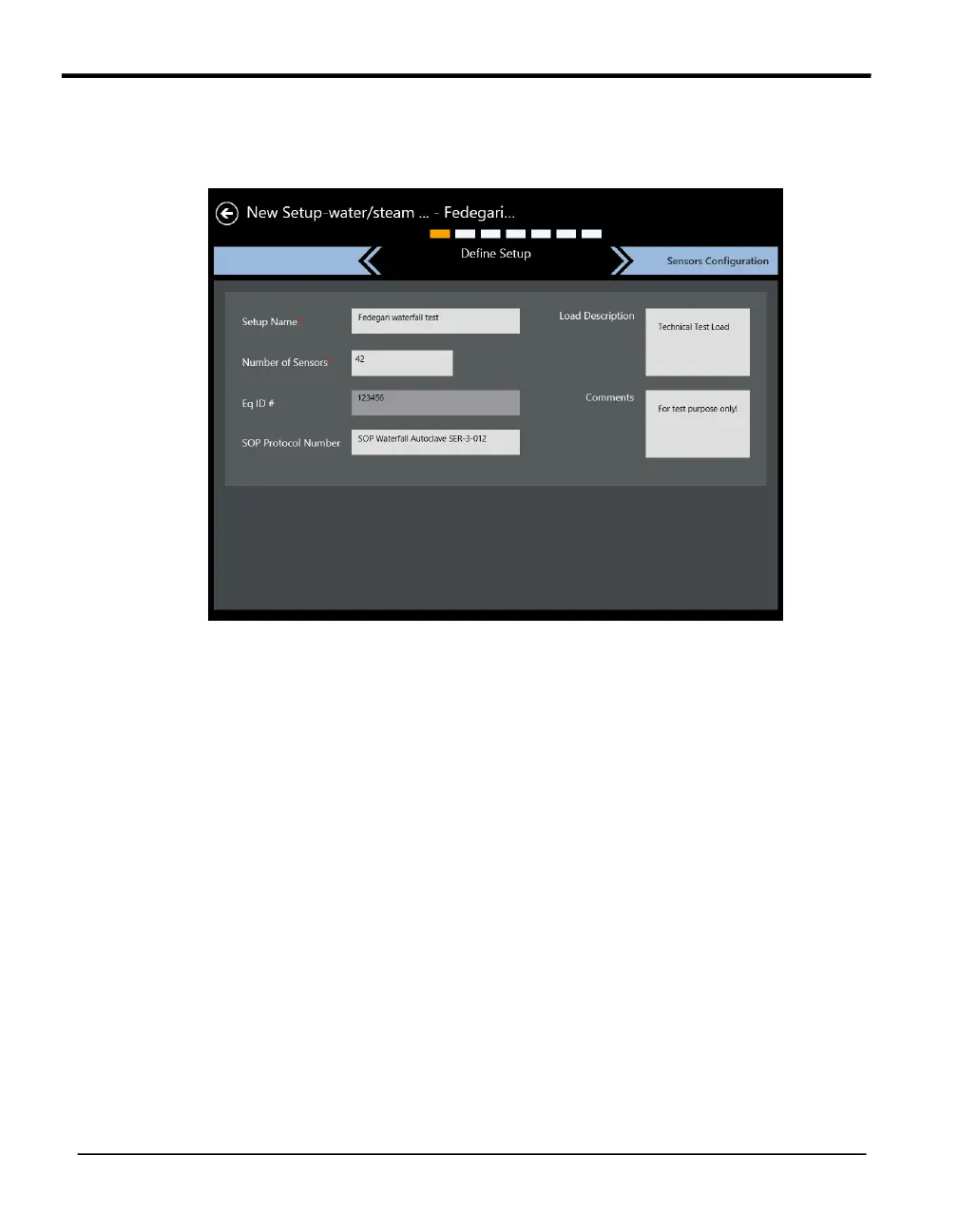
After you have pressed the New Setup button in the Setup Hub pane of Asset Details screens,
the Define Setup screen opens.
Figure 38: The Define Setup Screen
Here you define the setup for a study. Use the text boxes or drop-down lists to enter:
• The Setup Name
• The Number of Sensors
• The EQ ID
• The SOP (Standard Operating Procedure) Protocol Number
• The Load Description
• Any Comments you wish to add.
Note: The Setup name, Study type, and Number of sensors fields are mandatory.
The Setup Name and Comment fields can accept alphanumeric characters and blanks, while the
EQ ID, Load Description and SOP fields can also accept special characters (hyphen, underscore,
forward and backward slash.)
When you have completed entering asset data, press the Sensors Configuration button at the
upper right to continue.


 To Next Page