Chapter 5. Defining Assets
Kaye Validator AVS User’s Manual 61
Calibrations, Qualifications and verifications are started from the setups page of the asset. Firstly
select a setup to activate the initiate buttons. Pressing one of these buttons starts a calibration,
qualification or verification. The “Hardware Discovery” screen will appear and the setup
transferred to the selected Kaye Validator AVS.
The Calibration tile provides a list of all available calibration study files with the setup name, the
date, run number and comments. After selecting a study file, it is possible to seamlessly open the
report tool and create the report from here. Similar to the setup files can be also displayed in a list,
deleted or copied to a drive. Copied study files can be reimported to other Kaye Validation
Consoles using the “AVS convert” import function of the command center.
Under the Qualification and Verification tile, the similar functionality, starting the report tool, copy
or delete files, is provided for qualification or Verification study files, too.
For reports, the tile displays all already generated and available setup, calibration, qualification and
verification reports. The documents are sorted under the tabs and can be directly displayed in the
seamlessly integrated pdf-reader for review or printing.
For documents, the pane provide option to upload any pdf documents related to the Asset like e.g.
wiring diagrams, SOPs or calibration certificates..
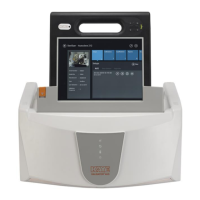
5.2 The New Asset Screen
To enter a new asset into the Validator AVS system, go to the Asset Hub screen and press the plus
(+) icon. The New Asset screen opens.
Figure 36: New Asset Screen


 To Next Page