Chapter 3. Creating User Accounts
Kaye Validator AVS User’s Manual 50
2. Insert a USB thumb drive with the firmware provided by Kaye into the USB port of the
Kaye console on the backside of the Validator AVS. You can easily identify the correct
USB port by referring to the displayed picture.
3. Now everything is ready to upgrade the firmware. Please make sure the Validator AVS is
properly powered and not switched off during the upgrade process. Otherwise the system
can be damaged and need to get restored in a Kaye Service Center.
Press “Upgrade Firmware” and wait until a message tells you to restart the Kaye
Validator AVS.
3.7 Handling Data Files
The Kaye Validation console software allows to synchronize data across several consoles.
The functionality is also used to backup, restore and archive files. The synchronization
requires a location for the commonly used data. This can be any folder the Operating system
can access for read/write operations, like a shared folder in the network but also an external
drive or USB thump drive or a folder on the Kaye console itself. Please contact your system
administrator for setting up a file location.
The sync functions can be used for a simple backup but also to merge the data of several
Validation console data sets following some rules for merging:
- Preferences and Policies are not synchronized
- If two items with the same name exists the item is updated with the latest version
(depending on the modified date) in case for users and assets.
- In case two items have the same name but different dates (reports, study files) both
will be retained
-
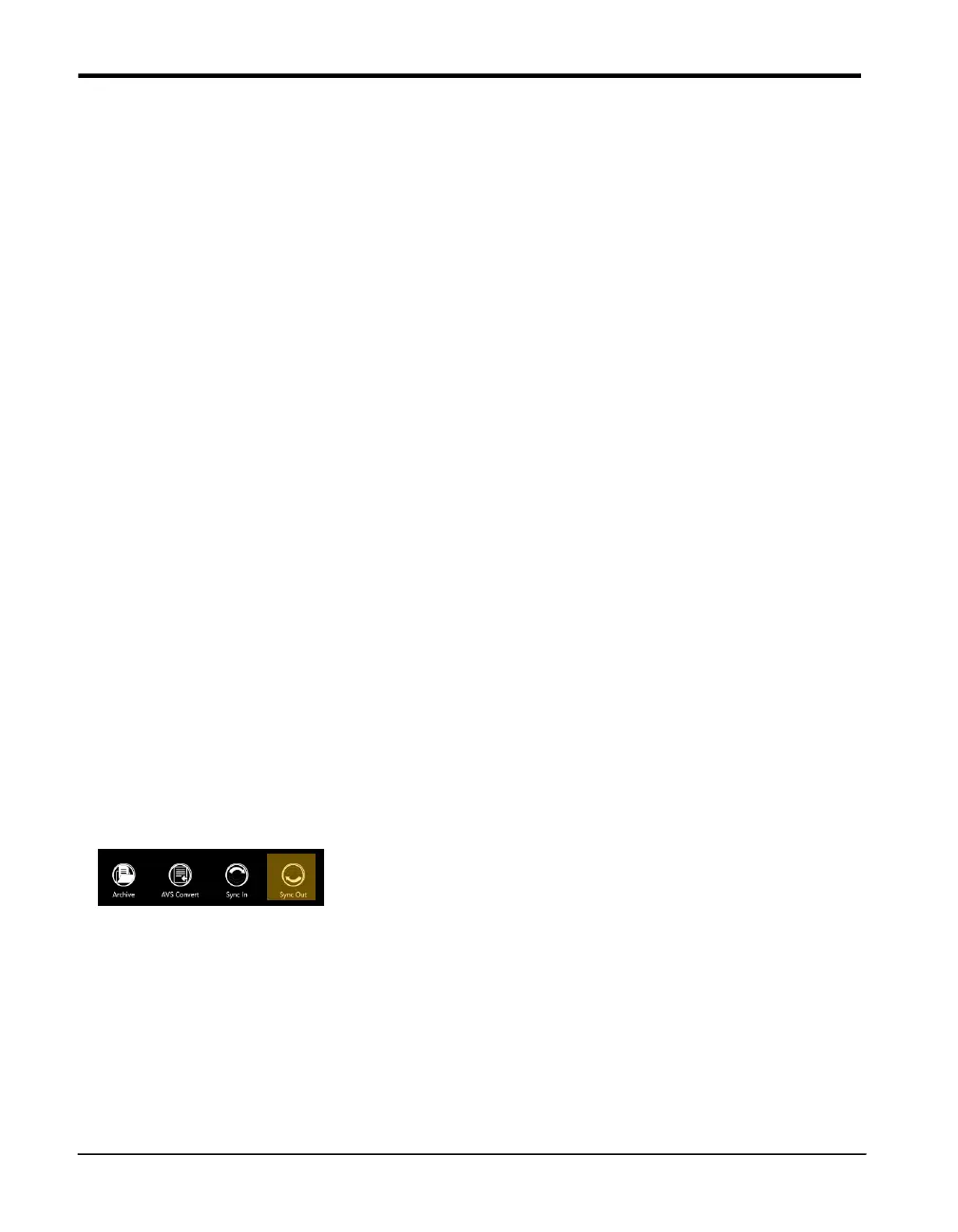
The sync operations are started from the App command bar, accessible with a swipe from the
button up or from the top down. When starting a sync operation the software firstly asks for
the location.
Sync Out
The Sync out function is used to copy the data content of the console to another file location.
If the content of one console is copied to a dedicated folder it serves as a backup function.
In case the data of two or more consoles synchronizes to the same folder the data is merged
together which enables to build up a pool of shared data for a work group.
It is selectable which data is actually copied. If an asset is selected the asset with all the
information (setups, study files, reports, documents) is copied. It is also possible to select
only one or a few assets to transfer these from one console to another but also possible to
make a complete transfer with user, audit, equipment and asset data, depending on the setup.


 To Next Page