A75UM3EG (Ver. E.2)
3-120
3.8.4 Concurrent Print Mode (Check Set)
[Function]
In the Set Copy Mode, the scanned image data is not printed out but is stored in the memory as the
Set Copy Job.
Therefore, it is impossible to know the result of scan until you print it out pushing the Start Key.
If you scan originals in the Set Copy Mode validating the Concurrent Print Mode, however, one sheet
of copy is printed out per an original while storing the image data in the memory.
If you do not satisfy the result when you check the printout, therefore, it is possible to delete or
replace that image by the Edit Function before printing out all image data (Set Copy Job) pushing the
Start Key.
As for the Edit Function, refer to the page 3-129.
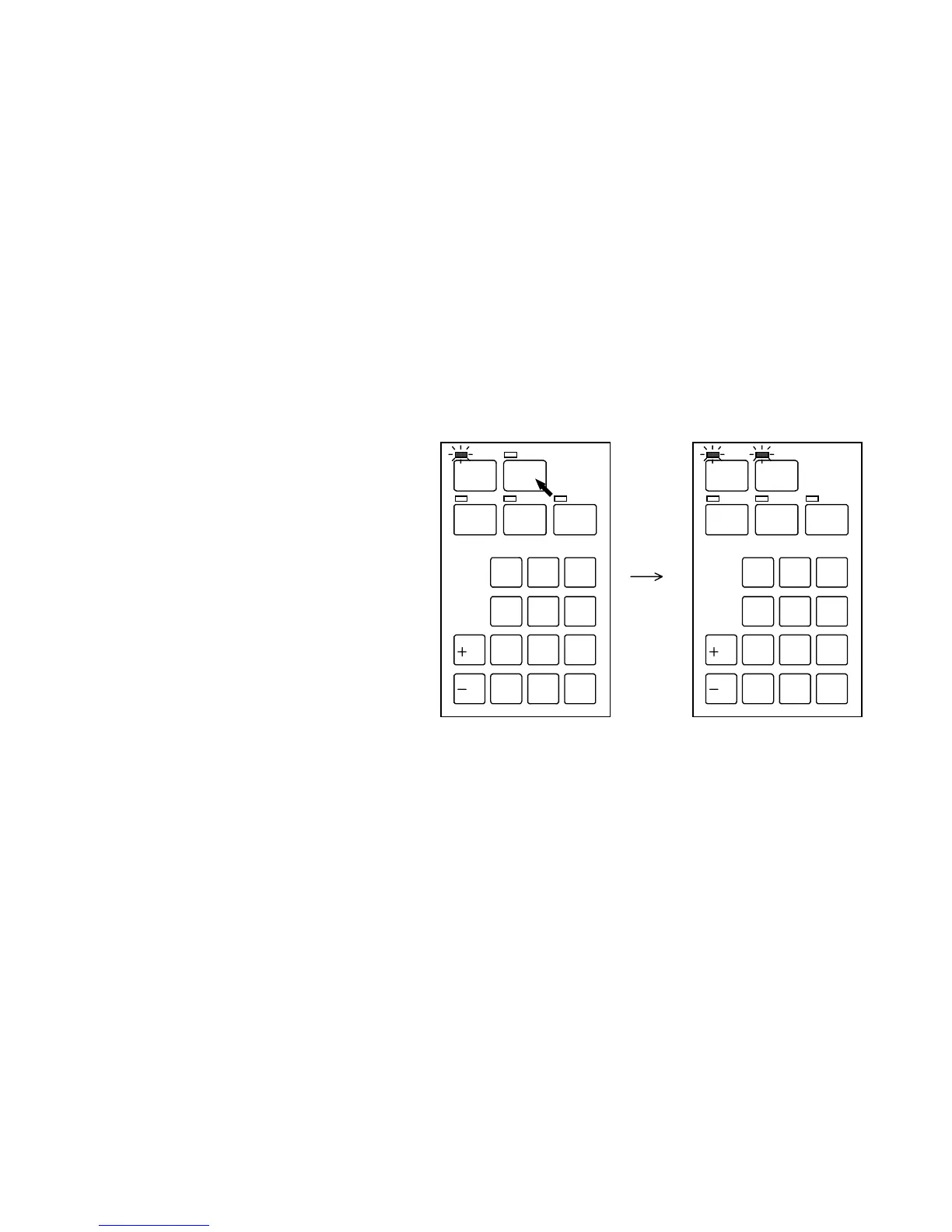
[How to validate the Concurrent Print Mode]
Push the Concurrent Print Key to validate the Concurrent Print Mode before scanning the original in
the Set Copy Mode.
The LED lamp of the Concurrent Key lights up.
[How to cancel the Concurrent Print Mode]
Cancel the Concurrent Print Mode pushing the Concurrent Print Key when its indicator is lighting up.
The LED lamp of the Concurrent Print Key is put out.
[Reference]
It is possible to do Concurrent Print when the printer is printing out the former Copy Job.
Whenever you scan the original, the printer stops printing the former Copy Job in the middle and
prints out the copy of scanned original with priority.
When the copy of scanned original has been printed out, the former Copy Job is re-started.
/
L
/
R
SET COPY
ROTATE
AUTO ZOOM AUTO PAPER
CON CURRENT
PRINT
0
1
4
7
.
2
5
8
C
3
6
9
/
L
/
R
SET COPY
ROTATE
AUTO ZOOM AUTO PAPER
CON CURRENT
PRINT
0
1
4
7
.
2
5
8
C
3
6
9



 To Next Page