A75UM3E2 (Ver. E.2)
3-7
3.3.1 Roll media feeding
Since the printer has some pieces of roll media, you have to select one of them for copying by way of
“automatic roll selection” or “manual roll selection”.
Note : In case of the roll media feeding, it is impossible to decide the material setting (plain paper,
vellum and film) and format setting (either Engineering and Architecture) on scanner’s side.
These settings are done on printer’s side by moving the Selector Knob of each Material Selector
and Size Selector, and the scanner just indicates the setting state of these selectors in the Paper
Setting Screen.
If you do not adjust these selectors properly, therefore, wrong information is indicated on the
LCD.
Make sure to adjust selectors properly making reference to printer’s manual.
A. Automatic roll selection (Auto Paper Mode)
[Function]
If only you set the original to the scanner and decide the zoom ratio, the Auto Paper Mode
automatically selects a roll media that matches the reduced or enlarged copy image size calculating
from original size and zoom ratio.
As for the way to decide the zoom ratio, refer to “Zoom Settings” on the page 3-27.
[How to select roll media in the Auto Paper Mode]
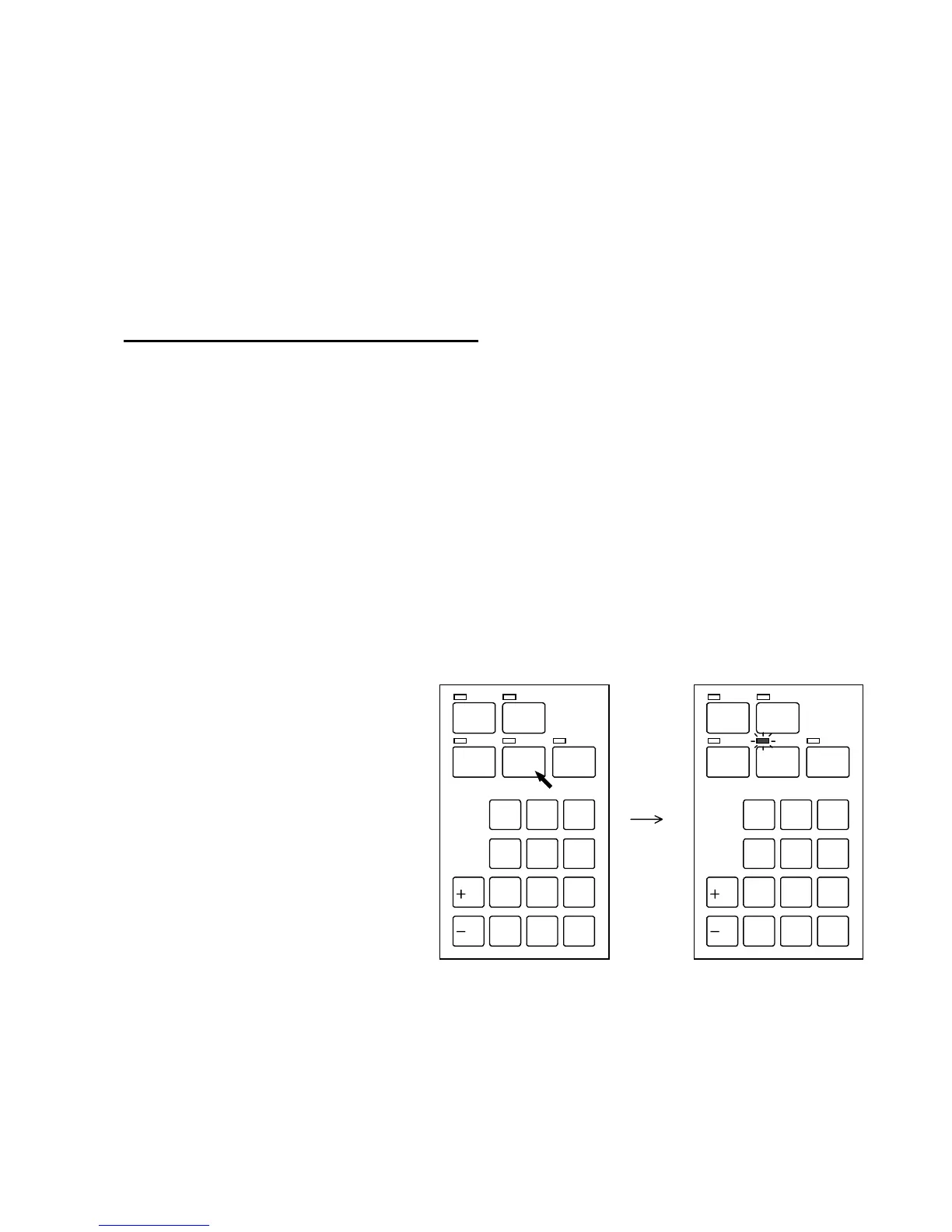
1) Push the Auto Paper Key to enter the Auto Paper Mode.
The LED lamp of the Auto Paper Key lights up showing that the Auto Paper Mode is valid now.
Note : When the Auto Paper Mode is valid, both Auto Zoom Mode and Rotate Mode are always
cancelled.
It is impossible to use these modes with the Auto Paper Mode at the same time.
2) Decide the zoom ratio making reference to “Zoom Settings” on the page 3-27.
/
L
/
R
SET COPY
ROTATE
AUTO ZOOM AUTO PAPER
CON CURRENT
PRINT
0
1
4
7
.
2
5
8
C
3
6
9
/
L
/
R
SET COPY
ROTATE
AUTO ZOOM AUTO PAPER
CON CURRENT
PRINT
0
1
4
7
.
2
5
8
C
3
6
9



 To Next Page