Communication Verification
Z-Max Advanced Programming & Systems Design Guide rac00-sdg
Revision A:11/2005 Page 139
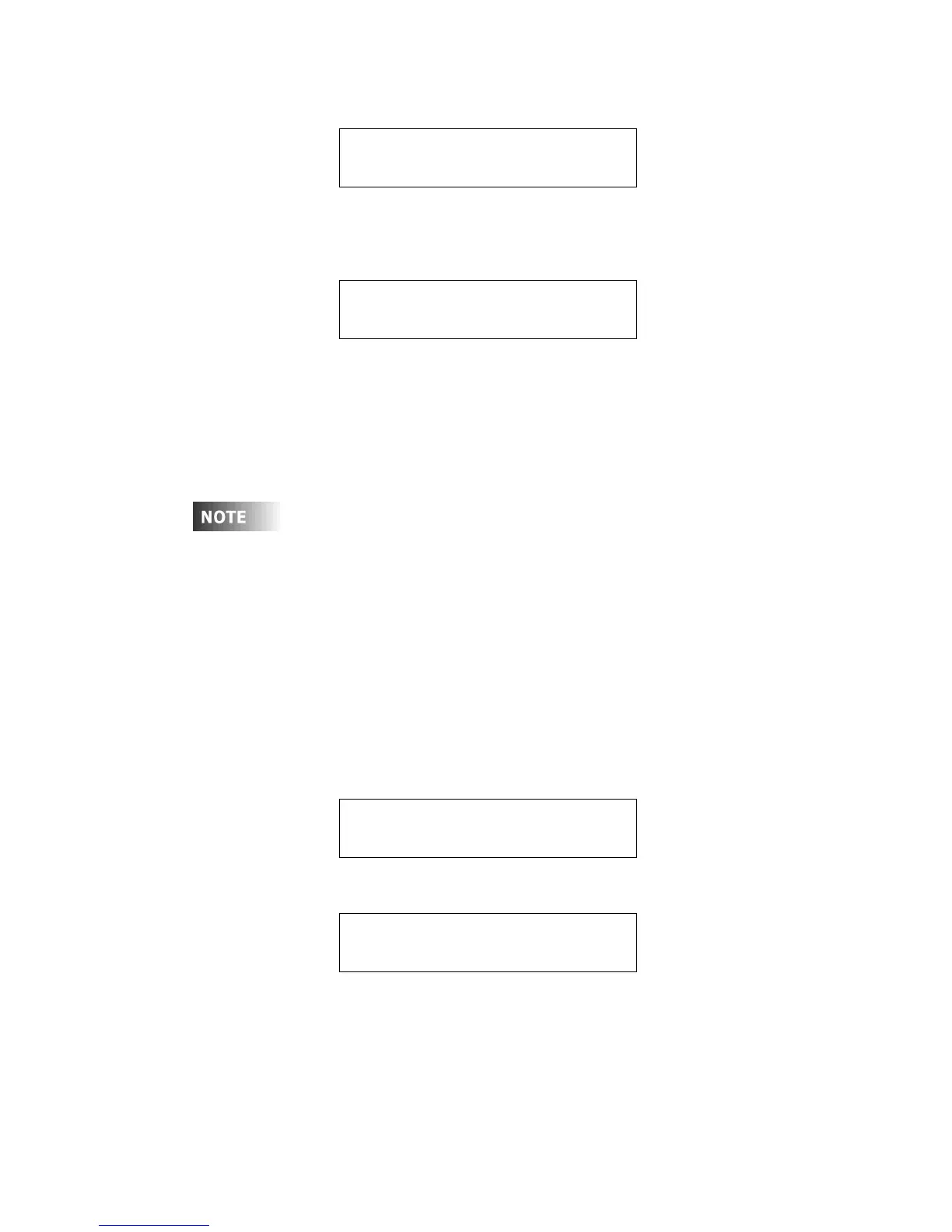
Step 3: Using the arrow keys, find the menu below:
Step 4: Press SELECT/SAVE until the OFF is blinking, then use the arrow keys
or numbers to set it to enter the total number of relays in all remote
relay cabinets. If we were only controlling one 24 remote cabinet and
one 4 relay remote cabinet, this value would be 28.
Step 5: Press SELECT/SAVE to save the setting
Enabling Remote Discrete Inputs
If you intend to have switches or other inputs (discrete) land at the remote relay
panels yet to be configured from the master control panel, you must enable the
receipt by the master panel of these messages. To enable remote discrete inputs,
please perform the following steps:
Step 1: Press the MENU button to enter the menu structure
Step 2: Use the arrow keys and the SELECT/SAVE key to navigate to
Configuration, System Setup, then Global Defaults
Step 3: Using the arrow keys, find the menu below:
Step 4: Press SELECT/SAVE until the OFF is blinking, then use the arrow keys
or numbers to change it to ON.
Step 5: Press SELECT/SAVE to save the setting
Communication Verification
Once all setup has been performed, and with the system powered up, verify that the
Master & Remote cabinets have successfully "linked" to each other and are in
GLOBAL DEFAULTS
REMOT RELAYS OFF
GLOBAL DEFAULTS
REMOT RELAYS 28
The use of low voltage control inputs on Remote Relay panels is
only available in software release 1.40 and above for both the
master and slave cabinets. If you plan to use this feature,
please make sure that all cabinets have been upgraded.
Additionally, if your cabinet was shipped before 1.40 was
released, the firmware may need to be updated. If you suspect
this is the case, please contact our technical services
department at (800)959-6004.
GLOBAL DEFAULTS
RMT DISCRETE OFF
GLOBAL DEFAULTS
RMT DISCRETE ON



 To Next Page