Action Editor
Z-Max Advanced Programming & Systems Design Guide rac00-sdg
Revision A:11/2005 Page 83
Action Editor
The action editor is used to manage the actions defined in your relay cabinet. Actions
are used to execute commands or create groups of commands which are called by a
contact closure input or by the event scheduler.
Each action is made up of a list of items. You can have as many action items as
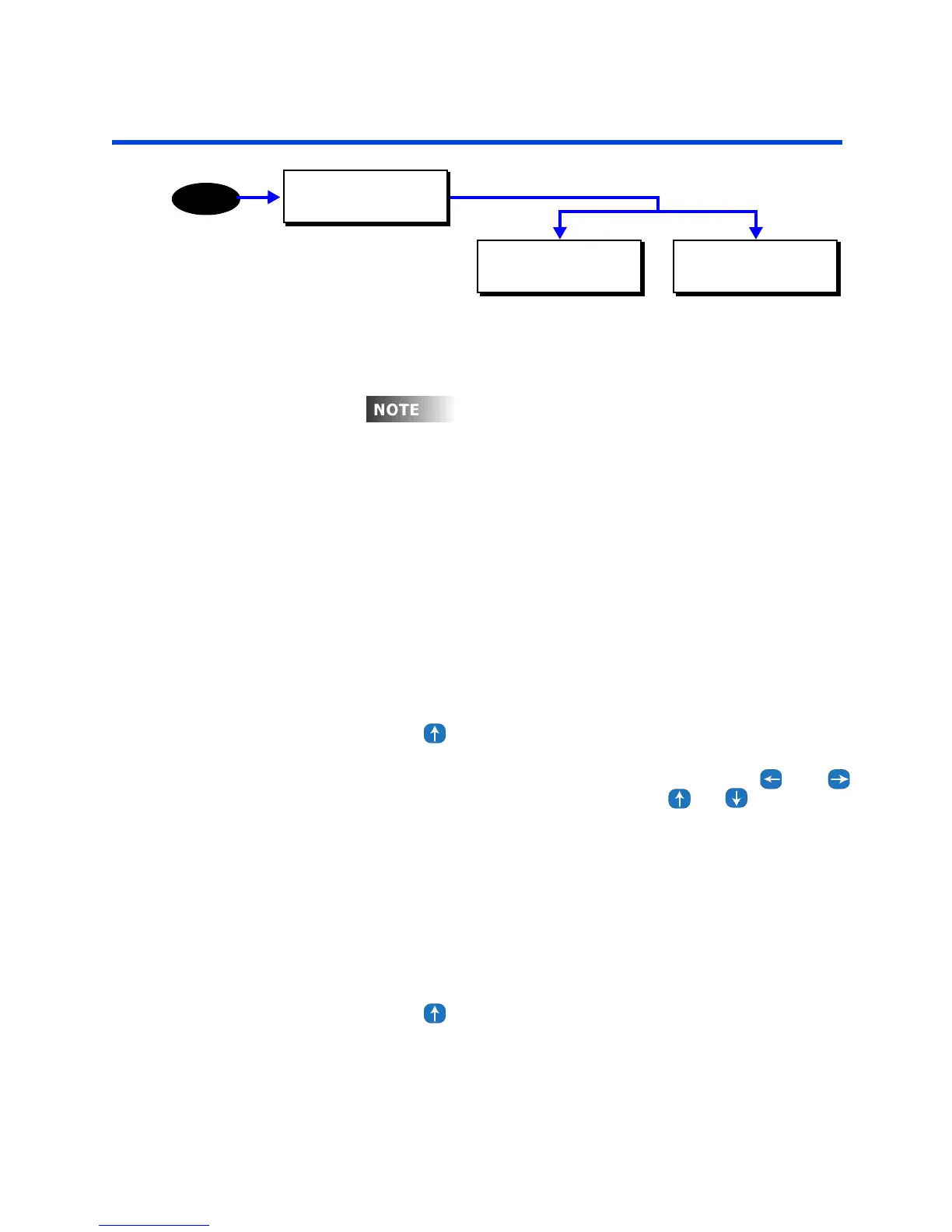
desired, up to the system limit of 2000. There are four submenus in the Action Editor
• ADD A NEW ACTION
• EDIT AN ACTION
• DELETE AN ACTION
• EXIT (DONE)
Adding an Action
Step 18: Navigate to the Action Editor
Step 19: Press until you get to the Add/Edit Actions Screen
Step 20: Press Select/Save
Step 21: Name the Action: You can change the name using the and
arrow buttons to move the cursor and the or arrow buttons
to change the character. You can also use the alpha-numeric keypad to
enter characters. Tapping the alpha-numeric button the first time will
result in the number, tapping the same button again will result in the
character listed above the number on the button. In the case of the 1
and 0 buttons, a hyphen or space character respectively will be
displayed. In the case of the number keys 2 - 9, the left most character
will be displayed. For these keys, as they are pressed repeatedly, each
successive character, from left to right is displayed until all have been
displayed, at which time it wraps back to the number and repeats.
Step 22: Press Select/Save when you have finished naming the Action
Step 23: Press until you get to the Add A New Item Screen
MAIN MENU SELECT
ACTION EDITOR
MENU
ACTION EDITOR
ADD/EDIT ACTIONS
ACTION EDITOR
DELETE AN ACTION
n or
er
o crea
e any even
, an ac
on mus
rs
be created. The action is "what happens" the
event is "when it happens."



 To Next Page