Action Editor
Z-Max Advanced Programming & Systems Design Guide rac00-sdg
Revision A:11/2005 Page 87
Be sure that you do not create a continuous loop by linking to action
items that eventually link back to the original
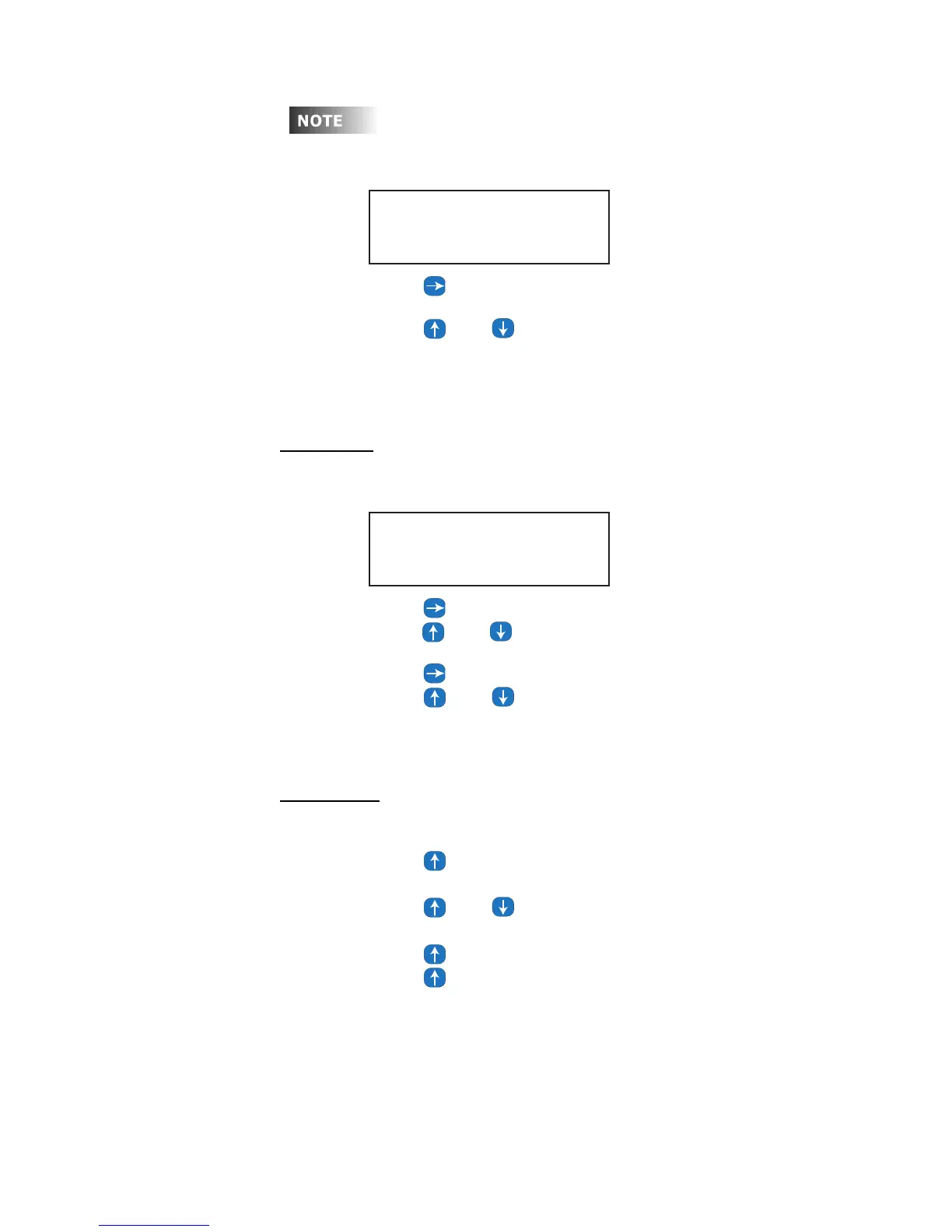
Step 58: Press once to position the cursor in the Action field
The default value is Undefined meaning no action has been selected!
Step 59: Press and until you get to the desired Action.
Press Clear to return to "undefined" once a number has been selected
Step 60: Press Select/Save.
The menu will be returned to the point where another item can be
added, edited, or deleted if desired.
Event - EVT:
This action item is used to enable or disable an event
Step 61: Press once to position the cursor in the Event Number field
Step 62: Press and until you get to the desired Event number or enter
the number directly from the keypad.
Step 63: Press once to position the cursor in the Enable/Disable field
Step 64: Press and to toggle between ENABLE and DISABLE
Step 65: Press Select/Save.
The menu will be returned to the point where another item can be
added, edited, or deleted if desired.
Edit an Item:
Once items have been added to an action, they can be edited. If you are still in the
Add An Action Section:
Step 66: Press until you get to the Edit An Action Screen
Step 67: Press Select/Save
Step 68: Press and to choose the action the item is in
Step 69: Press Select/Save
Step 70: Press until you get to Edit An Item Screen
Step 71: Press until you get to the item you want to edit
Step 72: Press Select/Save
Step 73: Edit the item using the same instructions that you used to create the
item
Step 74: When you are complete with the editing, Press Select/Save
The menu will be returned to the point where another item can be
added, edited, or deleted if desired.
ADDING NEW ITEM
ACT undefined...
ADDING NEW ITEM
EVT 001 DISABLED



 To Next Page