Scheduler
Z-Max Advanced Programming & Systems Design Guide rac00-sdg
Revision A:11/2005 Page 93
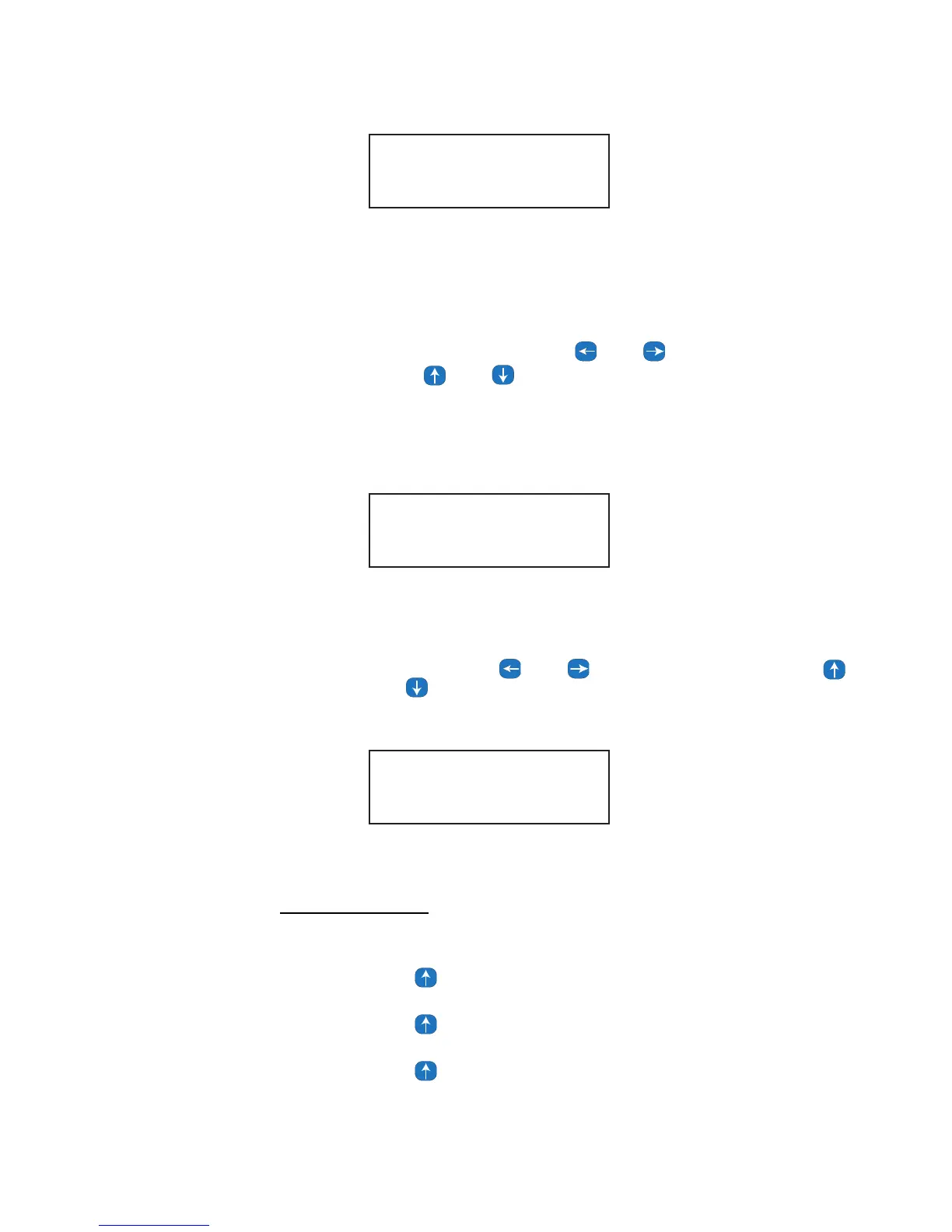
Step 12: The display will now enter a date and day of the week edit screen for
that holiday. These have been preset and it is recommended that they
not be changed.
Step 13: Press Select/Save
Step 14: The day of the week portion of the LCD changes to the holiday list
assignment entry. The holiday can be assigned to any of the four
holiday list numbers. Use the and to select the field
Step 15: Press and to select the list number.
If the number is displayed, the holiday is included in that list. If the
field is an underline, the holiday is not part of that list. A holiday may
be a member of more than one holiday list. You must assign the
holiday to at least one holiday number.
Step 16: Once the holiday list assignments are completed as desired, Press
Select/Save
Step 17: You will now be able to edit the holiday name. It will be defaulted with
the selected holiday name and it can be left as is. If you would prefer to
change it, use the and to select the character and use
and to change the character. You can also type in the new name
using the keypad.
Step 18: Press Select/Save once the name is as desired
.
Custom Holiday List
This menu allows you to create your own custom holidays.
Step 1: Press the Menu Button
Step 2: Press until you get to the Scheduler Screen
Step 3: Press Select/Save
Step 4: Press until you get to the Holiday Editor Screen
Step 5: Press Select /Save
Step 6: Press until you get to the Add New Holiday Screen
Step 7: Press Select/Save
02/02/an Edt:001
02/02/an MTWTFSS
02/02/an Edt:001
02/02/an HD:1-3-
02/02/an New:001
Ground Hog Day



 To Next Page