Configuration the Simple Way Configure Inputs
Z-Max Advanced Programming & Systems Design Guide rac00-sdg
Revision A:11/2005 Page 23
Configure Inputs
Low Voltage Switch Inputs
Configuration of this type of input is used when you have some type of switch or
other triggering device connected to one of the inputs from which you desire to turn
on or off relays. Several different behaviors are available for configuring of this type
of input.
Step 1: From the main menu, navigate to Configuration, Config Inputs, then LV
Switch.
Step 2: Enter the input number of the switch input you wish to configure. This is
determined by looking at the terminal on your cabinet to which the
switch is connected. After entering the number, press the Select key
Step 3: The relay panel now asks for a behavior:
Your selection for the behavior of your switch will be determined by
the type of switch you have and how you desire it to operate. The
available behaviors are as follows:
• Momentary - The first press turns on the assigned relays, the second press
turns off the assigned relays
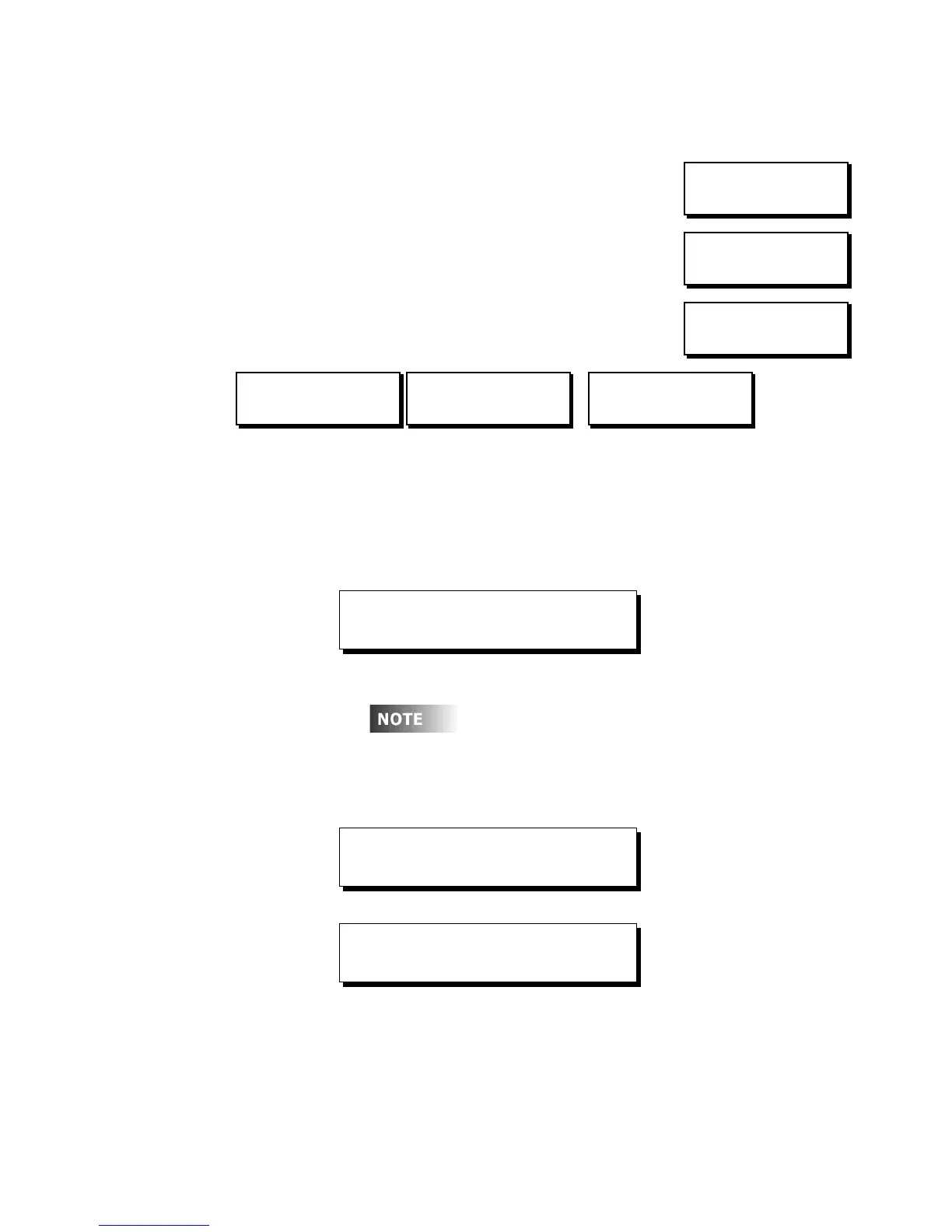
MON 02:37P E:001
STATUS: NORMAL
CONFIGURATION
CONFIG INPUTS
MAIN MENU SELECT
CONFIGURATION
CONFIGURATION
LV SWITCH
CONFIGURATION
PHOTOCELL
CONFIGURATION
OCC SENSOR
here are three types of inputs which can be
configured in your relay cabinet, Low Voltage Switch
Inputs, Photocell Inputs, and Occupancy Sensor
inputs. All Inputs are configured from the Config
Inputs Screen which falls into the menu structure as
shown as right. Each of the three types of inputs are
then configured from their own menu.
CONFIG INPUTS
LV SWITCH
Remember that when navigating menus, pressing Select
always selects the current menu, and pressing Cancel always
navigates to the previous menu.
ENTER LV SWITCH
INPUT NUMBER:002
SELECT BEHAVIOR
MOMENTARY



 To Next Page