Configuration the Simple Way Configure Inputs
Z-Max Advanced Programming & Systems Design Guide rac00-sdg
Revision A:11/2005 Page 29
Step 5: If you desire a blink warn to be issued prior to turn turning off the lights,
the response to this question should be Yes. If not, the response should
be No
Step 6: Enter the time delay between when the occupancy sensor indicates an
unoccupied state and the relays actually turn off
Step 7: Assign Relays
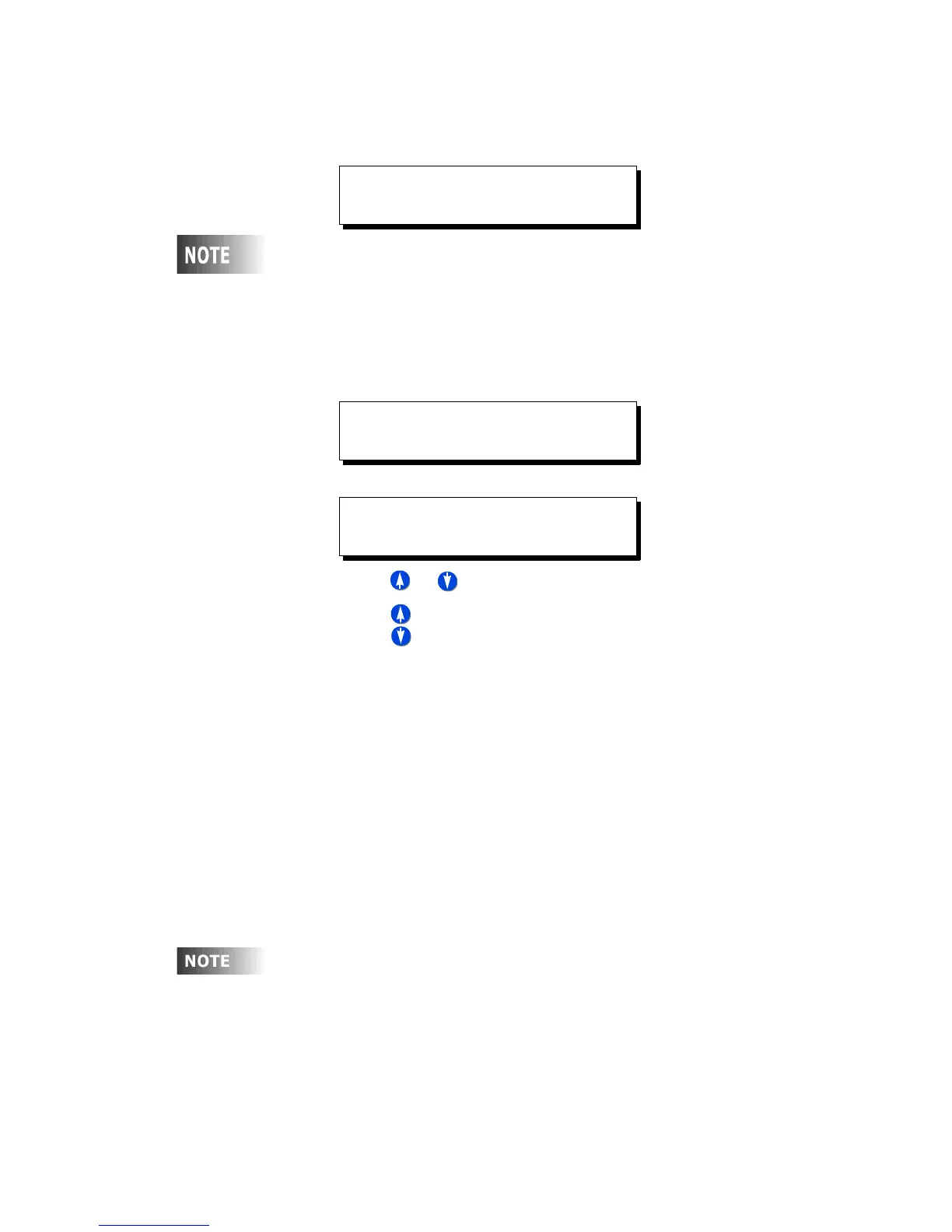
• Use or to increase or decrease the relay number
• Use to select any of the possible
actions for this relay
• YES - turns this relay on (and/or off) when the switch trigger point is
crossed
• IGNORE - instructs the relay panel to not change the state of this relay
when the trigger point is crossed
Step 8: Press Save/Select to save your settings and complete configuration of
this input.
Quick Schedule
The quick schedule menus are used to create a new event, change the time of an
existing event, and delete an event. An event is an action which occurs at a time. For
example, Relays 1, 2, & 4 turn ON at 7:30am is an example of an event which might
be schedule in a venue where relays 1, 2, & 4 are connected to lobby lights, when
doors open at 8:00am.
To create a scheduled event using the quick scheduler:
ENTER BLINK WARN
ENABLED: YES
A Blink Warn is not only advisable to keep people from suddenly
being left in the dark but is also required by some authorities
having jurisdiction. When blink warn is enabled, the lights will
"blink" prior to actually being turned off. After the blink, the
user can press the on button to cancel the off, otherwise, the
lights will automatically turn off.
ENTER TIME DELAY
MINUTES: 000
ASSIGN RELAYS
RELAY:001 YES
In technical Z-MAX lingo, an "Action" is what actually occurs. In
the case of the above example, the action is relays 1, 2, & 4
turning on. An "Event" is one scheduled occurrence of an
action. In quick schedule programming, both actions and
events are rolled into one seamless programming process.



 To Next Page