Switch/Discrete Inputs Assign Actions to Inputs
Z-Max Advanced Programming & Systems Design Guide rac00-sdg
Revision A:11/2005 Page 71
Step 7: Press to toggle the N to a Y.
Step 8: Press Select/Save
Step 9: Repeat Steps as necessary for all switch inputs.
Assign Actions to Inputs
Once you have defined the Switch type, you must associate an action to that switch.
An action consists of two parts, a behavior which dictates how the switch input
interacts with the relay cabinet, and second, you must assign relays and/or groups to
reach to the input.
When assigning actions, a different menu structure is employed for each of the
following previously defined input types:
• Switch Inputs
• Photocells
• Occupancy Inputs
• Contact Closures
The general procedure for assigning actions to inputs is as follows:
Step 1: Select Assign Actions from the inputs configuration menu
Step 2: Select the type of input you wish to configure
Possible input types are as follows:
• Switch Inputs
• Photocell Levels
• Occupancy Inputs
• Contact Closures
Step 3: Select the input number you wish to configure
Note: Only the input numbers for the input which are defined as the
selected type will show. If for example you are trying to configure an
occupancy sensor connected to input #3 yet input #3 doesn’t show in
the list, it’s input type is probably incorrectly defined. Please see the
"Define Types" section earlier in this chapter.
Step 4: Select the behavior of this input
Switch input behavior only is shown - all behaviors for each type are
discussed below
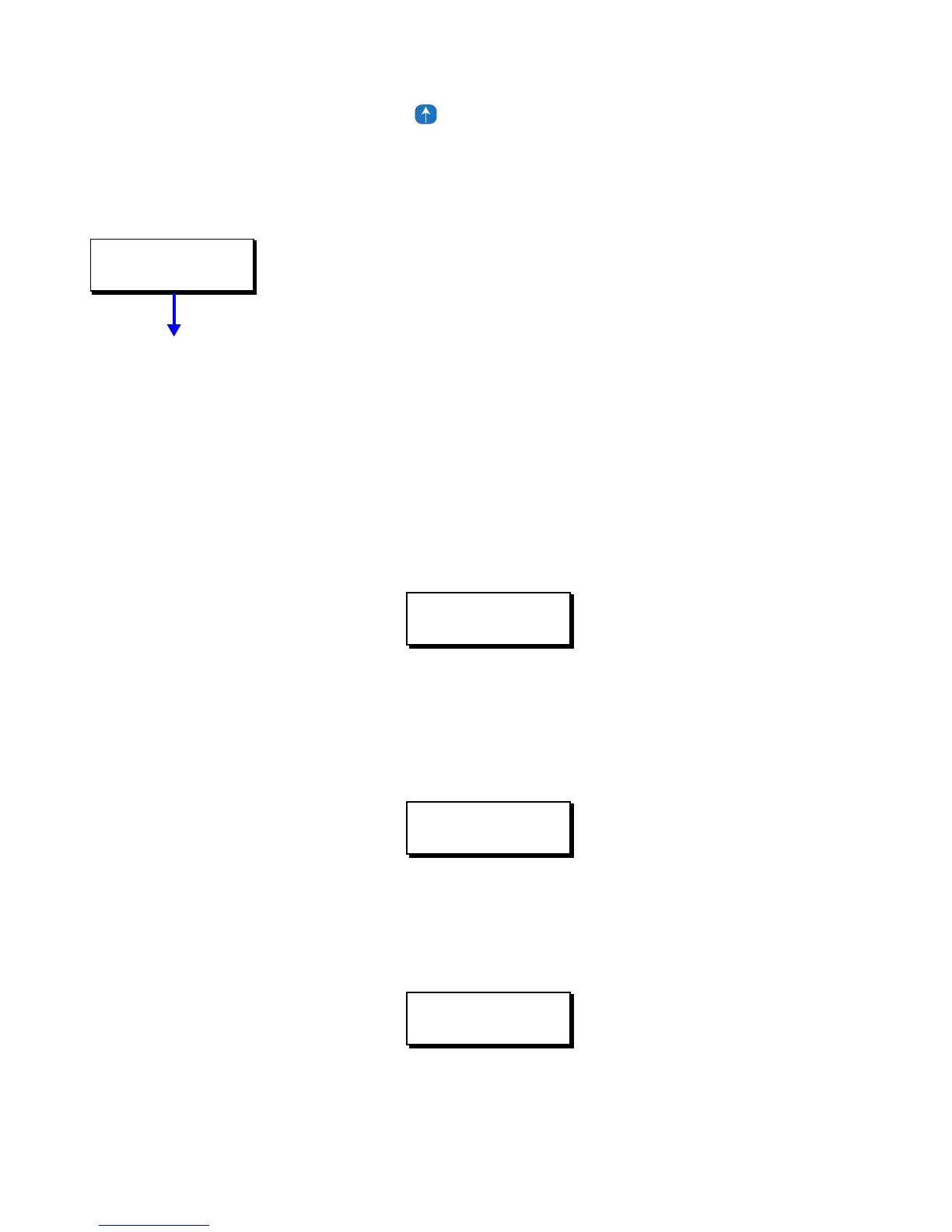
DISCRETE INPUTS
ASSIGN ACTIONS
ASSIGN ACTIONS
SWITCH INPUTS
ASSIGN SWITCHES
001:LOCAL
SWITCH:001 LOCAL
Momentary



 To Next Page