Setting the Date, Time, & Astronomical Time Clock
Z-Max Advanced Programming & Systems Design Guide rac00-sdg
Revision A:11/2005 Page 7
Setting the Date, Time, & Astronomical
Time Clock
The menu structures for the set date, time, and astronomical clock are as follows:
Set the Date & Time
Step 1: Press the Menu button
Step 2: Press until the display reads as below then press Select/Save:
Step 3: To set the time, press UP until the display reads as below, then press
Select/Save:
Step 4: You now will see the screen below:
From this screen, the following can be edited
• Hours
• Minutes
• AM/PM
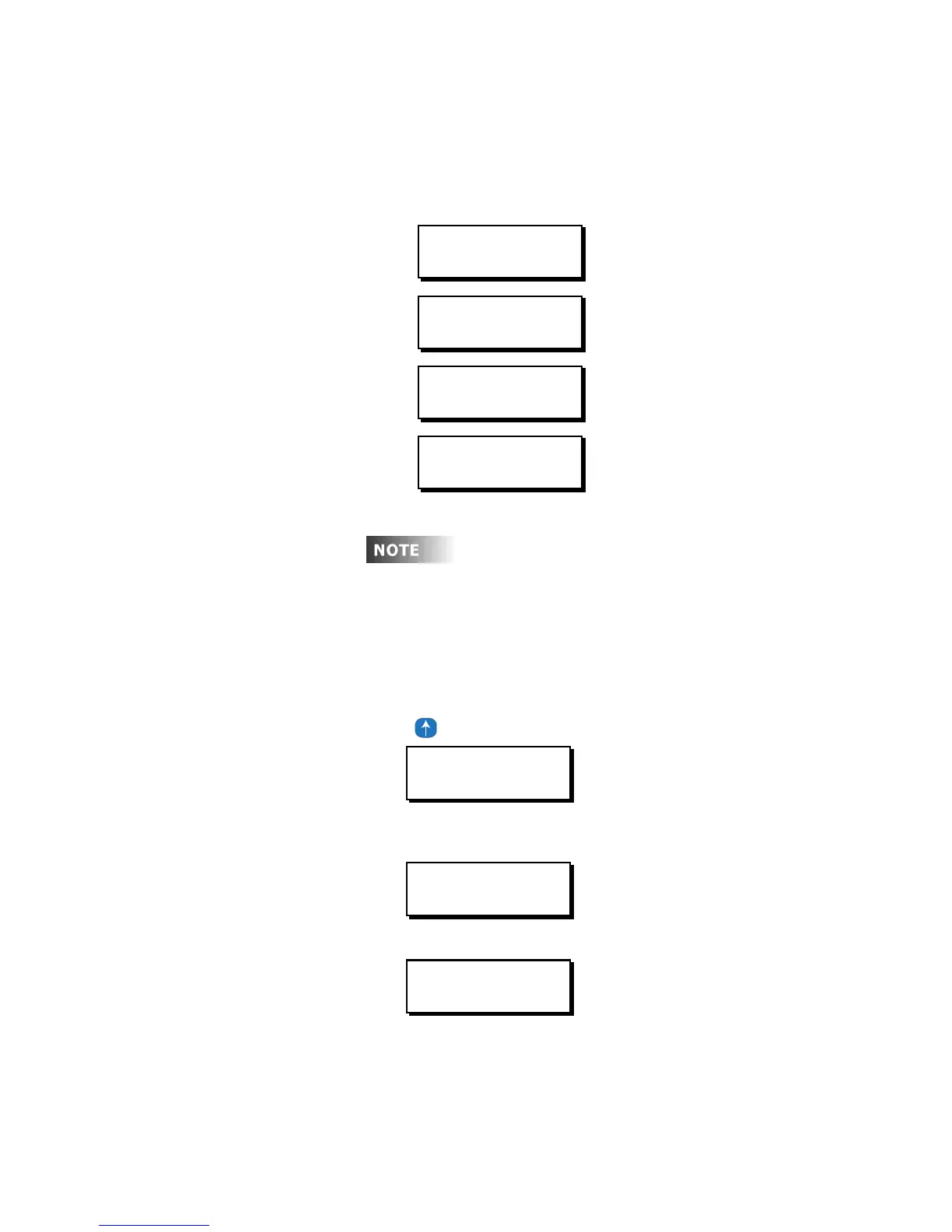
MON 02:37P UE001
STATUS: NORMAL
MAIN MENU SELECT
TIME/DATE/ASTRO
TIME/DATE/ASTRO
SET TIME & DATE
TIME/DATE/ASTRO
SET ASTRO CLOCK
e
es
gna
on
rec
y
o
ow
ng a
me
value has a specific meaning: A/P - indicates you
are in daylight savings time; a/p indicates
standard time; s/d indicates you’re in 24 hour
mode.
MAIN MENU SELECT
TIME/DATE/ASTRO
TIME/DATE/ASTRO
SET TIME & DATE
08:33PM FRI 12H
04/15/2005 D:OFF



 To Next Page