User’s Guide 129
McAfee Utilities
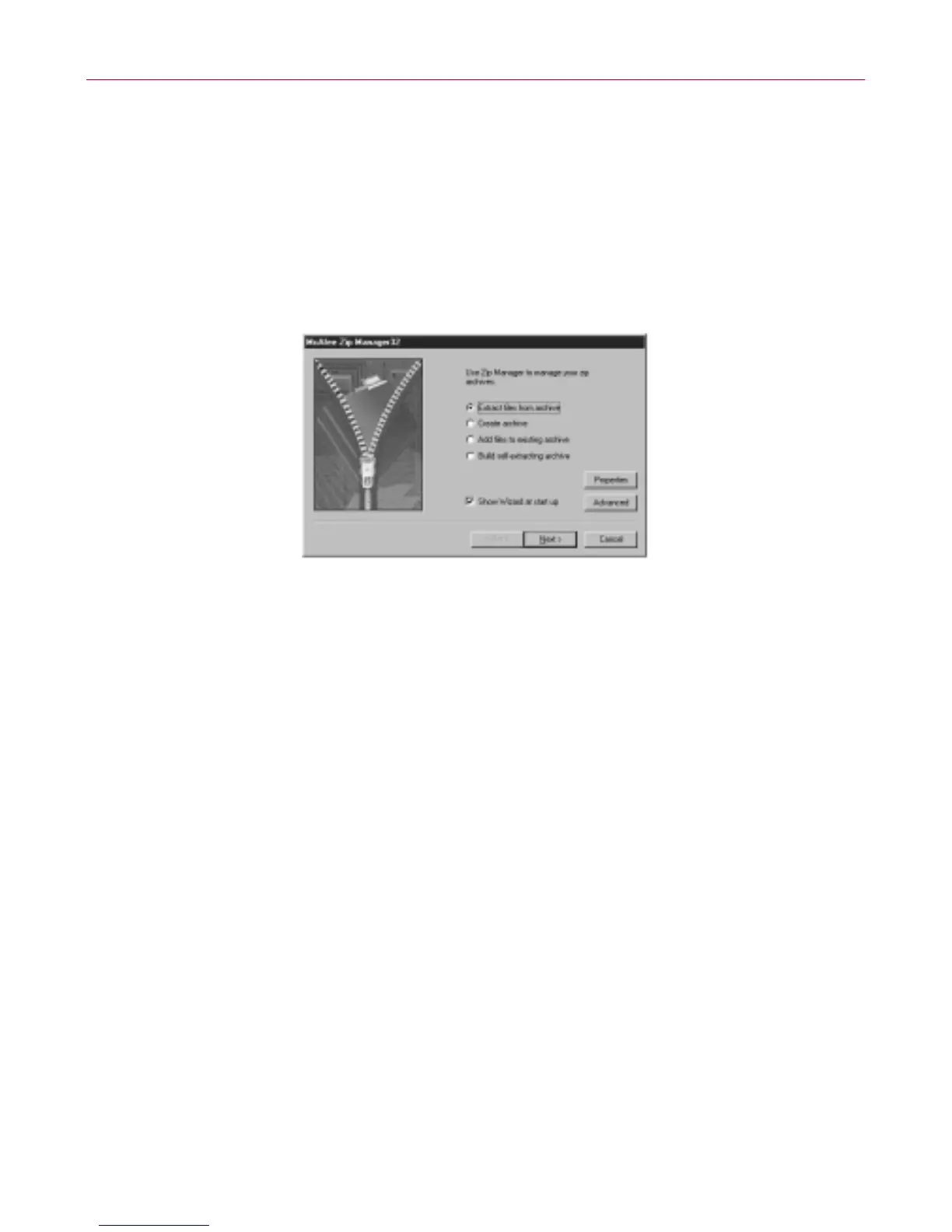
• Create archive–lets you create zip archives in any directories and specify
which files y ou want to zip and pla ce in these archives.
• Add files to existing archive–lets you zip files and place them in ex isting
archiv es.
• Build self-extracting a rchive –letsyouconvertanexistingarchive,
containing one o r mo re zipped files, into an un zipping program that can
decompress the files without the use of McAfee Zip Manager or another
unzip program.
Selecting McAfee Zip Manager properties
You can s pecify the properties that you want McAfee Z ip Manager t o have.
The properties that you select apply to both ZipMan Wizard a nd ad vanced
McAfee Zip Manager, but you can override so me of t hese properties if you are
working in advan ced McAfee Zip Manager.
Setting Explorer and startup options
The G eneral tab in the McA fee Zip Manager Properties sheet offers the
followin g options:
• Make default association– allows you t o have McAfee Zip Manager as
your default zip utility. If McAf ee Zip Man ager is your def ault, you can
unzip zipped fil es in W indo ws Explorer, simply by double-clicking t hem.
• AddtoSendTomenu–adds McAfee Zip Manag e r to t he Wind ow s’ Send
To me nu. You can Right-click a file in Windo ws Explo rer and use the Send
To > ZipMan command to send the file to McAfee Zip Manager.
• Install Desktop Icon–places a ZipMan icon on the desktop, allowin g you
to open McAfee Zip Manager from your d esktop, and drag files into the
ZipMan ico n for zip file mana ge ment.
Setting compression and source location options
The Z ip tab in the McAfee Zip Manager Pro perties sheet offers these options:



 To Next Page