McAfee Utilities
80 McAfee Office
Sele ct ing a file category’s check box put s that f ile catego ry in t he Placement
Stra tegy pane l. You can highlight acategoryin the p anel att he right , andmo ve
it up or down in the five disk regions. For example, if you want to pla ce
recently modified files in the m iddle r egion of your disk, click the Recently
Mod ified F iles check box, highlight t his category in the Placement St rategy
pane l, and move it to t he Middle (light blue) band by clicking the Up or Dow n
Arrow buttons .
Directory Sort tab
Disk Tune places files into drive r egions in the order t hey appear in your
folders, or directories.TheD irectory Sorttabl etsyou changethe orderfiles are
placed in the region, as w ell as the or der in wh ich t hey appear in the folder or
directory.
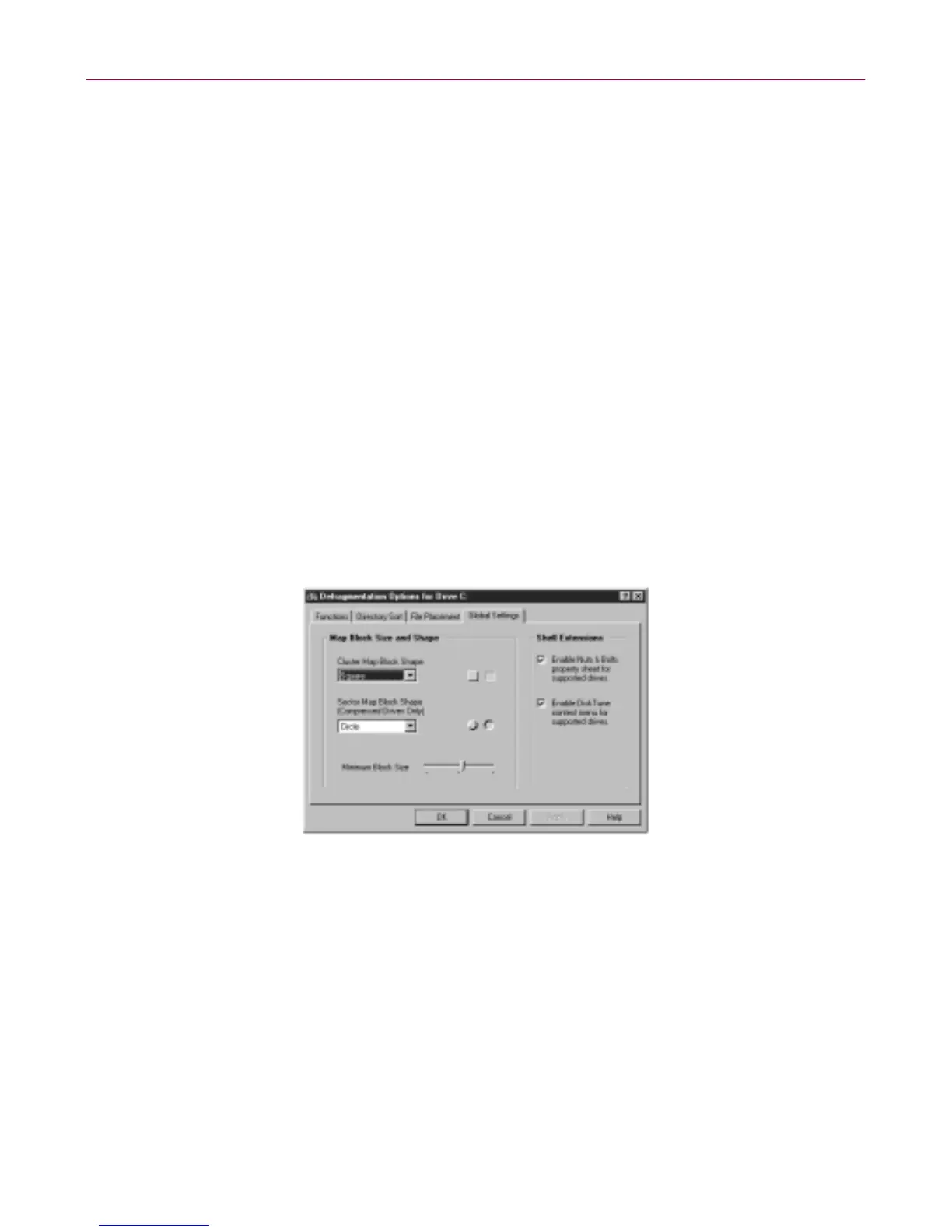
Global Settings tab
The G lobal Settings tab lets you customize the appearance o f the Hard Drive
map by selecting the shape of th e cluster and sector blocks and th e min imum
siz e of these blocks. You can also enable or disable the McAfee Utilit ies
Property s heet for suppo rted drives and enable or disable Disk T une in t he
Context menu fo r suppo rted drives.
Figure 4-12. Disk Tune Global Settings tab
Specifying file categories
The File Placement tab in Disk Tune’s Defragmentation O ptions dialog box
lets you specify file characteristics for three types of file categories:
• Recently modified files
•Userspecified1
•Userspecified2



 To Next Page