User’s Guide 79
McAfee Utilities
• Disk Tune provides t hree verification levels: Verify (slow–ensures data
written to a new cluster c an be re ad), Compare (slowest–compares a
relocated f ile’s co ntents against the original toensure it is exactly the same),
and None (fas test).
• Ordering by Task–(Windows 98 only) W indows 98 tracks how often each of
your programs are used an d maintains this information in an appl ication
log file. I f you select the Ordering b y Tas k option, Disk Tune uses this log
file to place the most often used prog rams at the front of your dri ve, so the
programs y ou use most often start as fast as possible.
NOTE: When the hard drive is organized using the Ordering by Task
option, other d efragmenters might see the drive as highly fragmented.
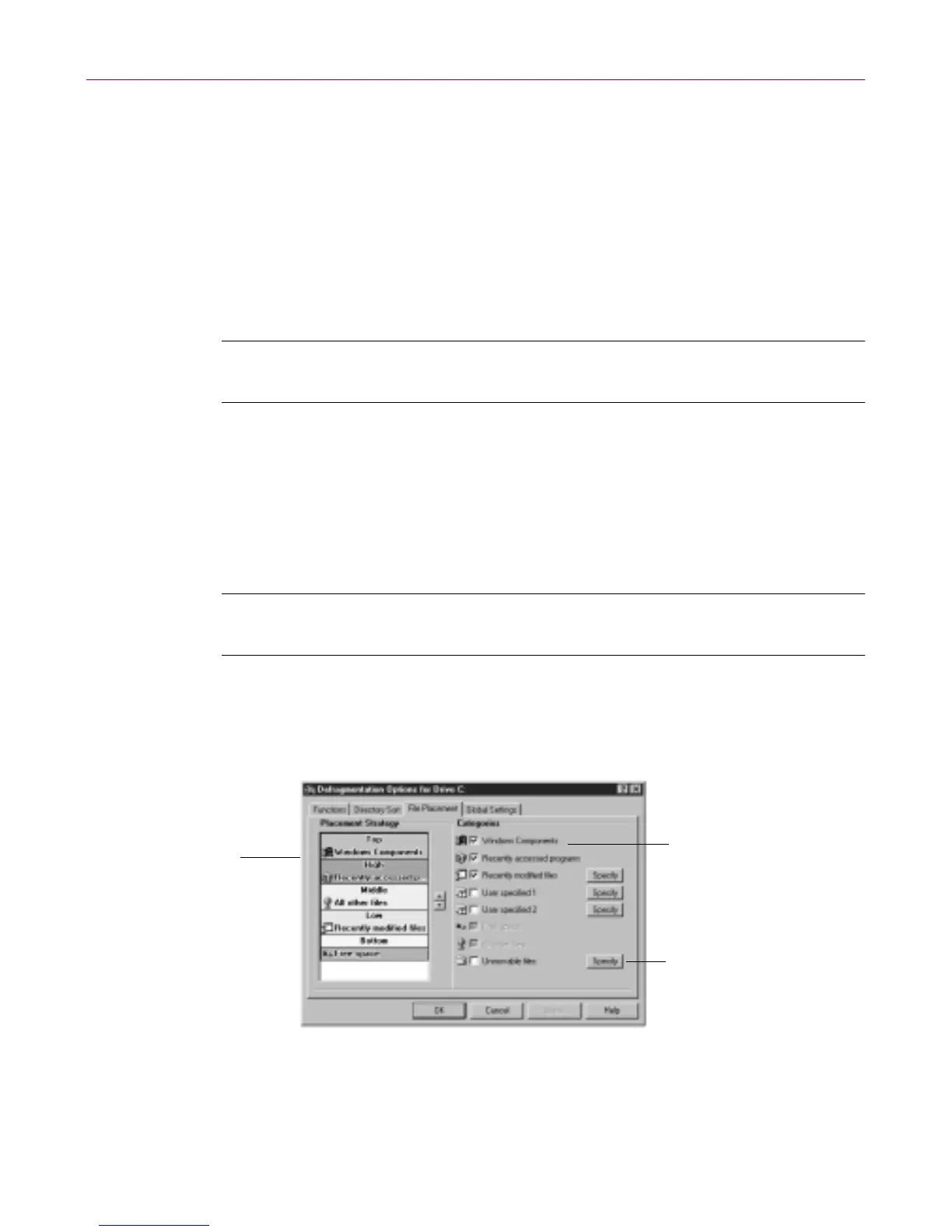
The File Placement tab
Disk T une classifies your disk into five regions: Top, High, Middl e, Low, and
Bottom. You can group your files into five categories: W indows Components,
Recently acc essed programs , Rece ntly modified files, Us er s pecified files, and
All Oth er Files. There are two additional categories: Free S pace and
Unmovable f iles.
TIP: The options y ou specify in the File Placement tab onl y apply when
y ou run a Reorder and Unfragment.
The F ile Pla cement tab lets you decide whe re the five file c ategories (suc h as
Windows Components) should be located in the regions of the disk. Normally,
you should put the programs and files you use most often at the front of the
disk (where access times are the quickest).
Figure 4-11. Disk Tune File Placemen t tab
Click Specify to
set file characteristics
for the corresponding
Category
Select a Category item
in the Placement
Strategy panel and
click the Up or Down
Arrow buttons to
move it up or down
in the list
Select a Category
check box to add
it to the Placement
Strategy panel at
the right



 To Next Page