User’s Guide 77
McAfee Utilities
Using Disk Tune to defragment or consolidate a disk
After you specify one or more drives to tune and click Next >, Disk Tu n e
analyzes the drive to determ ine the most suitable levels of optimization. Once
the analysis is complete, depending upon the degree of fragmentation, Disk
Tune recommends one of four methods:
• Reorder and Unfragment–defragments your files and arranges them on
the ha rd disk according to a ll the criteria specified in the Advanced
options.
• Fu ll Unf ra gm e nt–defragments your fil es and w rites them to the hard disk
so that allfr ee spaceis grouped separatelyfr om used space,w ithout regard
to the File Placeme nt crite ria spec if ied in the De f rag mentat ion Op tions
dialog box (click the Advanced button).
• Quick Unfragment–defragm ents your fragmented files and rewrites these
to the disk without rearranging other files, and without regard to the File
Placement criteria. Free space remains fragmented.
• Consolidate Free Spac e – mo ves files and file segments to the b eginning of
the disk without regard to the File Placement criteria, so that all free space
appears at the end. Files remain fragmented.
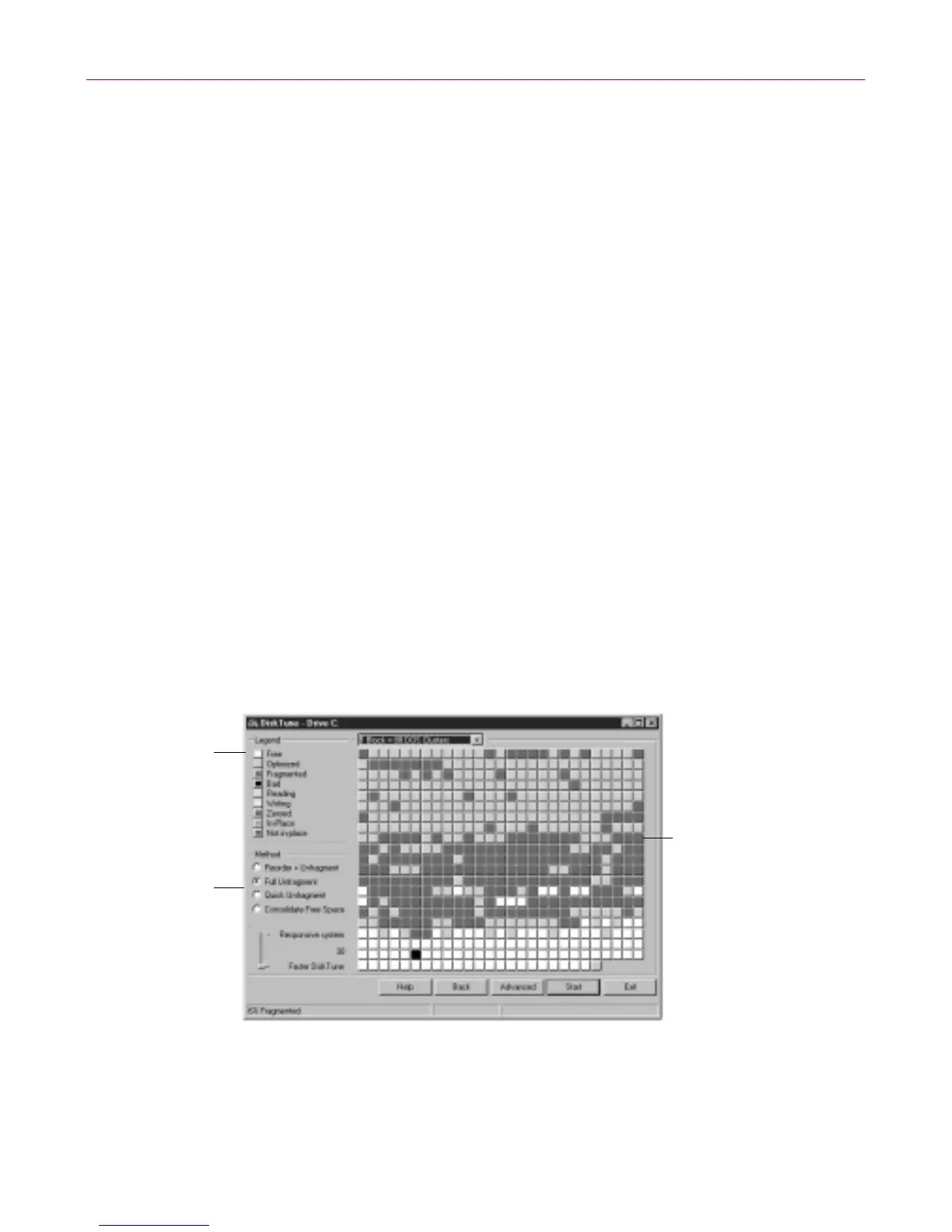
Disk Tune displays a map of your hard drive with blocks that ar e color coded
by status. You can watch the map change as D isk Tune analyzes the disk, and
you can customize the colo rs co des and click a block in the hard drive map to
identify its contents.
Figure 4-10. Disk Tune hard disk map
Click a Legend
Color box to
display the
Color dialog box
where you can
select a different
color for that item
After analyzing
your drive,
Disk Tune
recommends
an optimization
method; you can
select a different
method if you
prefer
Click a block in
the Hard Disk
Maptoidentify
its contents



 To Next Page