User’s Guide 59
McAfee Utilities
Report errors only
Before interact ively fixing err ors, you can run Disk Mind er with t he Repor t
Errors Only option selected to examine or print reports describing a disk’s
problems.
To use Disk Minder t o report errors only, start Disk Minder, click P roperties,
select the Report Errors Only check box and click O K. The n s elect the disks to
che ck, whether to scan the disk surface and click Star t. Dis k Minder checks the
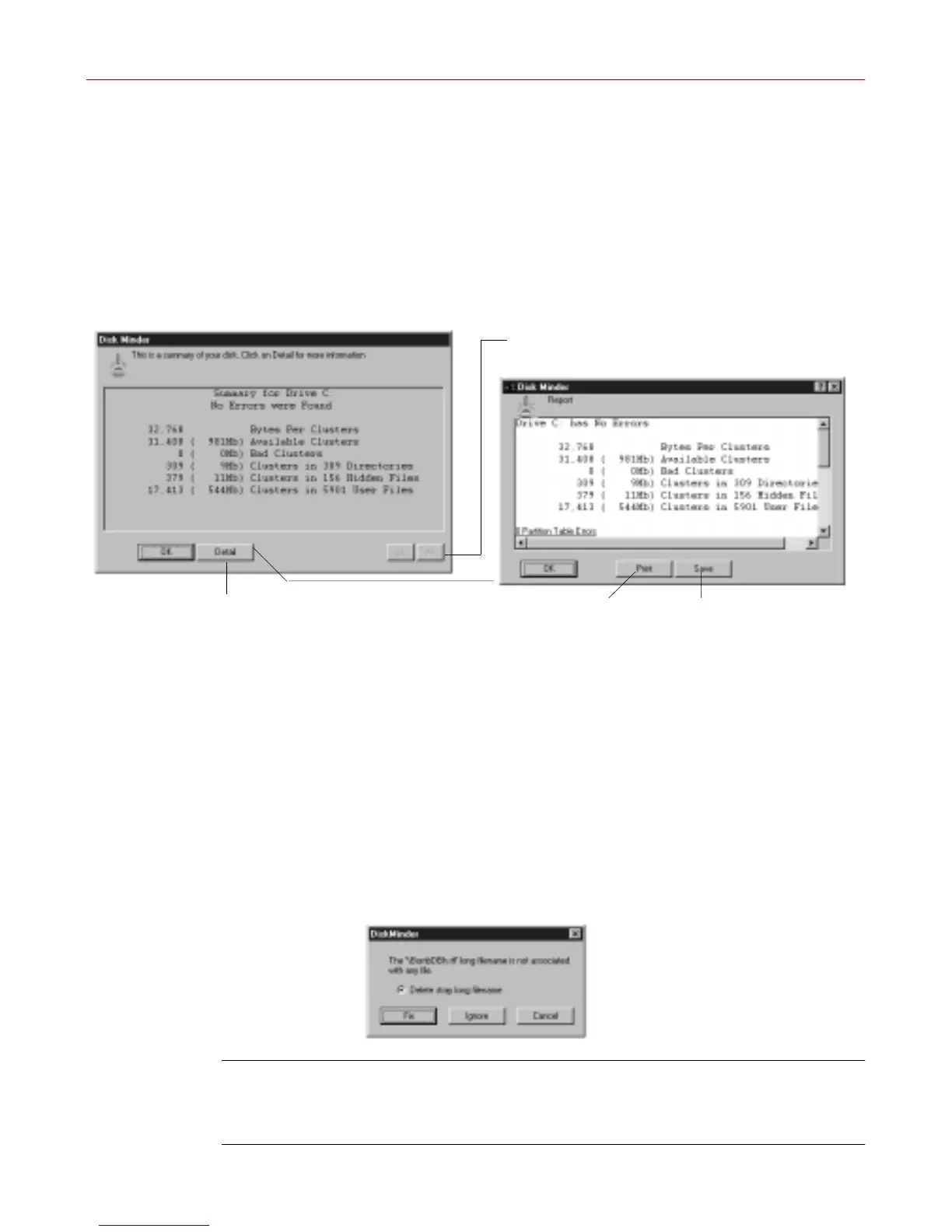
disk and displays the Sum ma ry report.
Figure 4-2. Disk Minder Summary Report
Interactively fixing errors
Disk M inder defaults to informing you when it finds an error and letting you
interactiv ely decide whether or not you w ant to fix t he problem. When Disk
Minder finds a pro b lem whi le checking a drive i nteractively, it displa ys a
message that ask s you what to do to resolve it. The suggested r esp onse is
indicated by the defau lt setti ngs, including which button is the default (in the
illust ra tion, the Fix bu tton is the d efault, whic h m eans t hat pres sing E
NTER,is
like clicking the Fix button).
NOTE: Disable the option, Check for Non-Ansi File Names when
ru nning unde r an international version of Windows that u ses ex tended
ASCII characters.
Click Detail to display details of the repair Click Print to print the report Click Save to save the report
as a text file
If you selected two or more drives, use these
buttons to jump from one report to another



 To Next Page