McAfee Utilities
64 McAfee Office
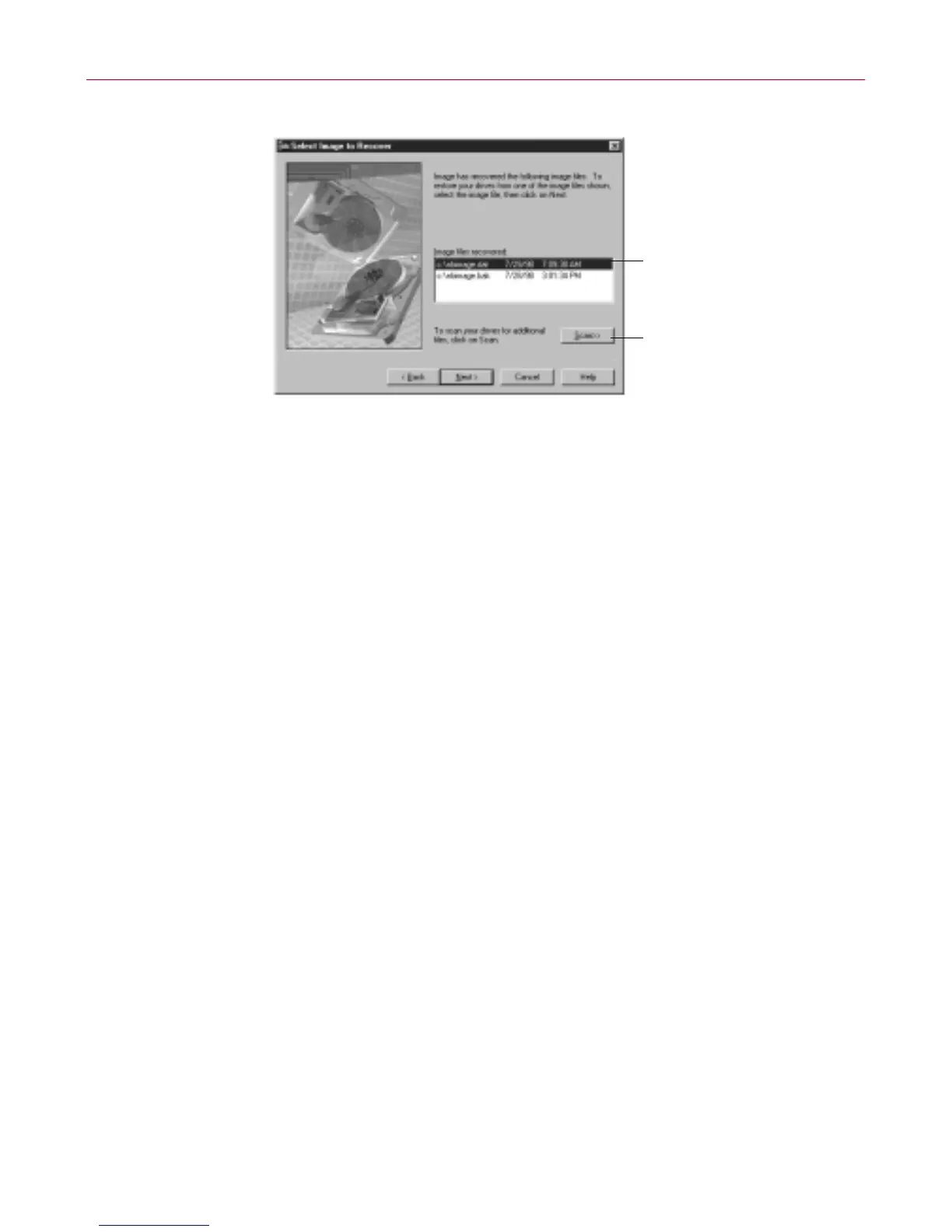
Figure 4-5. McAfee Image Recov er
2. Do one of the follow ing and click the Ne xt > button:
• Select an image file to use for restoring your drives from the list of
those found on your system h ard drive.
• Click the S ca n >> button to look for addition al ima ge f iles if you
don’tseetheoneyouwanttouse.Imagescansyourharddrivesfor
image files. Select on e of the m and click Next >.
3. Select the hard drives you want to restore and click Next >.
4. Select the kinds of information you want to restore.
Image defaults to restoring the master boot sector , partitions and the File
Allocation Tables. In most cases, you should use the Image default
settings. If you are an advanced user, you may wan t to only restore one
or two of the options:
• Master boot sector–Select thisopt ion ify ou cannot start the PC from
your system hard drive. The master boot sector is the sector on your
system hard disk that contains boot information with instructions
for starting up your PC.
• Partitions–Select this option if you ca nnot find a logic al drive on
your PC. Partitions subdivide a physica l drive int o mult iple logical
drives. Each partiti on has its own drive letter.
Select an image file from
the list and click Next >
to begin restoring your
hard disks
ClickScan>>tolocate
image files stored on
any disk drive on your PC;
you can restore image
files from any drive, even
damaged hard drives



 To Next Page