User’s Guide 73
McAfee Utilities
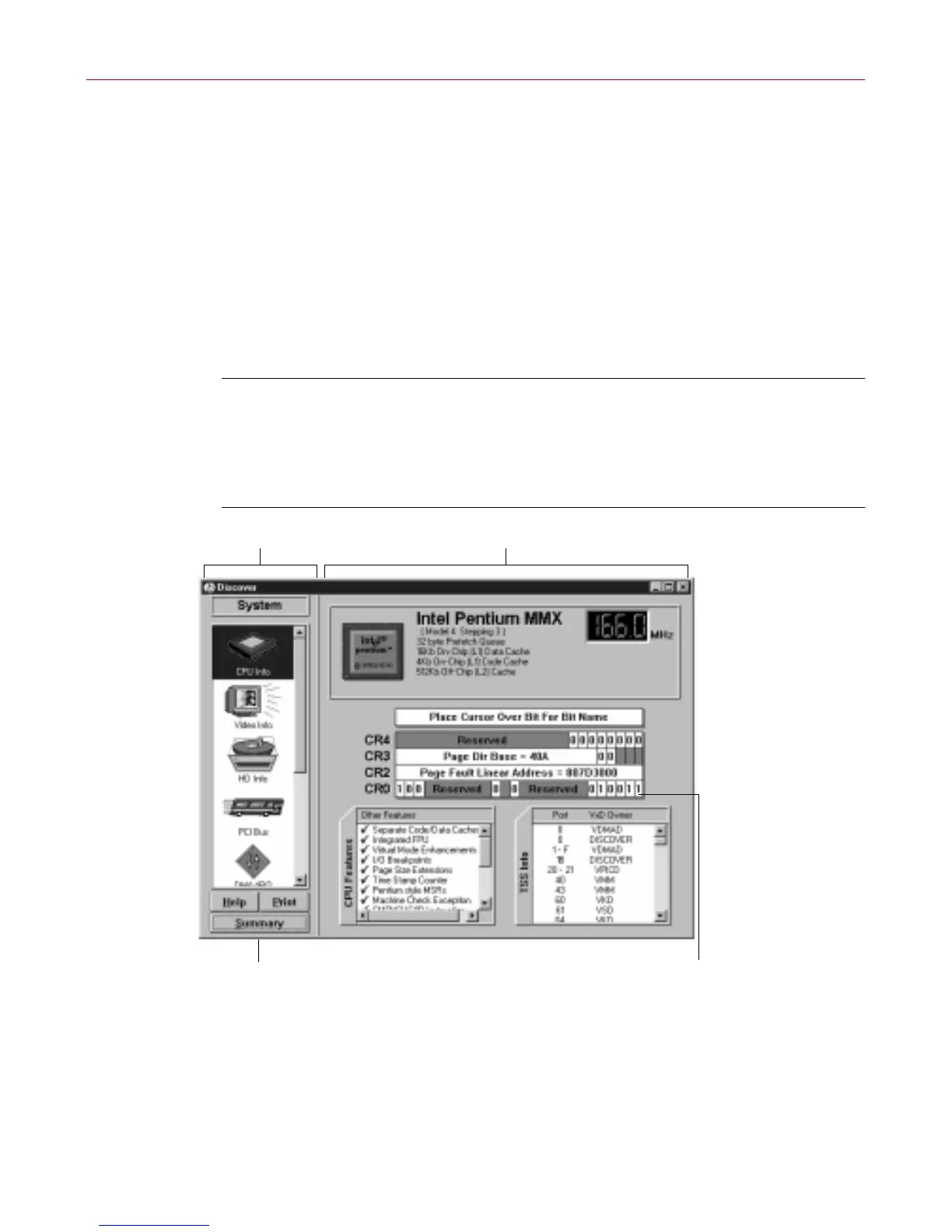
Discover Pro displays the Advanced wind ow for the active tab. All the
Adva nced w ind ows have these elem ents in co mmon:
• Icon Panel–Click any of the icons in the panel at the left to view that
type of information in t he panel at t he right.
• D e tail Information Panel–The det ail information show n in the
panelattherightisforthecategoryindicatedbythecurrently
selected icon. The detail info rmation is mostly self-explana to ry with
scrolling lists and b uttons yo u can c lick to obtain additio nal
i nformation or p e rform related tasks, suc h as running or stopping
benchmark tests.
TIP: In several of t he detail informat ion panels, yo u’ll see legends with
small color boxes showing the kind of information that is graphically
representedinthatcolor. Ifyouclick acolor box, theColor Chan gedialog
box appears w her e you can select a different c olor to use for that legend
item.
Figure 4 -7. D isc ove r Pro advanc ed information
Click an icon here . . . . . . and Discover Pro changes the panel here.
Pointtoabit(bitsareonesClick Summary to go back
o the Discover Pro window
or zeros) to see its name



 To Next Page