9. Commissioning
MiR100 Hook User Guide (en) 10/2020 - v.3.0 ©Copyright 2016-2020: Mobile Industrial Robots A/S. 111
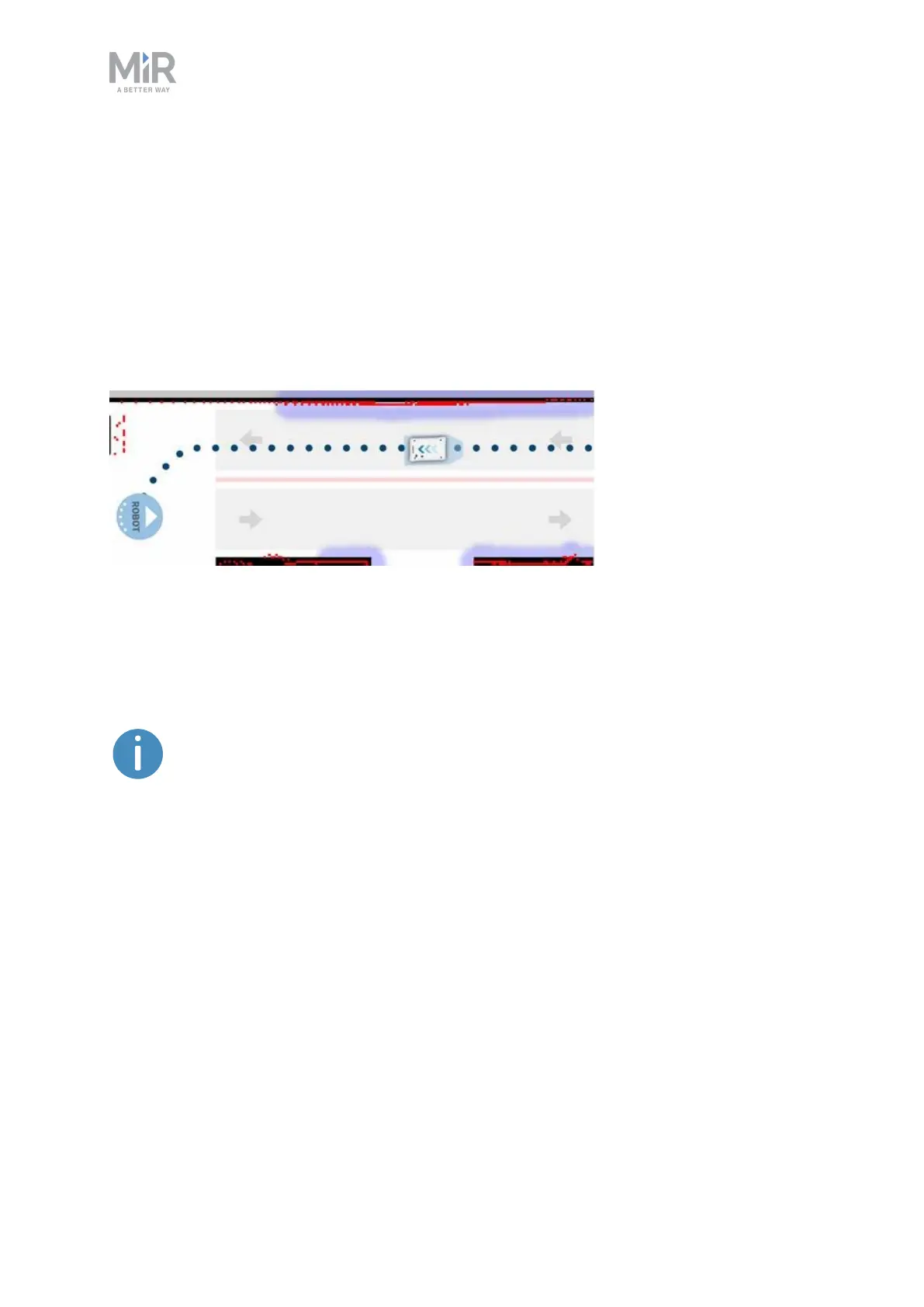
• Create a thin Forbidden zone (red) in the middle of the corridor parallel to the corridor
walls. This is the lane separator.
• Create Directional zones (gray with arrows) on both sides of the Forbidden zone. Make
the directions of the zones opposite.
With such a configuration, robots going in the opposite directions use different lanes and do
not get in each others' way. Replacing the Forbidden zone with an Unpreferred zone gives
robots more space for maneuvers, for example if a robot needs to cross the lane separator
to drive around an obstacle.
Figure 9.11. The robot drives down a two-way lane. The two Directional zone lanes are seperated by a
Forbidden zone.
If there isn't enough space for robots to pass each other, you can use a Limit-robots zone to
specify that only one robot may drive down the corridor at a time.
To use Limit-robots zones, your robots must be connected to MiR Fleet.
9.8 Creating markers
Markers are defined as X-Y coordinates on a map that mark locations where you want the
robot to travel to. Markers are points on the map that mark a physical entity, such as a
charging station or a pallet rack, and enable the robot to position itself accurately relative to
this entity.
Also, you should always use markers when it is important that the robot is positioned
accurately relative to an object in the work environment, such as load transfer stations and
work stations.


 To Next Page