MI
51
Innovation. Quality. Performance. Best in Industry. Worldwide.
Polygon
The Polygon function is used to run a Polygon Shape sample file to test the output of the system using the present
Set Home, Cut Height, Lift Height, Pierce Height, and X & Y Feedrate.
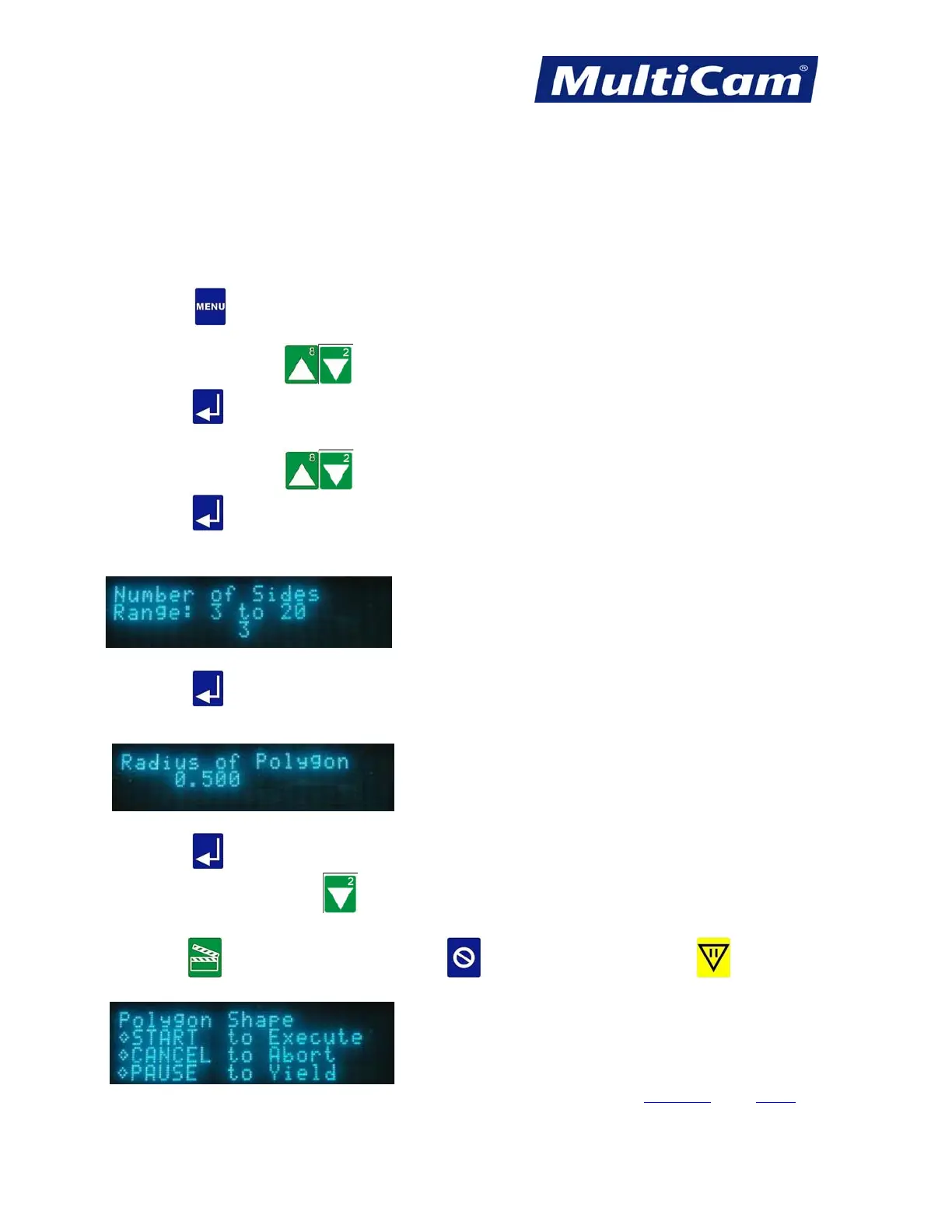
1. Set up the system as if a normal file is to be executed (e.g., Material Library, Set Home, Cut Height, Lift
Height, Pierce Height, and X & Y Feedrate).
2. Press Menu
to access the menu system.
3. Press X-axis Jog Arrows until Cut_Utils is highlighted in blue.
4. Press Enter
to access the Cut Utilities sub-menu.
5. Press X-axis Jog Arrows until Polygon is highlighted in blue.
6. Press Enter
to access the Polygon function.
7. Enter the number of sides ranging between 3 and 20 for the Polygon using the number keypad (e.g., 3).
8. Press Enter to accept the number of sides.
9. Enter the radius of the Polygon using the number keypad (e.g., 0.5).
10. Press Enter to accept the value.
11. Press X-axis Down Jog Arrow to access the Dry Run function if needed. This step is optional and
can be skipped.
12. Press Start to execute Polygon Cut, Cancel to abort the function, or Pause to reposition
the start point.
Cut_Utils Menu
Routers * Lasers * Plasma * WaterJets * Knife Cutters
www.MultiCam.com v. 11 10


 To Next Page