KF
7
Innovation. Quality. Performance. Best in Industry. Worldwide.
Set Surface (Z=0)
The Set Surface function allows the operator to identify and set the surface of the material or the software Z
reference point as the Z-axis Home (Z=0). Once set, the surface will not have to be reset unless the system is shut
off or the material thickness changes.
1. Make sure the fume extraction is on. The fume extraction will hold the material down so that the laser can read
the surface dimensions properly.
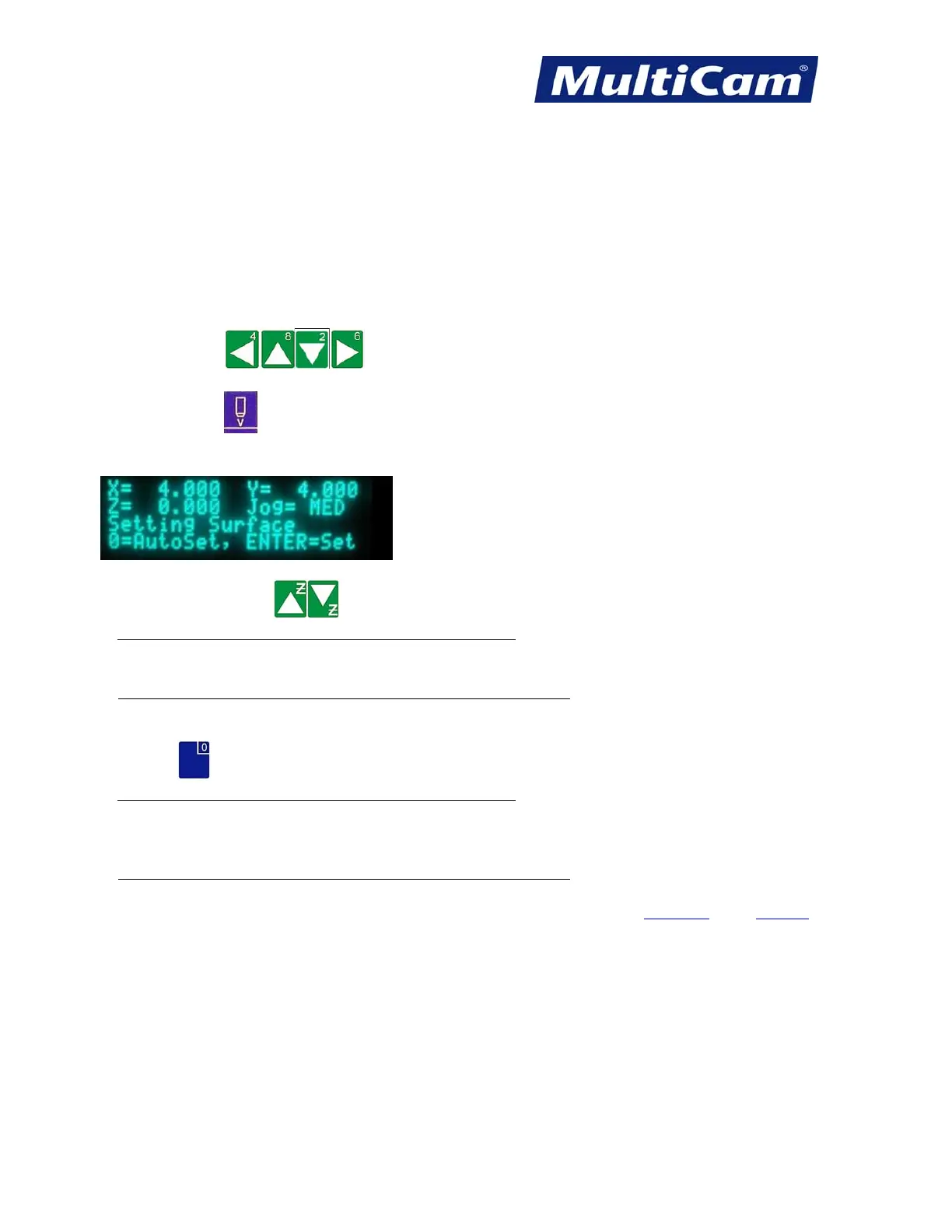
2. Press Jog Arrows
to position the center of the head assembly anywhere over the material.
3. Press Set Surface
.
4. Enter the material thickness (e.g., 0.20). The display will prompt the operator to set the surface.
5. Press Z-axis Jog Arrows
a. Ferrous metals or machines with capacitive height sensors
to lower the Z-axis until the head assembly is approximately 1/4” above the material.
b. Non-ferrous metals or machines without capacitive height sensors
to position the surface sensor over the material to be cut.
6. Press Zero
to begin the surfacing routine.
a. Ferrous metals or machines with capacitive height sensors
This will cause the Z-axis to move down slowly until the tool comes in contact with the surface block
and then move up above the surface block to the Lift Height.
b. Non-ferrous metals or machines without capacitive height sensors
This will cause the Z-axis to move down slowly until the surface sensor comes in contact with the surface
block and then move up above the surface block to the Lift Height. Hot Keys
Keypad
Routers * Lasers * Plasma * WaterJets * Knife Cutters
www.MultiCam.com v. 11 10


 To Next Page