Full Color Card Printer
28
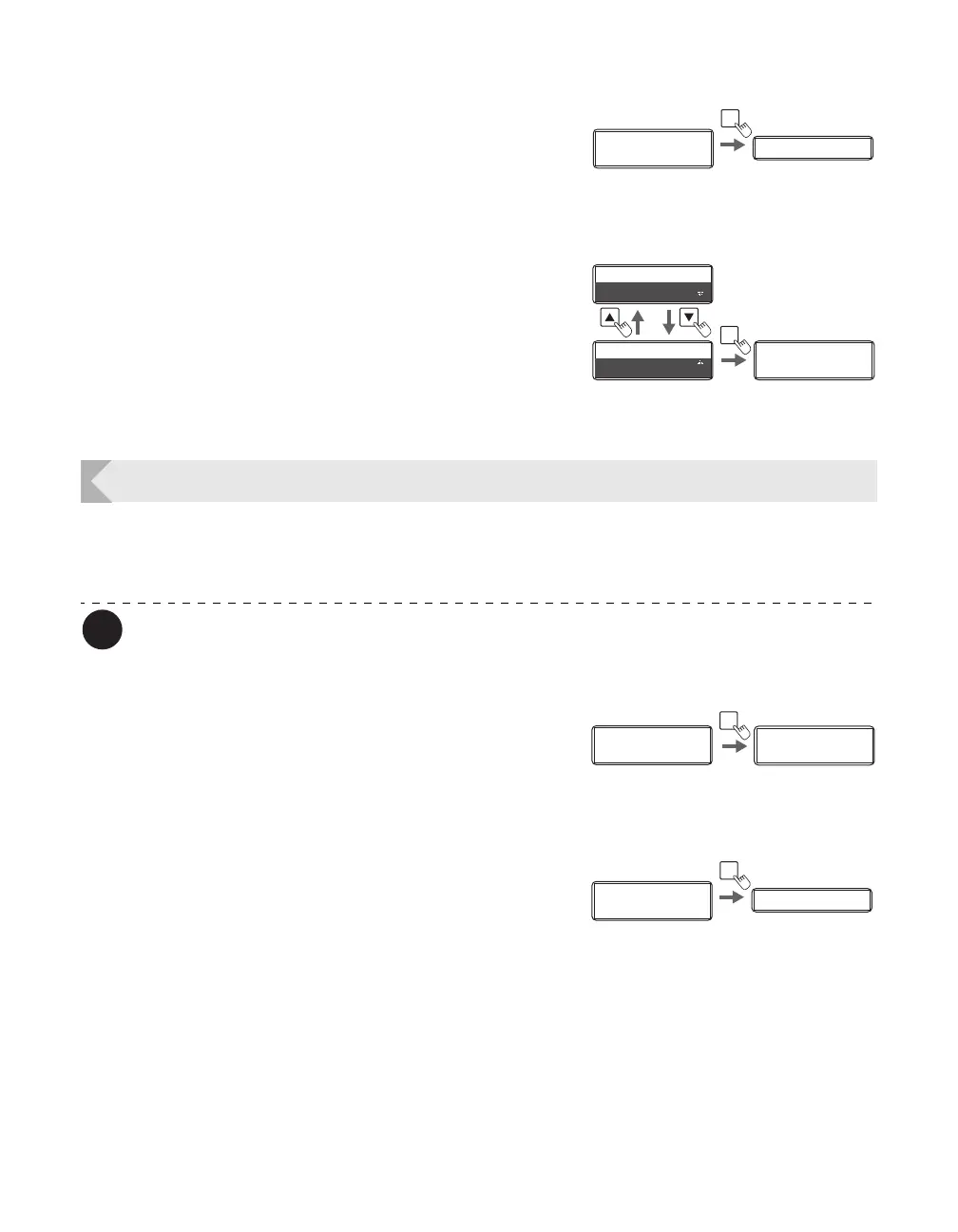
4 Press the SET key.
• The display changes to [Reset ?].
5 Change the setting to [YES] by using
the / Keys then press the SET key.
• The display returns to [Card Count] and the value
becomes [0].
Displaying the Total Number of Sides that Are Printed
You can display the total number of sides (each card has two sides) that are printed. This can
be used as a guideline for doing maintenance.
You can also display the status on the printer driver (→See "Opening the Printer
Driver Settings Screen" on page 87).
1 Switch from Normal Mode to User
Mode.
→See "Switching to User Mode" on page 24 for details on
how to switch to User Mode.
2 Confirm that [Printer Info.] appears, and
press the SET Key.
Card Count
3
Card Count
3
Reset ?Reset ?
SET
SET
Reset ?
NO
Reset ?
YES
Card Count
0
Card Count
0
Ready to Print
Ready to Print
Printer Info.
SET:>>
Printer Info.
SET:>>
MENU
Normal Mode User Mode
Printer Info.
SET:>>
Printer Info.
SET:>>
Card Count Card Count
SET


 To Next Page