283
Polyend Tracker Manual
282
Polyend Tracker Manual
System
13
System
13
NOTESNOTES
▌ BACKING UP THE SD CARD FOLDERS & FILES
1. This is recommended as a rst task when rst operating Tracker to have
the original structure saved. Also periodic backups is important to save
the projects and les which will be created over time.
2. Use a compatible SD card reader or the supplied USB SD Adapter to
connect the SD card to a PC or Mac.
3. Use the le manager (depends on the PC/Mac Operating System) to
create a ‘Tracker Backup’ Folder in your documents folder and create a
sub folder for each backup i.e. ‘Original SD Aug21’, ‘Backup1 SD
May22’. It is good practice to name backup folders by date.
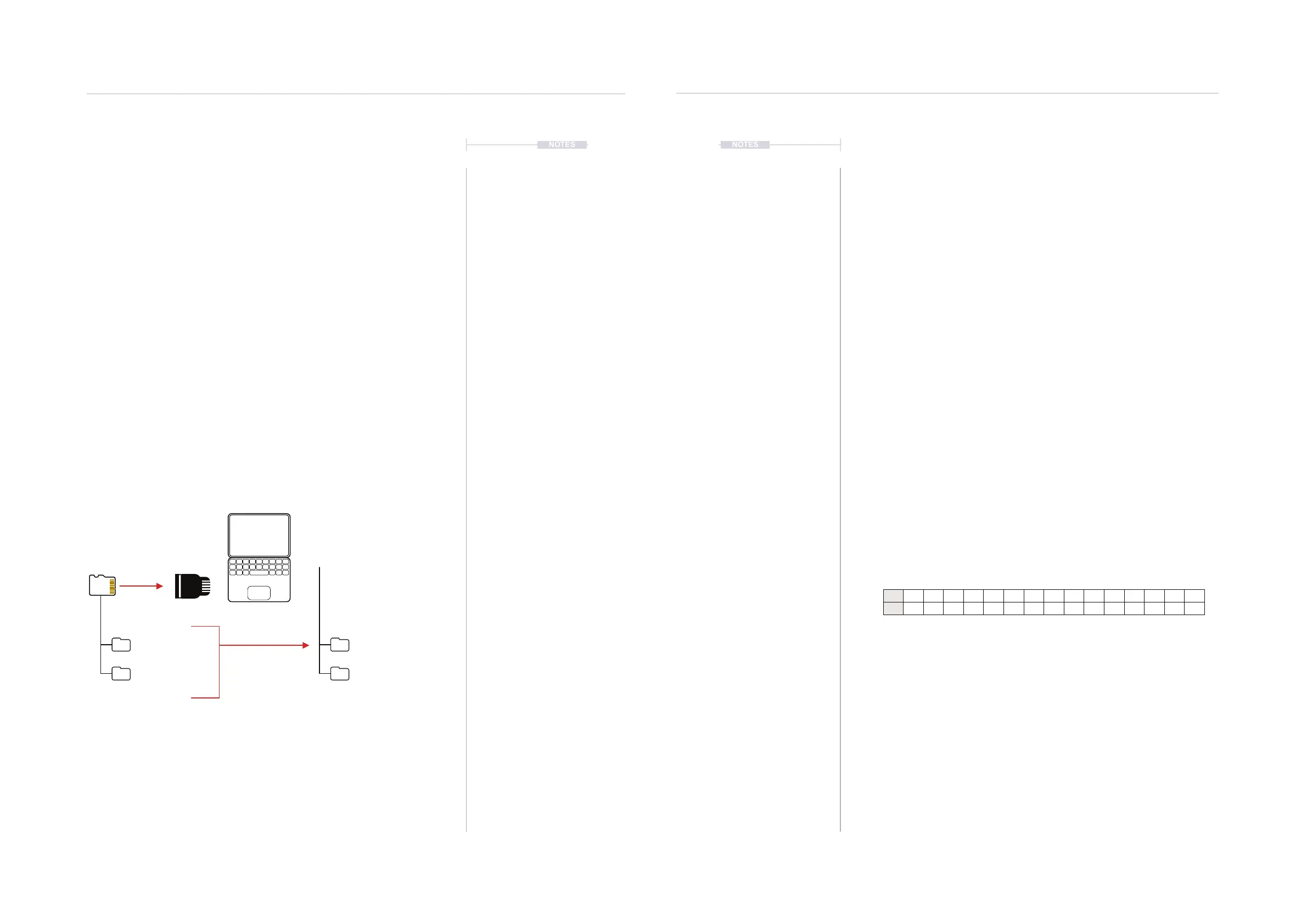
4. Select all of the folders in the SD Card root directory and copy them to
the PC/Mac clipboard.
5. Paste, the copied folders into the ‘Tracker Backup’ sub-folder for the
specic backup.
6. Return the SD card to Tracker for normal operation.
Sub Folders /Original SD Aug21
/Backup1 SD May22
SD Card
/Root Directory
Copy / Paste
Documents
/Tracker Backup
13.9 Hexadecimal Option
The classic trackers typically used hexadecimal number format. This can be
a little daunting if unfamiliar and especially in the more modern age and
therefore decimal number is used as default. However, maybe for the more
nostalgic users, numbering in hex mode is also an option.
▌ CHANGING BETWEEN DECIMAL & HEXADECIMAL VIEW.
1. Press [Cong] for the conguration settings.
2. Press [Up] or [Down], 1
st
& 2
nd
Screen buttons to navigate to the
‘General’ menu. The arrow keys and (Jog) also used in the left main
menu list.
3. In the central window pane, Press [Up] or [Down], 4
th
& 5
th
Screen
buttons to navigate to the ‘Numbering mode’ option. The arrow keys can
be used to navigate in the central pane.
4. Press [Change], 6
th
Screen button. The options to change will appear.
5. Turn (Jog) or Press [Up] or [Down] to select between ‘Decimal, Steps
from 0’ to use standard decimal numbers starting at step 0, ‘Decimal,
Steps from 1’ where the decimal system is used and steps start at 1,
and the ‘Hexadecimal’ option for a classic tracker view.
6. Press [Apply], 6
th
Screen button.
Hexadecimal to Decimal Converter
Hex 1 2 3 4 5 6 7 8 9 A B C D E F
Dec 1 2 3 4 5 6 7 8 9 10 11 12 13 14 15



 To Next Page