119
Polyend Tracker Manual
118
Polyend Tracker Manual
NOTESNOTES
Slice Parameters
The parameters for slice and beat slice are identical across the play modes
but may have different behaviours in use. Navigate and select using the
Screen Buttons. Also navigation using the [Left] [Right] buttons to select the
section and [Up] or [Down] or Turn (Jog) to change the value / selection.
Instruments
6
Instruments
6
6.9 Slice Play Modes
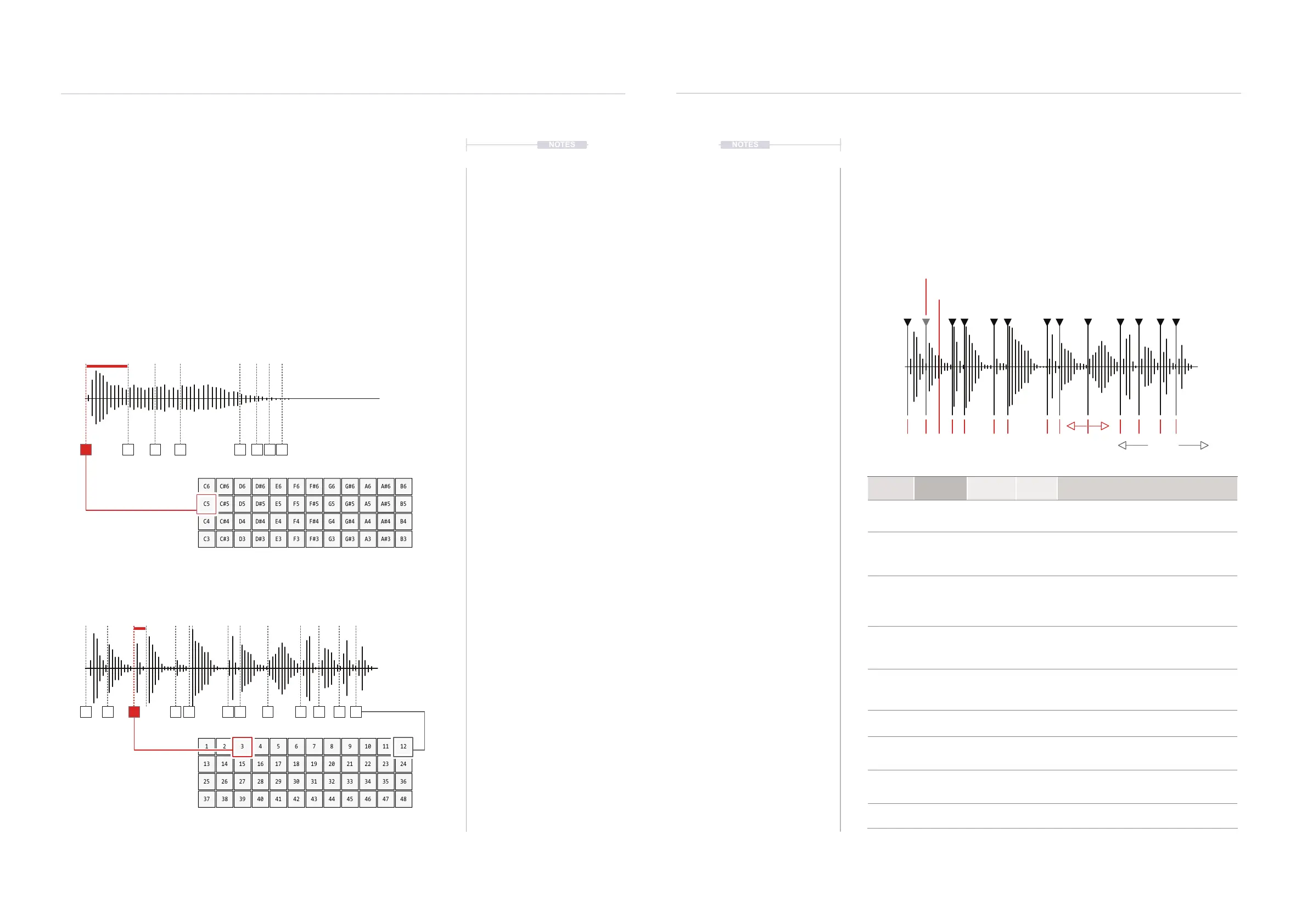
Two slice playback modes exist, slice and beat slice both of which have
similar functions and parameters.
Slice mode is typically used to slice a melodic audio sample, for example to
create pitch based kits and to trigger slices per step from the FX, ‘S’ step
function. The pads in Slice mode represent current scale.
Beat Slice mode is typically used to slice percussive and atonal samples.
The pads in Beat Slice mode represent individual slices, for example hits of
a drum kit and are useful for playing and recording live beats.
C6 E6 A6C#6 F#6F6 A#6D6 G6 B6D#6 G#6
C5 E5 A5C#5 F#5F5 A#5D5 G5 B5D#5 G#5
C4 E4 A4C#4 F#4F4 A#4D4 G4 B4D#4 G#4
C3 E3 A3C#3 F#3F3 A#3D3 G3 B3D#3 G#3
1 5 102 76 113 8 124 9
13 17 2214 1918 2315 20 2416 21
25 29 3426 3130 3527 32 3628 33
37 41 4638 4342 4739 44 4840 45
1
3
5
5 9
3
1
7
7 11
2
2
6
6 10
4
4
8
8 12
Slices
Selected Slice 1 of 8
Pad Selects Slice.
Slices
Slice Start Points Adjust
Add - To add a new slice after the currently selected slice
Remove - To delete the currently selected slice
Zoom
Slice
Examples: Synth Note, Piano, String Pad
Pads play the selected slice melodically in the current pitch scale.
Pads select and play each slice individually. Ideal for recording beats.
Beat Slice
Examples: Combo of Kick, Snare, Hat, Effects
Function Parameter
Screen
Button
Range Description
Edit Play Mode 7th & 8th
Modes
Selects the play mode to apply. Includes Slice and
Beat Slice as well as 1-Shot and wavetable /
granular synths and loop modes.
Aid Zoom 6th
Variable
Zooms in horizontally to the visual display for more
precise editing. Does not affect playback. Zoom
reference point is based on the previously adjusted
parameter i.e. Slice number.
Edit Slice 1st
Variable
Selects the slice number for editing from the
available number of slices. Also will select the slice
to playback in scale when in Slice Play Mode. Use
Pads to preview playback and also to select the
slice in Beat Slice Play Mode.
Edit Adjust 2nd
Variable
Adjusts the start position for the selected slice.
Cannot exceed the previous or next slice position.
Use zoom to assist with precise editing. Red
marker turns green at a zero crossing point.
Edit Add 3rd
Adds a new slice after the currently selected slice
start marker. Slice will be added centrally between
the currently selected slice start and next slice start
or end position.
Edit Remove 4th
Removes and deletes the currently selected slice
start marker. No prompt - immediate deletion.
Edit Auto Slice 5th
Automatic
Automatically removes any existing slice markers
and adds a series of new markers at each
transient point. Prompt to conrm is given.
Edit Number Shift + 1st
1 - 48
Sets the number of slices to create when using the
‘equal’ slice option. This applies the number of
equally spaced slices across the sample.
Edit Equal Slice Shift + 2nd
Initiates slicing of the sample into the equal spaced
slices, set by ‘number’. Prompt to conrm.



 To Next Page