217
Polyend Tracker Manual
216
Polyend Tracker Manual
NOTESNOTES
Song Mode
9
Song Mode
9
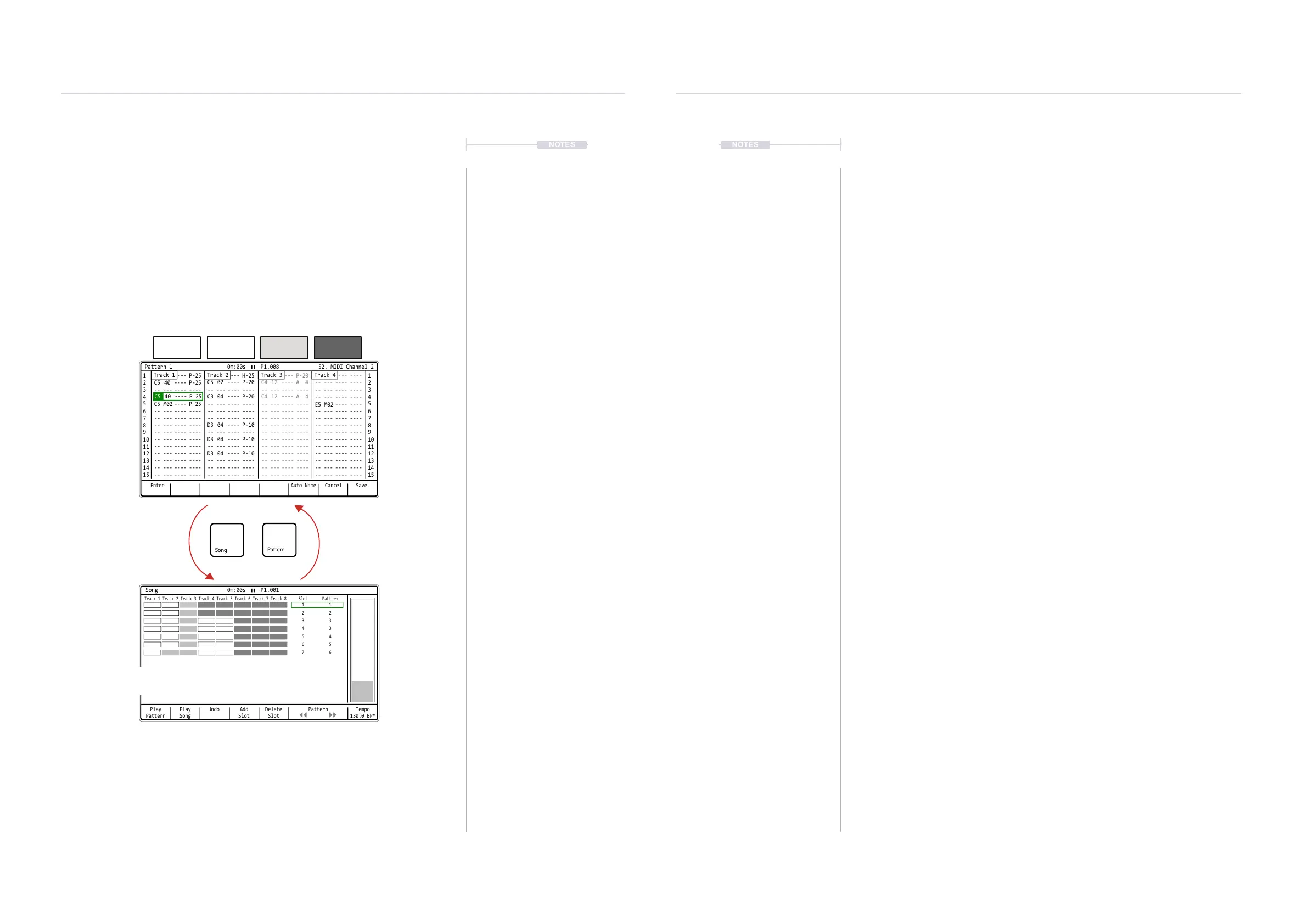
9.4 Song v Pattern Relationship
Patterns can be arranged into a song in the song mode utility. Patterns
selected in a song will also be available in the pattern mode and will appear
in song mode as muted / unmuted inline with the status in pattern mode.
Editing tracks in song mode will reect in pattern mode, tracks can be
copied and pasted within song mode which will also be edit the pattern.
Pattern
Unmuted
Pattern
Unmuted
Pattern
Muted
Empty
Unmuted
Play
Pattern
Play
Song
Undo Add
Slot
Delete
Slot
Pattern Tempo
130.0 BPM
Track 1 Track 5Track 3 Track 7Track 2 Track 6Track 4 Track 8 Slot
1
2
3
4
5
6
7
Pattern
1
2
3
3
4
5
6
Song 0m:00s P1.001
Enter
1 1
2
C5 40 ---- P-25
C5 M02 ----
E5 M02
----
----
C5 40 ---- P-25
-- --- ---- ----
-- --- ---- ----
-- --- ---- ----
-- --- ---- ---- -- --- ---- ---- -- --- ---- ----
-- --- ---- ----
P 25
-- --- ---- ---- -- --- ---- ----
-- --- ---- ---- -- --- ---- ---- -- --- ---- ---- -- --- ---- ----
-- --- ---- ---- -- --- ---- ---- -- --- ---- ---- -- --- ---- ----
-- --- ---- ---- -- --- ---- ---- -- --- ---- ----
-- --- ---- ---- -- --- ---- ---- -- --- ---- ---- -- --- ---- ----
-- --- ---- ---- -- --- ---- ---- -- --- ---- ----
-- --- ---- ---- -- --- ---- ---- -- --- ---- ---- -- --- ---- ----
-- --- ---- ---- -- --- ---- ---- -- --- ---- ----
-- --- ---- ---- -- --- ---- ---- -- --- ---- ---- -- --- ---- ----
-- --- ---- ---- -- --- ---- ---- -- --- ---- ---- -- --- ---- ----
-- --- ---- ---- -- --- ---- ---- -- --- ---- ---- -- --- ---- ----
C5 02 ---- P-20
C3 04 ---- P-20
D3 04 ---- P-10
D3 04 ---- P-10
D3 04 ---- P-10
C5 40 ---- H-25
C4 12 ---- A 4
C4 12 ---- A 4
C5 40 ---- P-20
2
3 3
4 4
5 5
6 6
7 7
9 9
11 11
13 13
15 15
8 8
10 10
12 12
14 14
Auto Name Cancel Save
Track 2 Track 3 Track 4Track 1
Pattern 1 0m:00s P1.008 52. MIDI Channel 2
C5 40 ----
P 25
Patterns in Song Mode will reect the track condition from the pattern view including mute
states, step position etc. This is shown by the shade of the track slot and the header position.
Tracks can be re-ordered by copy / paste in Song Mode. This in turn will edit the actual pattern
and as such also be reected in the pattern view.
When pressing [Play] in Song mode, switching to pattern mode will show each pattern as it is
being played in the song structure.
Patterns are muted in pattern or master pages and are reected in the song mode clip shade
as ar empty clips.Tracks edited in Song Mode will in turn edit and reect in the actual pattern.
When pressing [Play] in Pattern mode, switching to Song Mode will only show the selected
pattern being played.
Toggle between modes using
[Song] and [Pattern] buttons,
even while playing.
Song Mode and Pattern Mode can
be in the same or different ‘Red’ -
Edit On or ‘Green’ - Edit Off States.
While pressing [Song] will select the song page,
holding [Song] button with a long press from
within another page will temporarily display it.
9.5 Creating and Editing a Song
The pre-requisite to creating a song is to have a series of patterns
available, although technically blank patterns can also be added to a song
slot. Editing and creating a song is performed in ‘Red’ mode i.e. when the
[Rec] mode is selected as on. Otherwise the song mode page just presents
the playback of patterns and the song as options. Track muting is not
applied in Song Mode, but is set in the Pattern or Track Mixer Pages.
▌ CREATING A BASIC SONG FROM SCRATCH
1. Press [Song] to select song mode. The step / pattern cursor will be
displayed by a green bounding box. Also only 1
st
and 2
nd
screen buttons
to control play are available in ‘green’ mode - [Rec] off.
2. Press [Rec] to toggle editing on, ‘red’ mode. The step / pattern cursor
will be displayed by a red bounding box. Also all of the screen button
options are shown as available in ‘red’ mode - [Rec] on.
3. Navigate to the slot location desired, Turn (Jog). The location selected
is shown with the green or red bounding box over the slot number and
pattern number. Alternatively Press [Up] and [Down] to also navigate
through the slots. Press [Shift] + [Insert] to jump to the top slot.
4. To add a new song slot, Press [Add Slot], 4
th
Screen button. Song slots
represent a pattern and are displayed as a row on the song mode page.
5. When adding a new slot row, it will
• Be added directly below the currently selected row.
• The newly added slot replicates the previously selected row.
• The new slot row is also automatically selected.
6. To change the pattern on the selected row, Press the [Left], 6
th
Screen
button or [Right], 7
th
Screen button or hold [Shift] + Turn (Jog). All 255
patterns that are available in a project will be selectable in a song, even
if no steps or data has been created in the chosen pattern.
7. More slots can be added to develop the song further and expand its
length and duration.



 To Next Page