181
Polyend Tracker Manual
180
Polyend Tracker Manual
NOTESNOTES
Audio
8
Audio
8
8.3 Audio Inputs
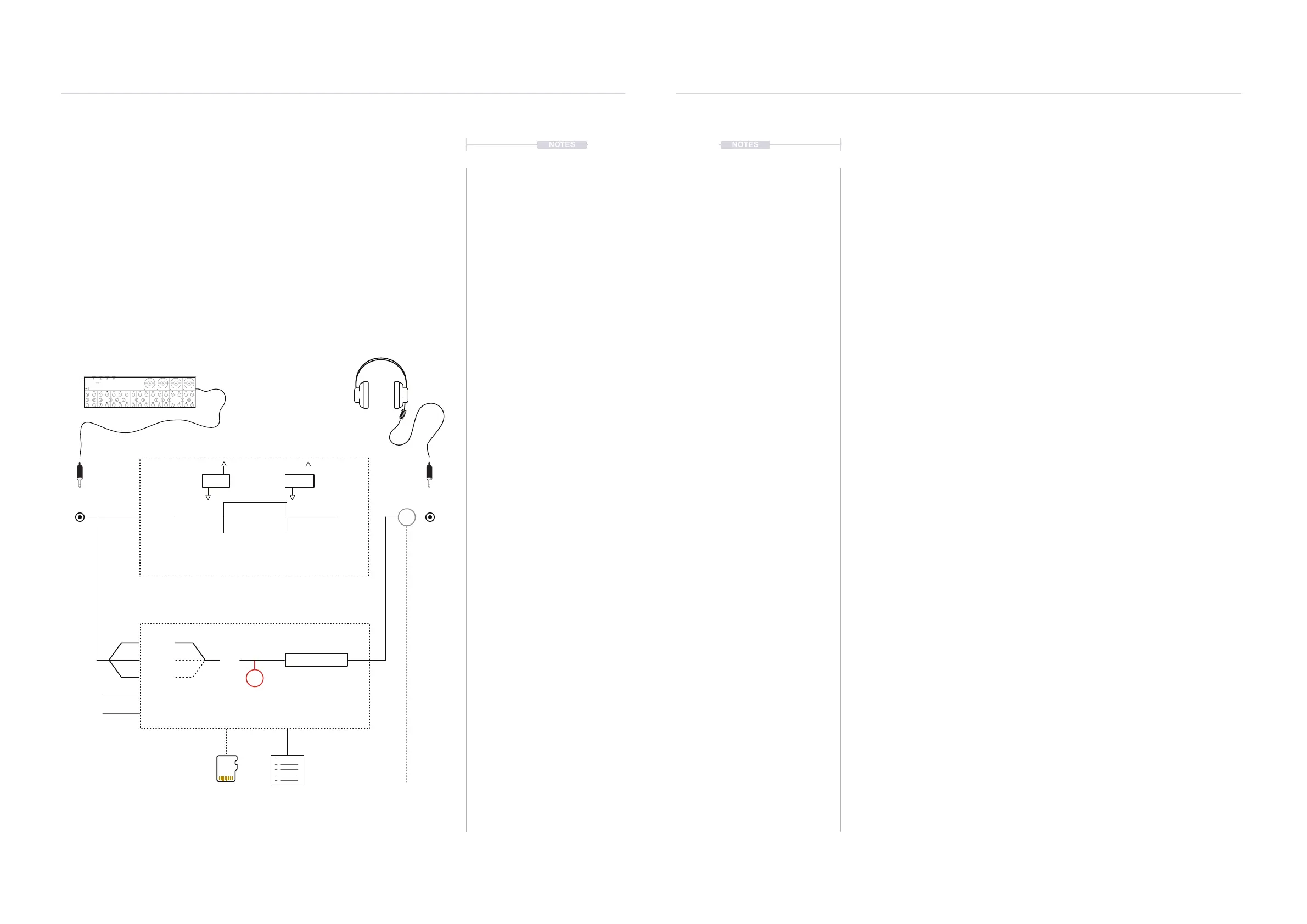
Tracker has two audio inputs that provide a source to sampling and
recording from external sources. The physical inputs are located on the rear
of the device and provide access for microphone and line in either using
TRS Stereo or TS Mono jacks or the supplied 3.5mm to 2 x 6.3mm adapter.
Line Input
The input can be selected between Left, Right or Stereo. While these are
selectable options Tracker records in mono. Tracker can record audio or
play a pattern audio but not both together at the same time. Playing
patterns will therefore output MIDI but not audio if sample recording is in
progress.
Left
Line In Out
Mic In
FM Radio
Right
Stereo
Stereo Stereo
[Sample Recorder]
All Samples are Recorded in Mono
[Master]
Global Mixer - Page 3 of 3
Line In
Mute On / Off
Send FX
Gain
R
M
Delay Reverb
Monitor On / Off
SD Card Instrument List
Master Output
Page 1 of 3
Line In Pass Through
Recording
Audio saved to SD Card and / or
directly to the instrument list
The sample recorder page can select sampling input, but the general input
is dened in the ‘Cong’ parameter settings. The Mixer passthrough audio
operates in stereo.
▌ SETTING THE SAMPLER LINE IN STEREO / MONO OPTION
1. Press [Cong] to open the conguration settings.
2. Navigate with the 1
st
and 2
nd
Screen buttons to select ‘General’.
3. In the central window pane, Press the 4
th
or 5
th
Screen buttons to
navigate to ‘Line in channel’.
4. Press [Change], 6
th
Screen button to select the options. The pop-up
window will appear.
5. In the middle page pane, Press the 4
th
or 5
th
Screen buttons to navigate
to select ‘Stereo’, ‘Mono Left’ or ‘Mono Right’.
6. Press [Apply], 6
th
Screen Button or [Cancel], 3
rd
Screen button to exit
without changing.
▌ SETTING THE MIXER LINE IN PASS THROUGH PARAMETERS
1. Press [Master] to open the conguration settings. Navigate to the Global
Mixer, Page 3 of 3, by Pressing [Master].
2. Line In by default is muted. Press [Unmute] 4
th
Screen button for the
Line In channel to toggle mute / unmute. If unmuted this will be [Mute].
3. Line In can be soloed. Press [Shift] + [Solo] 4
th
Screen button for the
Line In channel to toggle solo on or off.
4. Hold [Mute], 4
th
Screen button for Line In + Turn (Jog) to adjust level.
5. The Line in signal can also be sent to the master Delay and Reverb
effect. These channels may also be muted. Press [Mute] / [Unmute] to
toggle the Mute / Unmute State of the respective screen button.
6. To adjust the Delay and Reverb send amount, Hold [Mute] for the
respective effect screen button + Turn (Jog).
7. The Mixer bar graphs will show the audio in real time for the level,
dimmed if muted and bright if audible / unmuted. The level and send
amount settings are also shown on the bar and in the label.



 To Next Page