89
Polyend Tracker Manual
88
Polyend Tracker Manual
5.8 Note Steps
One of the four components of a step event is a Note. This may be a
musically scaled note or a note assigned to a sample or slice. Essentially
note controls a single note pitch in the step event for the instrument.
Note Summary
NOTESNOTES
Sequencing Steps
5
Sequencing Steps
5
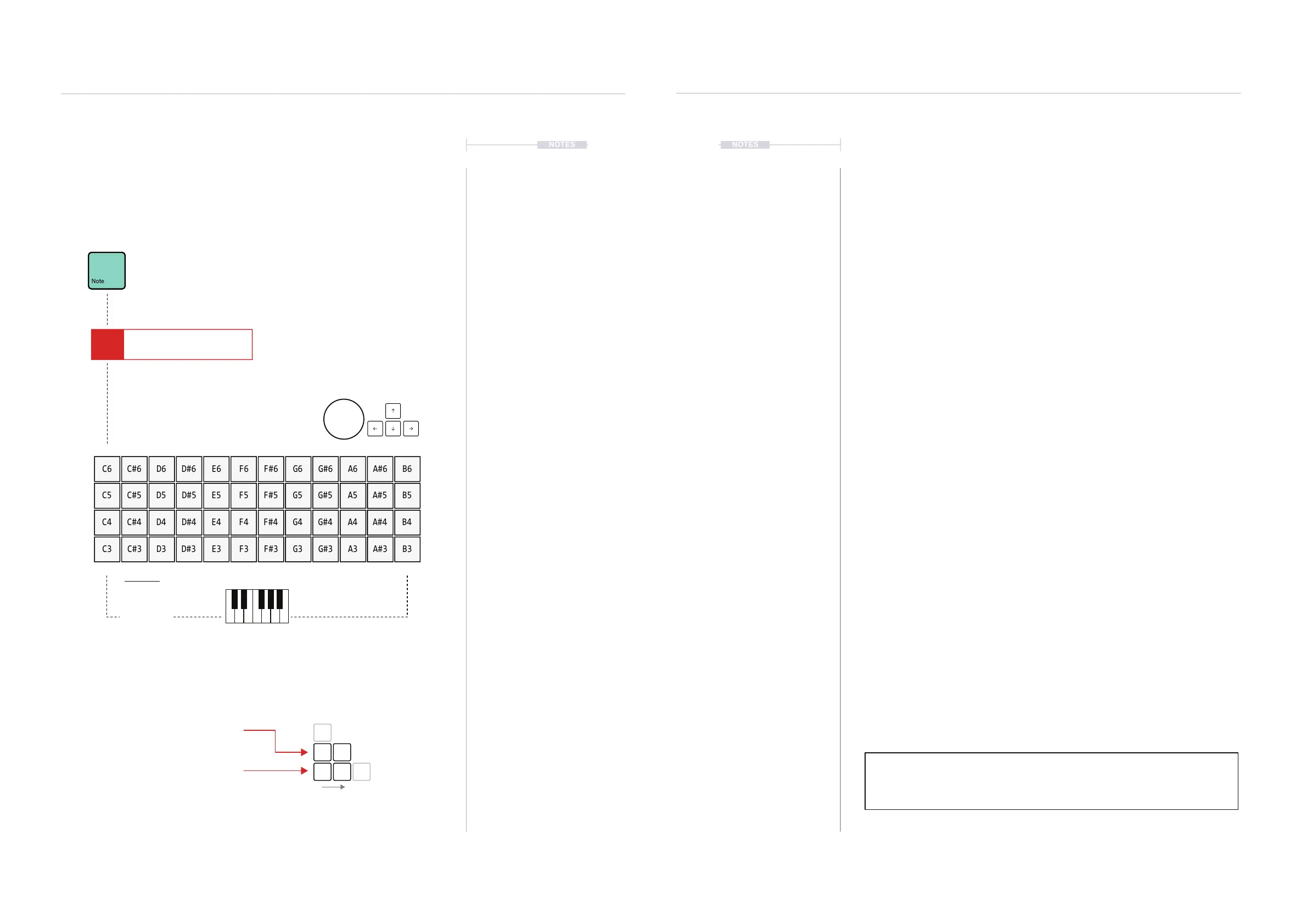
Note parameter has a dedicated
button when working in the pattern.
Note is the rst parameter in the step
event and is highlighted when selected
Pads are used to populate a note value to the step event.
Also it is possible to use (Jog) & [Up], [Down], [Left], [Right].
Press [Shift] + (Jog) to adjust existing note step in octaves.
Lowest Note
Chromatic
Scale shown - default
C
C#
B
A#
The notes value are mapped across the pads. Starting at C3 bottom left, by default
and pad top right, ends at B6. This therefore covers four octaves.
The Notes layout can be changed in the ‘Cong’ Menu.
Three key parameters are important when changing note layout for pads:-
Pads Layout - Default = 12
Found in Cong > Project Settings
In semitones for pad directly above root
Pads root note - Default = C3
Found in Cong > Project Settings
Pads Scale - Default = Chromatic
Found in Cong > Pads Scale
A full list of available scales is shown in the description for the ll utility.
Note PatternFX1
Instrument
FX2
C5 02 V 10 P 25
C6 E6 A6C#6 F#6F6 A#6D6 G6 B6D#6 G#6
C5 E5 A5C#5 F#5F5 A#5D5 G5 B5D#5 G#5
C4 E4 A4C#4 F#4F4 A#4D4 G4 B4D#4 G#4
C3 E3 A3C#3 F#3F3 A#3D3 G3 B3D#3 G#3
C3
+1
C#3
+12
C4
+2
D3
▌ DETAILED APPLICATION OF A NOTE VALUE TO A STEP EVENT
1. Press [Pattern] to select the pattern mode page.
2. Select a blank or existing step event.
3. Press [Note] to ensure the note parameter is selected in the step event.
This is a short press - do not hold [Note] otherwise this will only
temporarily select the parameter while being held.
4. Select recording mode, Press [Rec]. The steps selected will appear red
as opposed to green when in normal playback mode.
5. Set a Note by either:-
• Press [PAD] to select the note based on the note assigned to the
pad selected. Will not display note screen. Pressing [PAD] will also
iterate steps based on ‘Step Jump’ setting. Fastest Method.
• Hold [Note] + [PAD]. The pad selected will refer to the note applied.
The pads are laid out based on settings in the cong settings but
default is Chromatic, C3 - B6. Fast & Most Accurate Method.
• Hold [Note] + Press [Up] or [Down], [Left] or [Right]. Navigation and
selection is shown on the note screen. Release [Note] to select.
Accurate, But Slower Method
• Hold [Note] + Turn (Jog). Adds a note value to the step. Navigation
is displayed on the pad note screen. Accurate But Slowest Method.
• Hold [Note] alone, until pad notes are displayed and then release
[Note] to apply C0 to the step event. Applied to empty steps only.
Note can be edited later if required. Quick but Inaccurate Method.
6. The note will be added, displayed with teal coloured text. Notes are
always added along with the currently selected instrument. Notes can
be edited once created with (Jog) or [Shift] + (Jog) to change note by
full octaves.
Pads can be used to play live samples both using instruments and when
controlling external gear via MIDI from the pattern page. When in REC mode - red
state, the entire step is played including FX and respective BPM. When in the
Green, none recording mode will only play the note and instrument.



 To Next Page