125
Polyend Tracker Manual
124
Polyend Tracker Manual
NOTESNOTES
Instruments
6
Instruments
6
Optimising Wavetables
The best approach to operating with wavetable synthesis is to use WAV
les that have been created for wavetable use. This will adhere to the frame
/ sample conventions stated. Also the audio samples will be created with
smooth rather than stepped transitions between waves. There are many
pre-prepared wavetables available for download but also check out the
online sheets of sound creator and Modbap Modular OsirisEdit to learn
more about wave creation.
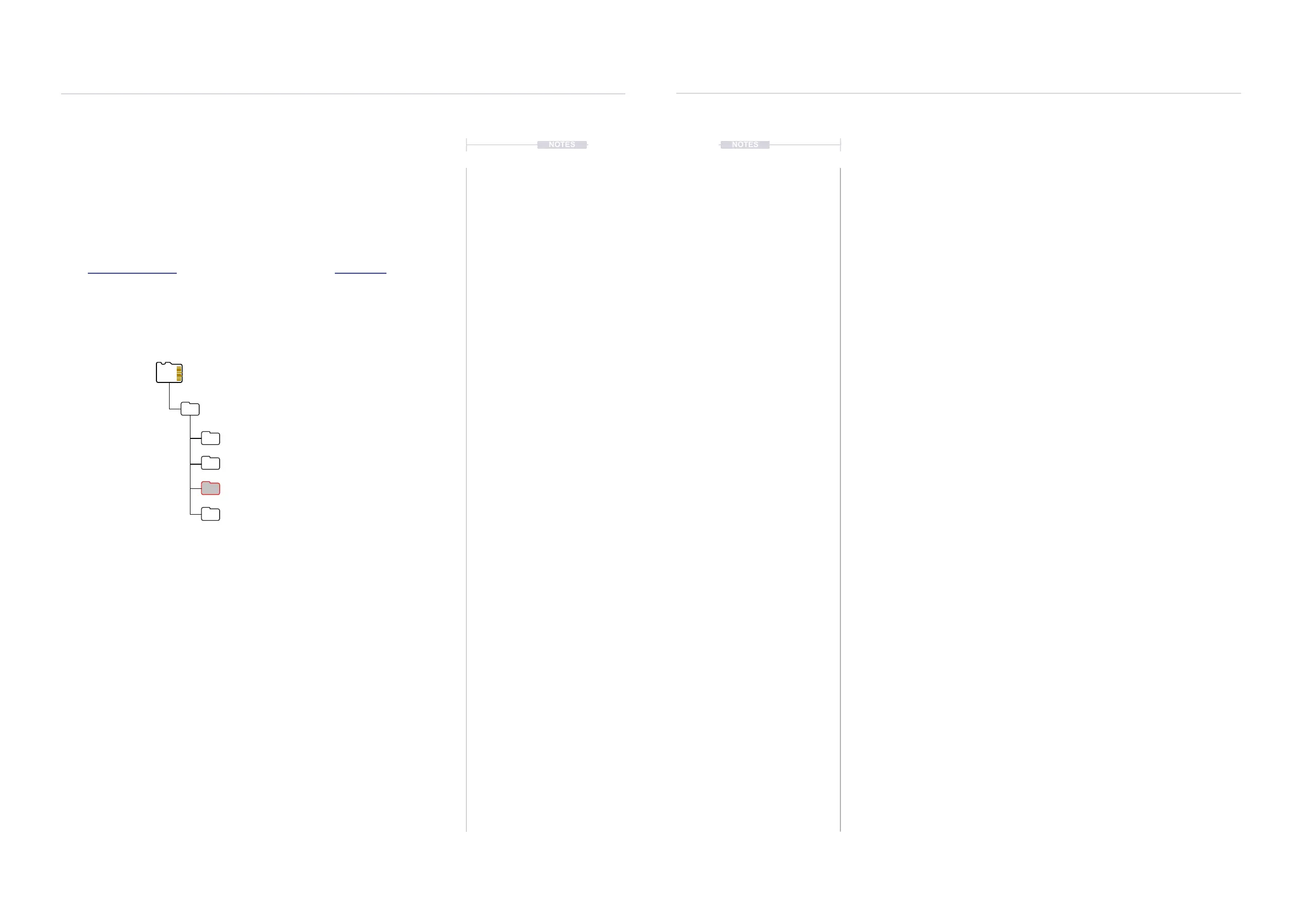
Tracker’s factory wavetable les are located in the samples folders on the
SD Card.
There are many freely available wavetable samples online. Standard
samples can be used but wavetable formatted WAV les provide better and
smoother performance. The most common standard is 2048 Samples /
Frame (256 Frames). This applies to XFer Serum, U-He Hive, Dune, but
others may also exist. Ableton Live Wavetable uses 1024 samples and
down samples when a 2048 format is applied.
Standard audio les may sound ‘stepped’ when navigating the position.
Tracker has an on-board optimisation tool, WT Smoother which will process
a standard sample and help smooth the sound and give better
performance. This effectively converts the le to a more suitable format for
Tracker’s Wavetable Synth. Navigating a processed audio wave will sound
smoother in the transition across positions.
▌ USING WT SMOOTHER TO OPTIMISE SAMPLES
1. Ensure the sample is loaded to the instrument list and selected as
currently active. Note that samples in the instrument list are copied into
the onboard memory from the SD Card.
2. Press [Sample Editor] to select the playback mode. Operations in the
‘Sample Editor’ are performed destructively to the sample in memory.
However the original le is retained intact on the SD Card.
3. Edit the audio le [Start], 1
st
Screen button and [End], 2
nd
Screen Button
and Turn (Jog) to select a part of the sample to process.
4. Press the 7
th
or 8
th
Screen button to navigate to ‘WT Smoother’.
5. Press [Select effect], 6
th
Screen button to select WT Smoother.
6. Press [Window Num], 1
st
Screen button and Turn (Jog) to adjust. This
selects frames. The 256 default is a typical setting to use.
7. Press [Window Len], 2
nd
Screen button and Turn (Jog) to adjust. This
selects sample length. The 2048 default is a typical setting to use.
8. Press [Preview], 7
th
Screen button to audition the audio while editing.
This will need to process the audio before playing. Press [Stop], 7
th
Screen Button again to stop preview.
9. Press [Apply], 8
th
Screen button to apply and render the new audio le.
This converts to a wavetable and can be used in the wavetable play
mode as a smoother more rened option.
10. Save the project to also save the edited instruments in the project
folder. Press [File] then Press [Save], 5
th
Screen Button. Saving the
project also automatically saves the instruments in the instrument
subfolder. These can be accessed from other projects.
Root
Wavetable_2048
/Samples



 To Next Page